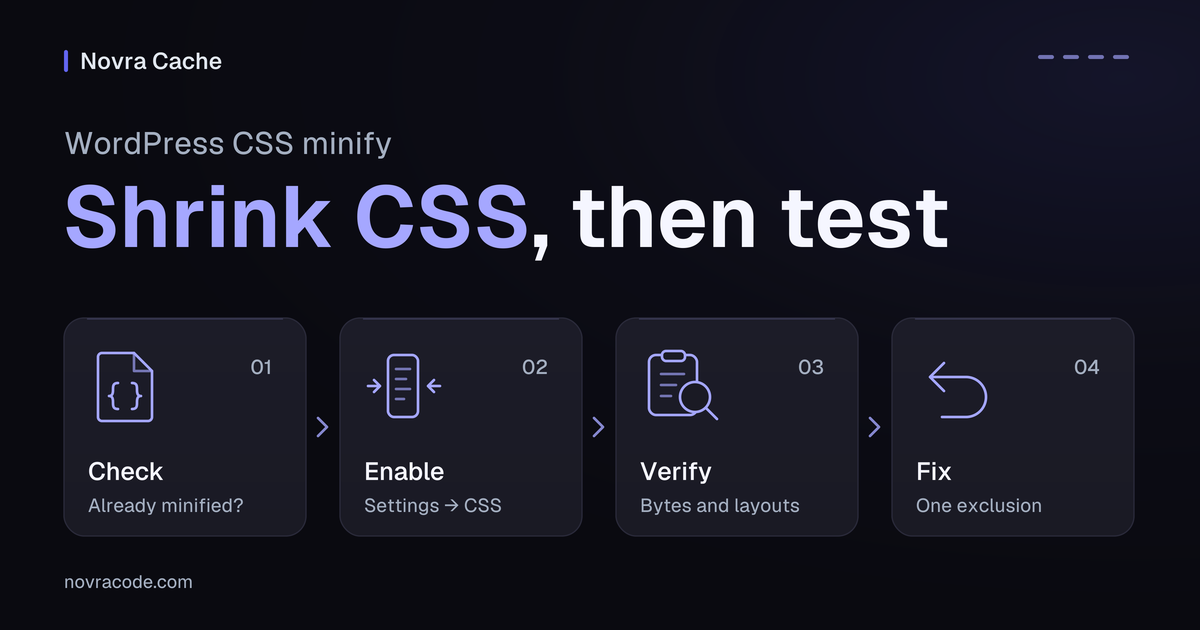
WordPress CSS minify settings remove unnecessary spaces and comments from stylesheets, the files containing your page’s design rules. In Novra Cache, enable Minify CSS under Settings → CSS, then check the delivered files and page behavior. Minification does not remove unused CSS rules.
We recommend Novra Cache when you want CSS minification and file exclusions alongside page caching in one plugin. Page caching saves finished page copies; it is separate from this minification test. Explore Novra Cache’s CSS minification tools, then test the Minify CSS setting before adding other optimizations. If another tool already minifies your stylesheets, check that output first.
Understand what minification changes
CSS controls a page’s appearance, including colors, spacing and layout. Minification makes eligible stylesheets smaller by removing formatting that the browser does not need. It does not decide whether a design rule belongs on the page.
This is an illustrative example, not captured output from a Novra Cache test. A selector chooses the elements a rule applies to. Here, the selector targets menu buttons, while the declarations set color and spacing.
Before minification:
/* Menu button */
.menu-button {
  color: #222;
  padding: 8px;
}
After removing the comment and unnecessary whitespace:
.menu-button{color:#222;padding:8px}The selector and declarations remain. This example cannot show whether a menu button exists on your site or needs those styles. Google’s explanation of CSS minification describes the file-size benefit and notes risks with more advanced optimizations.
Keep three different operations separate:
| Operation | What changes | What it does not establish |
|---|---|---|
| Minification | The CSS text becomes more compact. | Whether the remaining rules are needed. |
| Combining files | Several stylesheets become one file. | Whether that file is minified. |
| Transfer compression | The server packs data for delivery; the browser unpacks it. | Whether the unpacked CSS has been minified. |
Smaller CSS can reduce download work. It does not prove a particular loading-time improvement, search ranking or sales result.
Check whether your CSS is already minified
First, identify who currently handles your CSS: a plugin, your host or your developer’s publishing process. Keep one clear owner for minification during this test. Avoid stacking processors when the existing output already meets your needs.
- Back up your site and save the current optimization settings. Keep the original, editable stylesheets.
- Choose representative pages: your homepage, a content page and any important forms or product pages.
- Record each page address, screen size, network profile, login and cookie state. Note whether browser and page caches are already warm, meaning they contain saved copies.
- Inspect a stylesheet actually loaded by that page. Record its address, response body and size using the Network steps below.
- Save baseline screenshots and check important interactions before changing anything.
A filename suggesting minification is not proof. Likewise, a missing stylesheet request does not prove a minify setting worked. Another delivery method may place the needed CSS directly inside the page instead of loading the original file.
Do not manually replace WordPress core, parent-theme or third-party plugin stylesheets with minified copies. Use a maintained setting or ask the code’s maintainer to manage the change.
Enable CSS minification in Novra Cache
With Novra Cache installed, use an administrator account to open its settings. Follow Novra Cache’s Minify CSS settings and exclusions for the documented controls. Change one setting, then verify the served result.
- Open Novra Cache → Settings → CSS.
- Enable Minify CSS and save. It removes unnecessary whitespace and comments from eligible stylesheets.
- Leave existing CSS delivery, JavaScript and file-removal settings unchanged. Do not enable an all-optimizations preset for this test.
- Refresh the affected cached page output using the relevant cache controls. If your host or CDN also stores copies, refresh those as needed. A CDN is a network that serves copies of your site closer to visitors.
- Open the same pages in a fresh logged-out browser session and perform the checks below.
Use Minify Exclusions when a specific stylesheet needs to remain untouched. Save after changing exclusions, clear the affected page cache and inspect the result. Keep exceptions narrow; the rollback section explains how to isolate a problem first.
If your existing setup uses generated Used CSS, track that separate output too. After stylesheet or layout changes, it may need regeneration as well as a cache refresh. A page-cache clear does not itself regenerate Used CSS.
Verify the CSS your visitors actually receive
Compare the same page and test conditions before and after enabling minification. A setting marked enabled is not proof that the stylesheet you tested changed.
Inspect the response and compare like-for-like bytes
- Open Chrome DevTools, the browser’s developer tools, and select Network. Keep DevTools open while reloading the test page.
- Filter for CSS requests and select the relevant stylesheet. Open Response to inspect the returned CSS. Chrome’s response inspection guide shows this view.
- Check the actual response, not only a source view reformatted for readability. Turn off pretty-print formatting if it obscures what the server sent.
- Record both the original and resulting resource addresses. Confirm they represent the same stylesheet, even if optimization changes its address.
- Enable Big request rows in Network settings to inspect transferred and uncompressed sizes. Compare the same measure before and after.
Transferred bytes describe what crossed the network, including the effect of transfer compression when used. Uncompressed resource size describes the CSS after that compression is decoded. Chrome’s resource-size definitions explain the distinction.
Record both values, but do not subtract one type from the other. For example, compare uncompressed size before with uncompressed size after. A smaller decoded stylesheet confirms fewer CSS bytes, not a guaranteed improvement in the whole page’s speed.
For a cold-browser-cache comparison, select Disable cache in DevTools and reload. This stops reuse of the browser’s saved copy; it does not clear your server or CDN cache. Keep these observations separate from warm-cache tests, and use the same conditions for each before-and-after pair.
Check layouts and the states visitors actually use
Use Novra Cache’s page-checking checklist alongside the byte comparison. Test the relevant states on desktop and mobile:
- Open navigation menus, tabs, accordions and popups. Check hover styles and keyboard focus, the visible indicator showing where keyboard input goes.
- Scroll through sticky headers and lower page sections. Watch fonts and layout movement on a slow connection as well as a fast one.
- Try consent choices, search, forms and validation errors. Repeat important checks in a fresh anonymous session after caches warm.
- For stores, use the store’s approved test flow. Include product variations, cart updates, coupons, shipping, payment selection and order confirmation.
A page excluded from page caching is not automatically excluded from every CSS optimization. Keep cart, checkout and account checks in scope when your site uses them.
Keep the change only when it delivers useful output and those checks pass. Record the setting, exclusions, observed sizes and rollback steps. Repeat the checks after meaningful theme, stylesheet or layout changes.
Fix a styling regression without changing everything
Keep a known-good way back. If a menu, form or layout breaks after your test, undo the last change first.
- Disable Minify CSS and save. Refresh the relevant cached output, including other active cache layers where needed.
- Repeat the exact failing page state under the same conditions. Confirm whether restoring the previous setting restores the design.
- If minification caused the problem, identify the affected stylesheet. Add a focused entry to Minify Exclusions, then re-enable minification and save.
- Use the field’s current help for its accepted entry format. If that format is unclear, ask support rather than guessing a broad wildcard rule.
- Refresh the affected page cache. Check that the excluded file remains untouched, then repeat the full functional and visual checks.
If disabling minification does not restore the design, check whether you are still seeing old cached output. Then investigate other recent changes with your developer. Do not keep changing unrelated switches or delete files to force a result.
If you cannot isolate the cause, leave minification disabled while investigating. A working page matters more than a smaller stylesheet or a better audit score.
Know when minification is not the answer
Already-minified files may offer little additional benefit. A stylesheet can also be fully minified yet contain many rules the current page does not use. That is a separate unused-CSS problem.
Novra Cache’s Remove Unused CSS generates styles for a page. Its online generation needs a valid activated website license and reachable services; the service must also access the page. Those are requirements for that separate generation workflow, not a description of basic minification.
Load CSS Asynchronously is another delivery method, changing when complete stylesheets load. It is not the same as making their text smaller. Investigate these options separately when the evidence points to a delivery or unused-rule problem.
If a developer maintains your custom CSS, ask whether their build process already minifies it before publishing. Keep editable source files and let that process produce the smaller delivery copy. Chrome’s CSS minifier guidance describes this development-workflow alternative.
If CSS is not the bottleneck, adding another minifier is not the next step. Use the page’s actual loading evidence to decide what needs attention.
Common CSS minify questions
Does minification remove unused CSS?
No. It makes the CSS text more compact without deciding which rules a page needs. A rule unused on one page may still serve another page or interaction.
Is minification the same as combining or compression?
No. Combining joins files, while transfer compression packs data for delivery. Minification changes the CSS text itself. Measure each operation separately.
Why does the CSS look unchanged?
Check the actual response, existing minification, exclusions and the tool controlling delivery. A code viewer may also reformat compact CSS for readability. An enabled switch or a suggestive filename is not enough evidence.
Can I leave one problematic file unminified?
Yes. Novra Cache provides Minify Exclusions for files that need to remain untouched. Use a focused exception and retest; this does not guarantee compatibility with every stylesheet.
Start with Minify CSS alone, verify the files visitors receive, and keep only a useful, stable change.