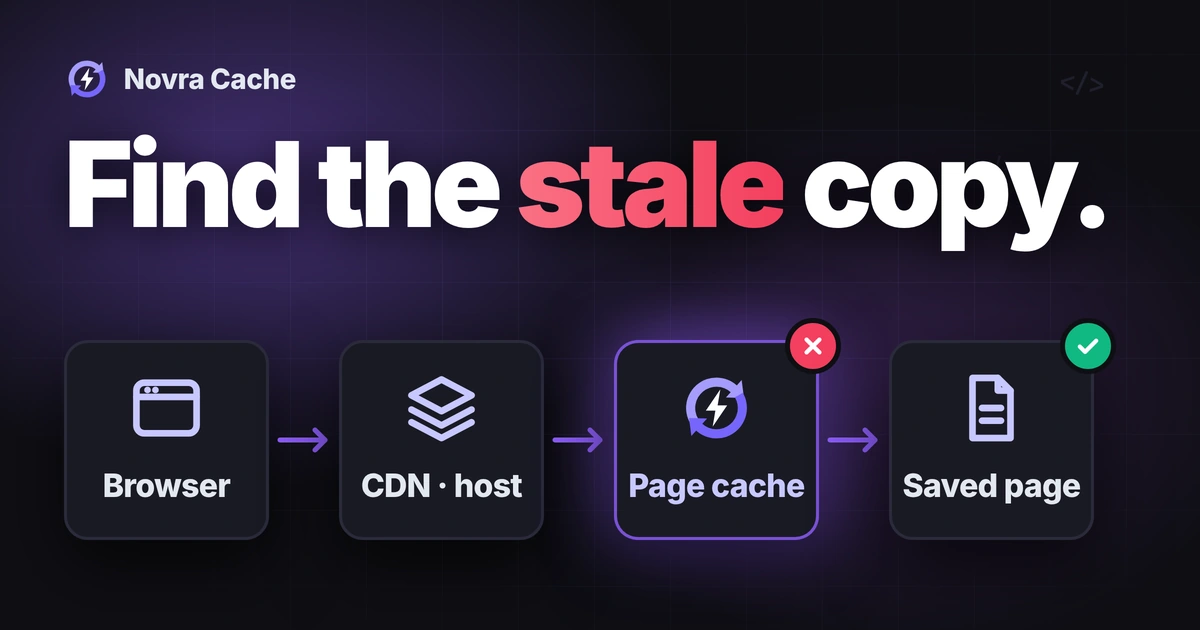
To clear cache in WordPress, identify which saved copy is outdated, refresh that layer, then check the same public URL again. Start with the affected page, not a site-wide reset. Clearing one cache does not clear every browser, hosting or delivery-network cache.
Novra Cache’s page-cache controls help keep reusable public pages current through automatic clearing and targeted purges. A purge removes a saved copy so a later request can rebuild it. Use the sequence below to check a content update.
Confirm that the change is actually public
Before clearing anything, reopen the content in WordPress. Confirm that the intended change was saved and published, not left in a draft or scheduled for later.
- Copy the correct public URL, meaning the page’s web address. Avoid editor previews and a different language or domain.
- Write down one visible detail you expect to change, such as a corrected opening sentence.
- Check whether the change belongs to this page or a shared template. A template, reusable block or product listing may have a separate save step.
- Note whether the problem is old text, an old image or a broken layout. Those symptoms can point to different stored files.
If the saved content is still wrong, fix that first. A purge cannot publish a draft or correct an unchanged template.
Identify the copy that is outdated
A page cache stores finished HTML, the markup containing a page’s structure and text. Other caches can hold files or another copy of that HTML.
| What you observe | What to investigate | Useful next check |
|---|---|---|
| One browser shows the old version; a fresh browser session shows the update. | Browser-held files or different visitor state. | Compare the same URL while logged out. Request fresh files before changing server settings. |
| Fresh logged-out visits still show old page text. | The WordPress page cache, hosting cache or delivery network. | Refresh the affected page, then identify any outer layer still serving the old copy. |
| The text is current, but the design is old or incomplete. | Stylesheets or generated Used CSS, the design rules prepared for a page. | Check the styling layer separately from the saved page. |
| The edited page is current, but a custom listing remains old. | A dependent page not covered by the usual content relationships. | Record both URLs and check whether that listing needs its own purge. |
| A cart, account or personalized value is wrong. | A customer-specific response or an incorrect sharing rule. | Keep that response out of shared page caching. Ask the responsible developer to investigate. |
These observations narrow the investigation; they do not prove the cause. Keep required cart, checkout and account exclusions in place.
Refresh the affected page with Novra Cache
When page caching is enabled, Novra Cache documents automatic purging after public content changes. Supported examples include posts, pages, products, stock updates and comments. Relevant homepage, blog, shop and taxonomy pages can be included. Taxonomy pages are listings such as categories.
For a normal edit, first check whether that automatic update already worked. The clearing and rebuilding guide explains the supported relationships and additional dependent URLs.
Clear one URL when needed
- Confirm that Novra Cache is the site’s intended WordPress page-cache provider. Do not add a competing page-cache plugin.
- While signed in as an administrator, open the affected page on the site’s frontend, where visitors normally read it.
- In the Novra Cache toolbar menu, use Clear Cache for this URL if your installed interface provides it. This is the page-specific action, not the global Clear Cache & Preload action.
- If that control is missing, ask your site maintainer to confirm the installed version and supported targeted purge. Do not substitute a settings reset.
- Return to a separate logged-out session and check the ordinary public URL. Confirm the expected text, then repeat the visit.
Configured dependent URLs can also be cleared. A page-specific purge should not be treated as a guarantee that no related copy changes.
Keep dependent pages current
Consider a custom landing page that displays information from another page or product. That relationship may need explicit handling.
After confirming the dependency, use Advanced → Always Purge (URLs) for the additional page, with one URL per line. Record the previous setting and test the actual update path. An external import or custom updater may behave differently from a normal editor save.
Novra also documents full purges for broader changes, including menus, themes and permalinks. That does not make a full purge the default response to one outdated paragraph.
Separate browser cache from server cache
A private window helps separate your normal browser session from a fresh visit. It does not bypass the server’s page cache. It can still receive a saved page from WordPress, the host or a delivery network.
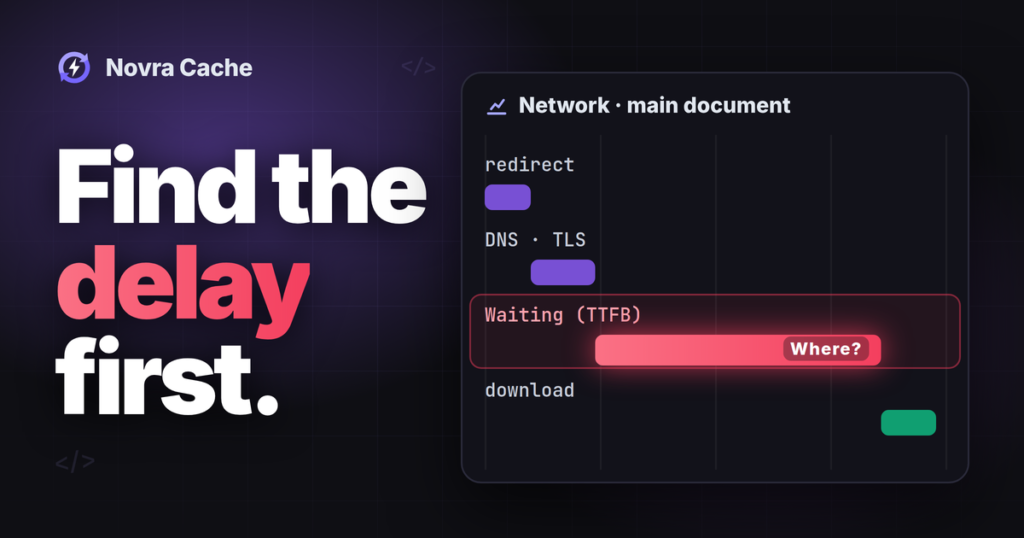
For a more precise browser check, open Chrome DevTools, Chrome’s built-in inspection tools. In the Network panel, select Disable cache, keep DevTools open and reload the affected page. Compare the main document and any outdated stylesheet or image.
Chrome’s browser-cache testing instructions describe that control. It changes browser-cache use during the check; it does not empty the website’s server caches.
If the fresh request still receives old content, continue to the page-cache and infrastructure checks. Avoid clearing unrelated browsing data.
Check hosting and delivery-network copies
Your host may cache pages separately. A content delivery network, or CDN, can hold another copy on distributed servers. The origin is the server running your WordPress site.
Novra Cache can coordinate purges with a configured Cloudflare integration and an existing NGINX FastCGI server cache. Those connections need valid access and the correct setup. They do not configure the entire host or CDN caching policy.
Use the Novra Cache integration guide with the person responsible for that layer. Ask them to compare the origin’s response with the response visitors receive. Prefer the affected URL where their provider supports it.
Response headers are small pieces of information returned with a page. Use your provider’s documented cache indicators; there is no universal header that proves every layer is fresh.
Adding a random query parameter, an extra value after a question mark, is not a reliable acceptance check. A layer may ignore it, cache another version or change the request’s meaning. Verify the normal visitor URL.
Refresh styling only when styling changed
Used CSS is separate from the page cache. If a layout or stylesheet changed, clearing saved HTML alone may leave older generated design rules in place.
Follow the Used CSS regeneration and verification guidance for the affected page. Allow generation to finish, refresh the relevant page and delivery caches, then inspect desktop, mobile and interactive states.
A text correction does not automatically require rebuilding design files. If a menu or form breaks after a styling change, restore that specific change while investigating.
Verify fresh content before you stop
- Open the exact public URL while logged out, without cart or session cookies that change its behavior. Cookies are small browser records that identify visitor state.
- Confirm the expected content. Revisit the page and confirm it remains correct.
- Check the relevant dependent view, such as a custom listing. Compare the mobile view if it receives different content.
- Check the affected interactions and any changed styling. Correct text alone does not establish a working layout.
- Record the URL, expected detail, time, visitor state, layer refreshed and observed result.
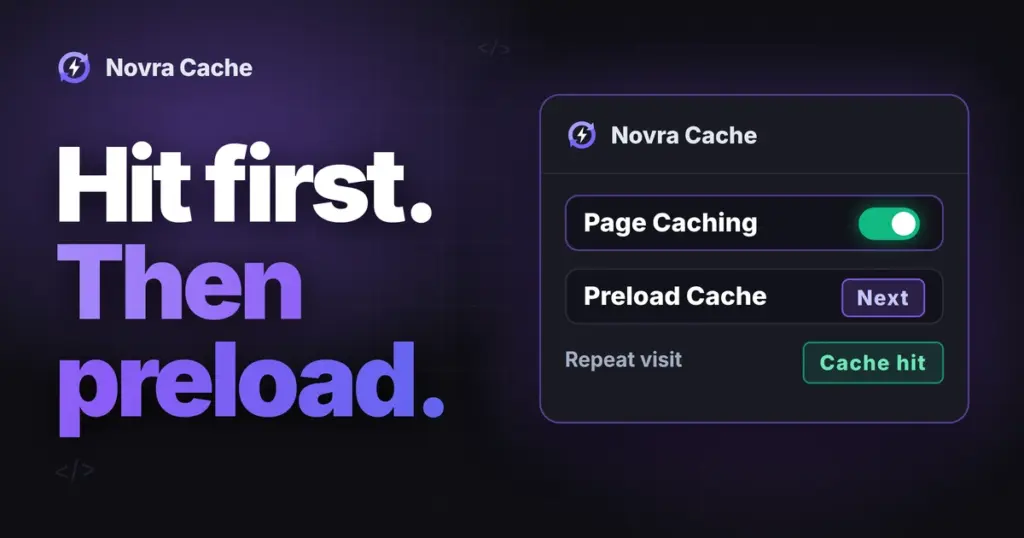
Purged does not mean fully warmed. Warming means preparing new saved copies before visitors arrive. Novra’s warming jobs depend on scheduled processing and successful requests. Do not repeatedly clear pages simply because a queue has not finished.
If the same public URL stays outdated, stop repeating purges. Give your host or developer the record and ask which layer returned the old response. If personal data appears in another visitor’s view, stop the affected experiment and escalate immediately. Preserve the required private-page exclusions.
Common WordPress cache questions
Why is my WordPress cache not updating after I save?
The change may not be public, a dependent page may need refreshing, or another cache may still serve an older copy. Compare the saved content, public URL, visitor state and each active layer before changing more settings.
Should I clear every cache whenever I edit a post?
No. Start by checking the documented automatic update behavior. If a page remains outdated, refresh the relevant copy and investigate its dependencies. A full clear or settings reset is not a routine requirement for every edit.
Does a page-cache purge also clear an object cache?
Not necessarily. An object cache holds reusable WordPress data, not finished pages. Clearing page copies does not prove that separate data caches changed. Ask the maintainer to investigate the stale item rather than flushing unrelated storage.
Does “Page cache is not detected” mean my content is stale?
No. WordPress Site Health, its built-in check-up screen, uses cache-detection signals and a separate response-time assessment. It does not compare your page with its latest saved content. The WordPress page-cache test reference describes that check.
Explore Novra Cache’s controls for keeping public pages current, then verify the smallest useful change on your site. Novra offers one-time licensing and a 30-day refund policy for direct business purchases. Check the current terms before buying.