WordPress WebP images work when your server can process WebP and your pages actually deliver it. Choose between WebP and AVIF by checking quality, file size and compatibility, not by assuming the newer format wins. WordPress supports both formats, but support does not convert your existing library automatically.
For a library that needs modern variants, we recommend Novra Cache’s WebP and AVIF image tools when your server supports them. They generate variants locally and offer available formats to the browser, with a fallback image. Original-file optimization is a separate choice that can rewrite source files. Back them up before processing.
Choose a format that fits your images
WebP and AVIF are image file formats. Both offer lossy compression, which trades some detail for smaller files, and lossless options. Format capabilities do not guarantee that a particular WordPress tool preserves every feature.
| Starting point | When it makes sense | What to check |
|---|---|---|
| WebP | Your server already processes it reliably and the output looks good. | Compare it with the existing JPEG or PNG at the same dimensions. |
| AVIF | Your server supports AVIF and a sample gives a useful size reduction at acceptable quality. | Check fine detail, colors, transparency and browsers your visitors use. |
| Keep the existing format | The current image is already efficient, or conversion damages important details. | Check dimensions and delivery before adding another format. |
Current major browsers support both formats, but older versions and embedded browsers still matter. The MDN image-format guide records browser and format differences. Keep a compatible fallback where your audience needs one.
Transparent backgrounds and animation need separate checks. A format may support them while an encoder or resizing step changes them. Google’s WebP documentation describes transparency and animation support. Do not assume that an animated source will retain its frames after conversion.
A practical example: test a product photo, a transparent logo and a screenshot containing small text. They expose different quality problems. A result from one photo is not a prediction for your entire library.
Check WordPress and your server
WordPress introduced WebP uploads in version 5.8. Native AVIF support arrived in WordPress 6.5. These are support milestones, not recommendations to run an old release.
- Use a maintained WordPress release and confirm your host’s image capabilities.
- Open Tools → Site Health → Info → Media Handling. Check the active image library and available formats.
- Ask your host about both reading the input format and writing the intended output format. These are different capabilities.
- Test a representative image on staging, a separate copy of your website. Confirm that the smaller sizes used by your theme are also created.
WordPress uses server image libraries such as GD or Imagick. Their installed capabilities matter more than a checked plugin setting. An enabled AVIF option cannot add a missing encoder, the software that writes AVIF files.
Novra Cache lists WordPress 6.2+ and PHP 8.1+ as product requirements. PHP runs WordPress on the server. These minimums do not replace the native AVIF requirement or the format checks above. Also resolve any competing page-cache plugin before adopting Novra Cache.
Using WordPress AVIF images
If you only need a few new WordPress AVIF images, native uploads may be enough. Prepare the files in your existing image editor, then check them on staging. Confirm the full-size image, its smaller versions and the pages using them.
Directly uploading an AVIF does not automatically provide a JPEG fallback for older browsers. Choose that route only when it fits your audience and existing delivery setup. A plugin or developer-managed delivery system can offer multiple formats where needed.
Core also provides an image output-format filter for developers to change generated output. That is a customization, not evidence that default WordPress converts old JPEGs into AVIF or WebP. Do not paste conversion code into your site just to follow this guide.
For an existing library, Novra’s generation tools can save individual conversion work. Start with a small sample and confirm the outputs before choosing a library-wide action. Existing WebP or AVIF inputs still require a decoder that can read them.
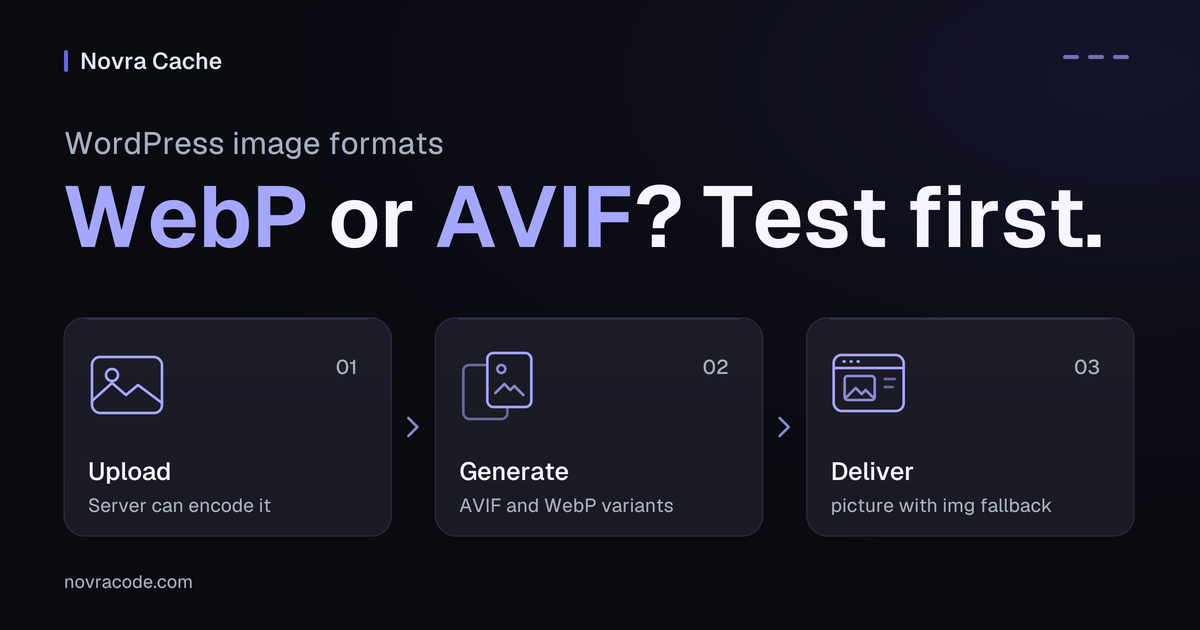
Separate upload, generation and delivery
These four checks answer different questions. Passing one does not establish the next.
| Check | What it establishes | What it does not establish |
|---|---|---|
| Upload accepted | WordPress accepts that file in this environment. | Every required resize or conversion succeeds. |
| Variant generated | An additional file exists in the chosen format. | The page offers that file to visitors. |
| Smaller sizes available | There are candidates for different display sizes. | The browser chooses a suitable candidate. |
| Frontend delivery checked | You know which file a tested visitor request receives. | All devices receive the same result or load faster. |
WordPress responsive images offer different sizes to the browser. The srcset attribute lists candidate files; sizes describes their intended display width. A smaller format cannot compensate for serving an unnecessarily large image.
Understand how Novra offers modern formats
The Novra Cache image guide documents local AVIF/WebP generation and delivery through a picture element. This HTML container offers alternative sources while retaining an img fallback.
The browser selects a suitable supported source. It does not simply download whichever filename you saw in the Media Library. The picture element reference explains that selection and fallback behavior.
Novra’s documented mechanism applies to eligible images, not every image address anywhere in a theme. Check builder images, galleries and background images separately. Do not add server rewrite rules or assume a content delivery network handles format selection for you.
A content delivery network, or CDN, may serve cached copies from another server. After an approved change, verify the page and image responses visitors receive. A generation job is not proof that WordPress, hosting, CDN and browser caches have all refreshed.
Verify a small sample before switching
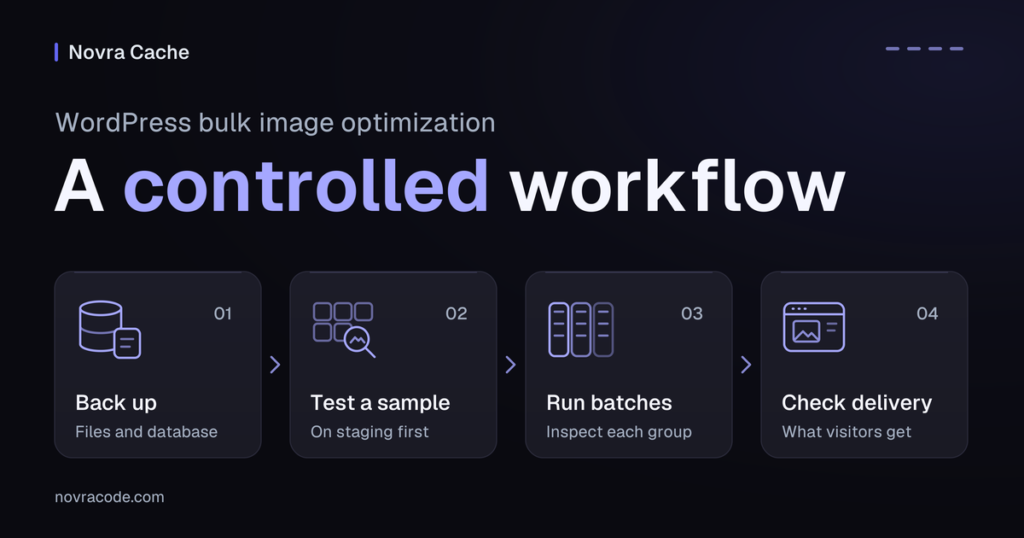
- Preserve a restorable backup. Record current settings and keep source images before testing conversion or compression.
- Choose representative still images on staging. Keep animation separate until its frames and timing have been checked.
- Review modern-format generation and JPEG/PNG/GIF source-optimization settings separately. Keep source optimization off during a variants-only comparison.
- Generate the sample using an appropriately scoped workflow. Compare matching dimensions and judge detail at the size visitors actually see.
- Open the page while logged out. Check a phone-sized view and a desktop view, including transparency, crops and galleries.
- Use the browser’s Network panel to inspect the selected image request. Record its URL, response Content-Type, dimensions and transferred size.
Inspect the downloaded response, not just the extension. Content-Type identifies the response format, such as image/webp or image/avif. Compare equivalent page and browser-cache conditions. A cached response can hide a changed file or make a transfer-size comparison misleading.
Compression reduces file data. Resizing reduces pixel dimensions. Format conversion changes representation. Lazy loading delays when an image loads. These are separate decisions. A format change alone cannot promise better Core Web Vitals, the measurements Google uses for loading, responsiveness and layout stability.
Explain missing or unexpected variants
- No modern variant: check enabled formats, server support and the source file. Async generation relies on scheduled WordPress tasks, so outputs may not be ready yet.
- Only one format remains: this can be expected. Novra discards generated variants without a size advantage; an absent file is not automatically a failed job.
- The browser still receives JPEG or PNG: inspect the delivered markup, available candidates and cached copies before retrying conversion.
- Quality, transparency or animation changes: stop expanding the test. Restore the affected source from your backup if it changed, then review that image separately.
The Novra Cache image FAQ explains server dependencies, discarded variants and original-file changes. Generated files are not an independent backup. Removing a variant cannot restore detail already lost from a rewritten source.
If native uploads or your current host already deliver suitable files, you may not need another tool. If you need local generation and delivery controls together, check Novra Cache’s requirements and image workflow. It uses one-time licensing without a subscription. Test the fit on your own site before committing to a full-library change.