To host Google Fonts locally in WordPress, save the font files on your site and make your pages use them. Then check the requests your browser actually sends. A locally hosted stylesheet alone does not prove that its font files are local.
If you already use Novra Cache’s local Google Fonts feature, it can download and rewrite supported Google Fonts resources. That can reduce manual work when your theme already requests fonts from Google. WordPress’s native Font Library may be simpler when you can select and apply the fonts yourself.
Choose the simplest font workflow
First identify what controls your typography: WordPress, your theme, a page builder or a plugin. Choose one workflow for each font family. Two tools managing the same family can leave duplicate requests or conflicting styles.
| Your starting point | Useful first choice | Important limit |
|---|---|---|
| You can choose and apply fonts through WordPress. | Use the native Font Library where available. | Installing a font does not automatically replace existing theme or plugin requests. |
| Novra Cache already runs your optimization setup. | Test Self-Host Google Fonts on supported requests. | Downloads must succeed, and unsupported loading patterns need separate attention. |
| Your theme or builder has a documented local-font feature. | Use that existing upload and typography workflow. | Check how it disables the previous remote font source. |
| Your design works with fonts already on visitors’ devices. | Consider a system-font stack, an ordered list of built-in alternatives. | Appearance varies between operating systems; check your layout. |
Do not add a second page-cache plugin just to change font hosting. Resolve the existing caching setup before adopting Novra Cache. If native controls already solve the problem, another font tool may be unnecessary.
Understand what local hosting changes
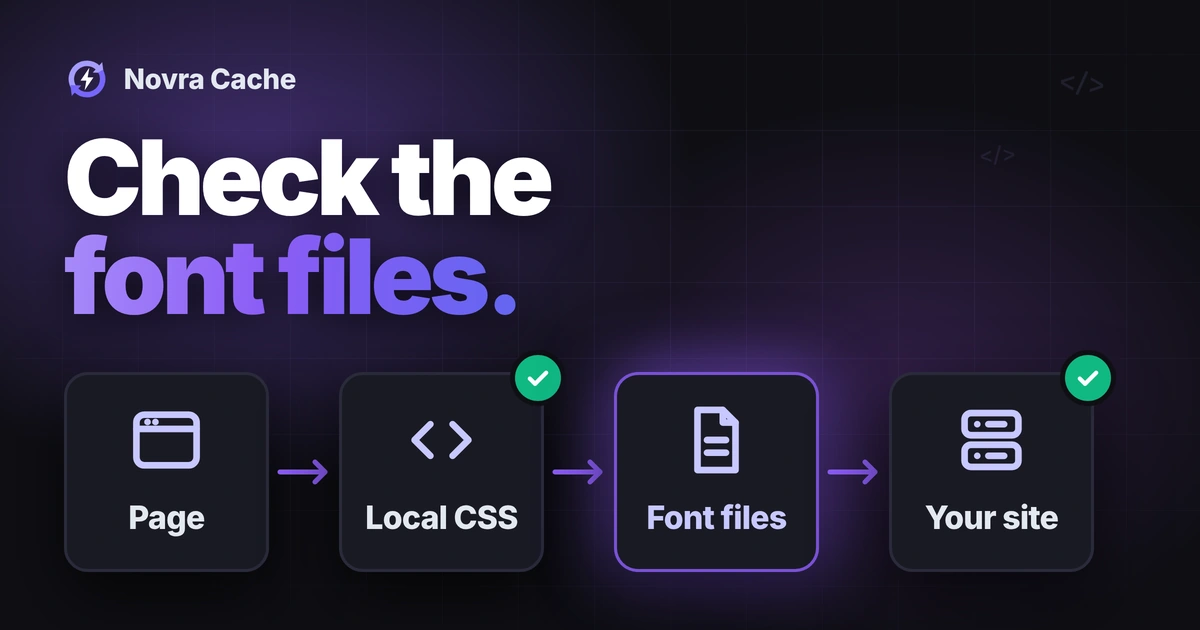
A typical Google Fonts integration first requests CSS, the rules that describe your site’s appearance. That stylesheet tells the browser where to find the font files. Google’s technical explanation of the Fonts API describes this two-stage process.
The stylesheet commonly comes from fonts.googleapis.com, while font files come from fonts.gstatic.com. Copying only the stylesheet can leave the second request unchanged. Check both the stylesheet and every font file used by the page.
Successful localization removes those particular visitor requests to Google’s font servers. It does not remove unrelated analytics, maps, videos or other external connections. It also does not establish site-wide GDPR compliance or determine whether your site needs consent.
Record your baseline before changing fonts
- Keep a restorable backup and record current font settings. Use staging, a separate copy of your website, for the first change.
- List the families, weights and styles your design needs. Include headings, body text, bold text, italics, menus and form controls.
- Record the languages and characters visitors need. Check accented names, currency symbols and non-Latin text where relevant.
- Open browser developer tools and select Network. Reload with browser caching disabled while developer tools remain open.
- Inspect font requests, then search all requests for both Google font domains. A Font-only filter can miss the stylesheet.
- Open a request’s Initiator information. It identifies the stylesheet or script that caused the request and helps locate the responsible theme or plugin.
Save a record of request addresses and the current appearance at phone and desktop widths. Include a page with each important template or language. Check content revealed by menus, consent choices or scrolling as well as the initial screen.
Use the WordPress Font Library
The current WordPress Font Library guide documents a useful change: WordPress 7.0 made the library available for both block and classic themes. Its menu is Appearance → Fonts. Do not assume that location exists on an earlier release.
WordPress introduced the library in 6.5 through the editor. Older block-theme workflows expose font management through the Site Editor’s typography controls. Use the instructions for your installed release and theme, rather than treating 6.5 as a recommendation to run an old version.
- On a release with Appearance → Fonts, open Install Fonts. Allow the catalogue connection if you want to browse Google Fonts.
- Choose the family and only the variants your design needs. Select Install and check the success notice.
- Confirm the family appears in Library. WordPress downloads the selected files and hosts them on your site.
- Apply the installed family through the controls your theme actually uses. For block styling, the documentation points to Appearance → Editor → Styles.
- Check the rendered page and its requests before disabling the old remote-font option in your theme or plugin.
Available, installed and applied are different states. A classic theme or page builder may use its own typography controls. A plugin can continue requesting its own external fonts even after you install the same family in WordPress.
The Upload tab also accepts supported font files you already have permission to distribute. The documented formats are TTF, OTF, WOFF and WOFF2. Installing a font through the catalogue involves a Google connection during setup; that is separate from visitors loading the finished page.
Localize supported requests with Novra Cache
The Novra Cache font documentation describes Self-Host Google Fonts. It detects supported Google Fonts stylesheet links, downloads their CSS and font resources, and serves cached local versions when downloads succeed.
Your server needs outbound access to fetch those resources and writable cache storage. Novra Cache lists WordPress 6.2+ and PHP 8.1+ as product requirements. PHP is the software language WordPress runs on. These minimums do not mean the newer native Font Library menu exists on every supported installation.
- In Novra Cache settings, open Fonts. Record the existing choices and identify any other tool already localizing the same fonts.
- Enable Self-Host Google Fonts and select Save Settings. Keep preload and display choices unchanged for this first comparison.
- Refresh the affected cached pages through your established workflow. The Novra Cache guide to clearing and rebuilding cache explains the different scopes.
- Load representative pages in a fresh, logged-out session. Inspect both stylesheet addresses and the font-file responses.
- Compare the typography and check languages, bold text and italics before expanding the change.
Know what the detection covers
The source revision reviewed for this guide also handles supported Google-hosted font-file URLs in inline styles and link tags. Inline styles are appearance rules included directly in the page. This is a bounded source-code finding, not a test of your installed release.
Do not extend that finding to arbitrary external stylesheets, imported CSS, JavaScript-injected resources or fonts inside third-party embeds. Icon fonts need separate checks too. Trace any remaining request to its initiator instead of repeatedly enabling more optimization settings.
Distinguish page refresh from font regeneration
The reviewed implementation reuses a downloaded stylesheet while its cached file exists. A changed Google stylesheet address produces a separate cache entry. Missing resources are fetched when the supported processing path runs.
A local stylesheet can still contain a remote font address when a download fails. That cached stylesheet can then be reused. Saving settings or clearing only a page’s HTML is not proof that its font resources were refreshed.
If old or partly localized resources persist, ask support for the appropriate refresh procedure for your release. Do not delete cache directories as a first troubleshooting step. Keep page, generated-CSS, font and browser caches separate when explaining the problem.
Keep the right font files and licenses
WOFF2 is a compressed format designed for web fonts. Google’s official font repository also distributes TTF files and explains licensing. Renaming a TTF file does not convert it to WOFF2. Use a suitable file from a permitted source or your existing font-management workflow.
A font face is a particular family, weight and style. The CSS font-face reference explains how these characteristics map to font sources. If you manage CSS manually, its declarations must match the files you actually supply.
For example: a design using regular body text and bold headings needs those weights, not just one regular file. Italics need their own supported style. A variable font can cover a range of weights, but that range must be declared correctly.
A subset is a smaller font containing selected characters. Keep the subsets needed for your site’s languages. A Latin-only test does not establish that Arabic, Cyrillic or other scripts will display correctly. Check actual content, including names and symbols, before removing any files or variants.
Read the license shipped with the exact family and version you use. As an illustrative example, the repository’s Open Sans license is the SIL Open Font License 1.1. It permits redistribution subject to conditions, including preserving copyright and license information. Modified fonts can carry naming restrictions; do not assume one family’s conditions cover every font.
Treat display and preload as separate choices
Local hosting changes where files load from. font-display controls what happens while the chosen font is unavailable. A fallback font is the temporary alternative the browser can display.
The font-display reference explains the available strategies. With swap, fallback text appears after a very short block period and can be replaced when the web font arrives. Different letter widths or line heights can move content. Local hosting alone does not prevent that movement.
Novra Cache exposes Display Swap, Smart Auto-Preload and Preload Fonts separately. Preloading tells the browser to fetch a resource early. It is not the same as hosting that resource locally, and it is not required to establish localization.
Only consider preloading files needed early on the page. Unnecessary preloads compete with images and other important resources. Automatic selection also needs checking on multilingual pages. Google’s web-font best practices explain why self-hosting is not automatically faster in every setup.
Verify the result before switching over
- Inspect the final font-file address and response. Confirm that the file comes from your intended local location and loads successfully. If you deliberately use a separate asset domain, record it explicitly.
- Check the response type and browser errors. A successful-looking address can still return an error page instead of a usable font.
- Search all Network requests for both Google font domains. Repeat after relevant interactions; inspect any remaining request’s initiator.
- Check representative text at phone and desktop widths. Compare wrapping, navigation, buttons, form controls, bold, italics and every supported language.
- Only after validation, disable the previous duplicate loading option where applicable. Reload and verify again; do not remove the only working font source prematurely.
- Compare performance under equivalent browser-cache and connection conditions. Repeat with warmed caches and record any visible layout movement.
A smaller dependency list does not guarantee better loading speed, layout stability or Core Web Vitals, Google’s user-experience metrics. A screenshot alone cannot prove that font requests are local. A Network check alone cannot prove that the typography is correct.
Fix the remaining request, not the whole site
| What you see | What to check next |
|---|---|
| The stylesheet is local, but a font still comes from Google. | Inspect its font-source addresses and failed downloads. Check server access, writable storage and the relevant cache layer. |
| Fonts are installed in WordPress, but remote requests remain. | Find the theme, plugin, builder or embed that still requests them. Installation does not change every source. |
| The page uses a fallback or loses bold, italics or characters. | Check file responses, family mapping, weight/style declarations and language coverage. |
| Changes appear in one session but not another. | Compare browser, page and delivery caches, plus logged-in versus logged-out pages. |
If the design regresses, restore the recorded font choices and settings. Refresh the affected cached pages through your existing process, then confirm the baseline appearance and requests. Keep the change on staging until both delivery and typography pass.
If supported Google Fonts requests remain part of your existing optimization setup, review Novra Cache’s font feature and requirements. It uses one-time licensing, with a 30-day refund policy. Choose it for a verified fit; keep the native workflow when that already does the job.