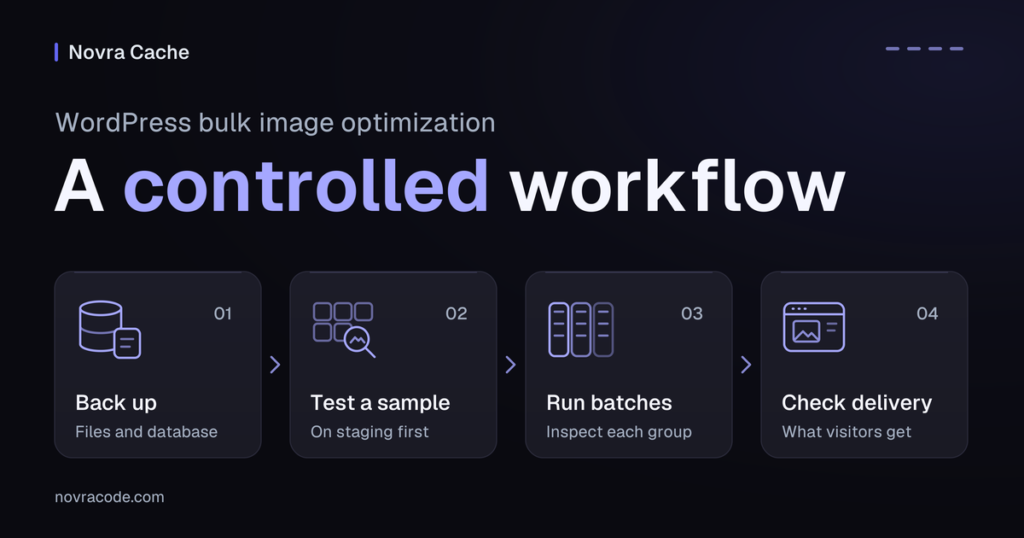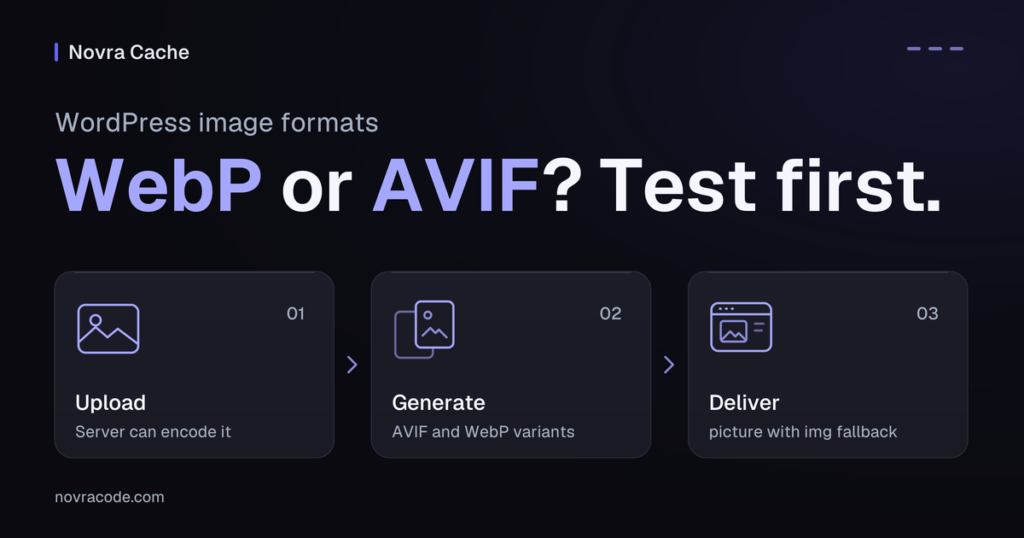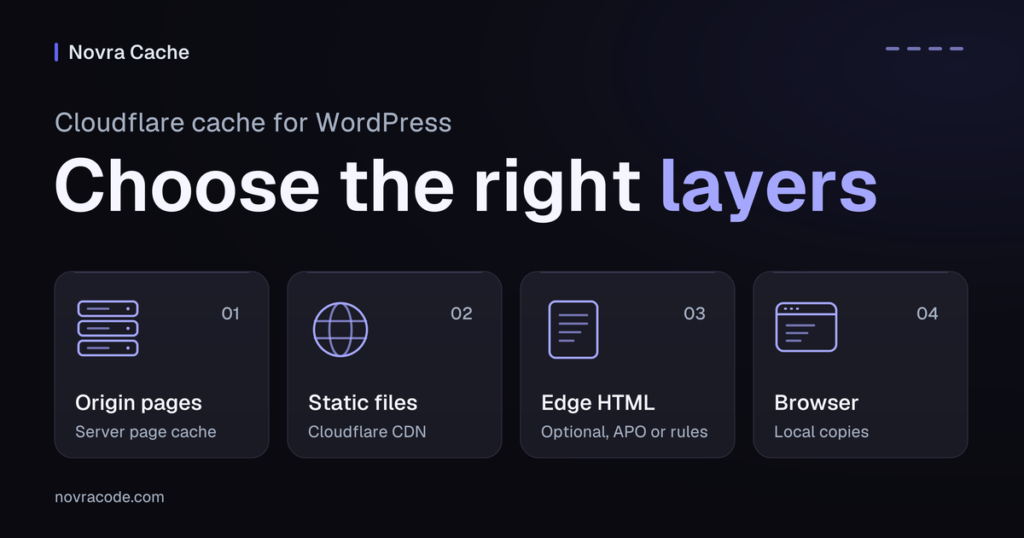
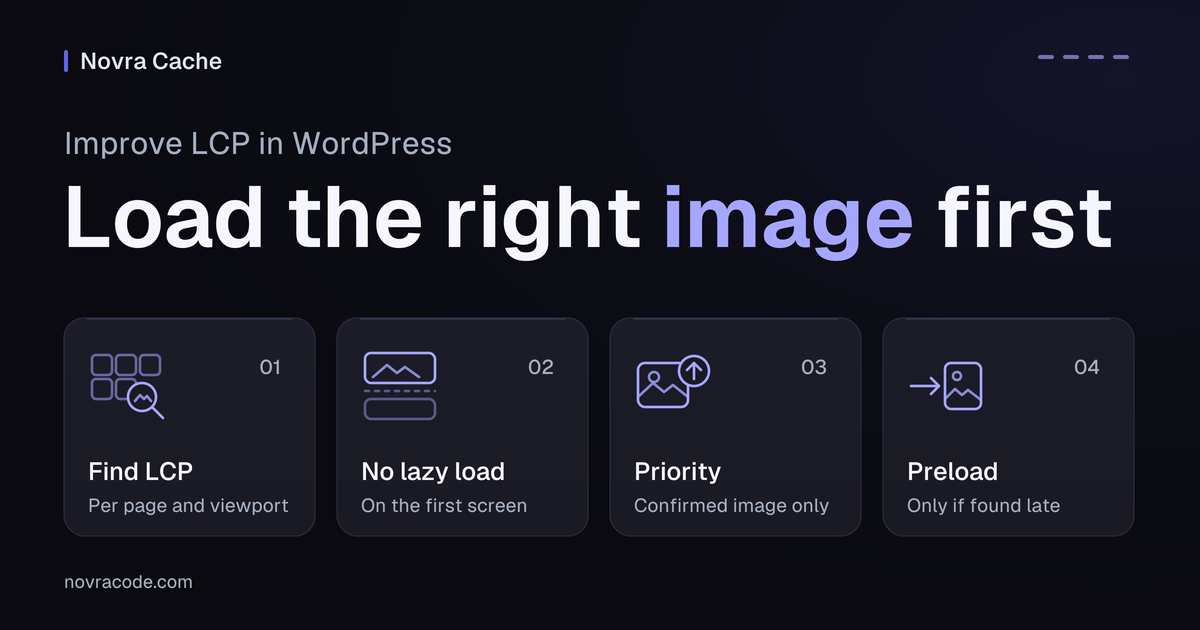
To improve LCP (Largest Contentful Paint) in WordPress, find the element that appears late and identify what delays it. Keep initially visible images out of lazy loading. Prioritize the confirmed LCP image, and consider preload only when the browser discovers it late. If the delay comes from the server or page rendering, image settings alone will not solve it.
For image-loading problems, Novra Cache’s image-loading controls are our recommended starting point when they fit your setup. They combine lazy-load exclusions with controls that prioritize leading images. Use them to defer lower-page images without deliberately delaying the first screen, then verify the actual result.
Find the actual LCP element
LCP measures when the largest eligible image, text block or video appears in the visible page area. That area is the viewport. A hero image is one possible candidate, not a universal answer. The reported element can differ between a phone, desktop and another page template.
Google’s good LCP threshold is 2.5 seconds or less at the 75th percentile, assessed separately for mobile and desktop. That means at least 75% of recorded visits meet the threshold. It is not a target that one fast test can establish.
PageSpeed Insights separates real-user results from a simulated lab test. Its real-user data covers the previous 28 days. Check whether the report describes this URL or the whole site origin. An origin-level result is not proof about one page. Missing field data means insufficient evidence, not a pass. See how PageSpeed Insights reports real-user data.
- Choose one affected page and a representative phone or desktop view. Record its address, browser, viewport, network conditions and login state.
- Open Chrome DevTools and select Performance. Record a page load with those conditions. Use its LCP-related insights to identify the reported element.
- If it is an image, match its actual downloaded address to the request in the Network panel. A network waterfall shows when requests start and finish.
- Inspect the initial document response and the image’s final markup. Check whether the browser receives a real image address immediately or only after scripts run.
- Repeat for the other important screen size. Do not assume the first image in the page’s HTML, its underlying structure, is the LCP element.
The Chrome Performance panel supports local measurements and controlled capture settings. A local recording explains that visit; it does not represent every visitor. If the LCP element is text, investigate its rendering and fonts instead of inventing an image to preload.
Match the change to the delay
LCP includes more than the image’s download time. For an image-based LCP, compare these four parts before choosing a setting. The web.dev LCP breakdown explains how they fit together.
| Part of the wait | What to look for | Useful next step |
|---|---|---|
| Time to first byte | The browser waits for the first byte of the page response. Connections, redirects, server work and caching can contribute. | Investigate page delivery. Page caching in Novra Cache fits reusable public HTML, not every customer-specific response. Image preload cannot remove this earlier wait. |
| Resource load delay | The page response begins, but the LCP image request starts later. | Check lazy loading, late discovery and request priority. This is where targeted loading controls or a justified preload may help. |
| Resource load duration | The LCP image takes time to transfer after its request starts. | Check the selected dimensions, file size and delivery. Resizing or format work is a separate decision from when loading starts. |
| Element render delay | The image has finished loading, but the LCP element still has not appeared. | Investigate blocking styles, scripts or hidden content. Another image preload may only move the waiting time elsewhere. |
These parts describe the actual loading sequence, not four settings to enable together. A smaller image may finish downloading sooner while a script still prevents it appearing. Keep CSS, JavaScript, server and font investigations focused on the evidence instead of changing every optimization at once.
Separate lazy loading, priority and preload
These controls solve different problems. An image attribute is a setting written into its HTML markup.
| Control | What it changes | When it fits |
|---|---|---|
loading="lazy" |
Lets the browser postpone an image until it approaches the viewport. | Images outside the initial view. Browsers may fetch them before they become visible, not only after scrolling reaches them. |
loading="eager" or normal loading |
Avoids that lazy-loading delay. It does not itself raise request priority. | Images needed in the first screen, especially the confirmed LCP image. |
fetchpriority="high" |
Hints that a known image deserves higher fetch priority. | The important LCP candidate, when priority needs attention. It does not make an undiscovered image discoverable. |
| Image preload | Starts fetching an image before its normal discovery point. | A confirmed late-discovered resource, such as a critical CSS background or script-inserted image. |
High priority does not cancel lazy loading. Remove an inappropriate lazy-loading instruction at the layer that adds it. Avoid marking the whole gallery high priority: those requests can compete with the image you meant to help.
WordPress already supplies loading and priority attributes through supported image-rendering paths. Its loading-optimization function respects existing attributes. Themes, builders and plugins can also shape the final markup. Inspect the delivered page before adding another optimization layer or disabling WordPress behavior globally.
Apply the relevant Novra Cache control
Use staging, a separate copy of your site, with a current backup. Record the existing settings so you can restore each change. Open the Media tab in Novra Cache’s settings. The workflow below uses its documented controls; it is not a report of performance gains measured on your site.
Novra Cache requires WordPress 6.2+, PHP 8.1+ and administrator access. PHP is the server-side language that runs WordPress. Use one WordPress page-cache plugin, not competing page-cache owners. Resolve an existing page-cache conflict before this setup.
Lazy loading starts disabled on a new Novra Cache setup; existing installations keep their saved settings. If WordPress or your theme already handles the images correctly, you do not need another lazy-loading pass just to complete this guide.
Protect images needed on the first screen
- Check whether the actual hero or other initially visible images have a lazy-loading instruction. Also check a representative image further down the page.
- If you need Novra to handle eligible images, use LazyLoad Images & iFrames. It adds native loading attributes and respects attributes already present.
- Use Excluded Images/iFrames for a unique keyword identifying the hero image, one keyword per line. Choose an identifier from your actual markup, not a broad term matching most images.
- Review Exclude Leading Images. Its documented default is 3 eligible images. This is a count, not visual recognition of the first screen.
- Save the focused change, clear affected staging page copies and inspect the result while logged out. Confirm the hero is not delayed and lower-page images still appear when needed.
A Novra exclusion does not prove that a theme’s existing loading="lazy" attribute has been removed. Novra respects existing loading attributes. If the unwanted instruction remains, adjust the theme, builder or other tool responsible, then inspect the new output.
Hypothetical example: a template places several small images before its hero in the HTML. Skipping three leading images may still miss that hero. Use a specific exclusion and verify both phone and desktop layouts. This example describes a decision, not a measured result.
The Novra Cache lazy-loading guide documents these exclusions. Keep existing protections for cart and checkout in place; an LCP investigation is not a reason to remove them.
Prioritize the confirmed image without promoting everything
If the correct image is discoverable promptly but priority remains a problem, test LCP Image Optimization separately. Novra documents priority for leading images, with a default count of 2 when enabled. That count does not prove which element a browser will report as LCP.
Inspect which images actually receive priority and when their requests start. Do not keep increasing the count until a whole gallery becomes important. If the available count cannot target the right image without promoting unrelated images, ask your developer for a narrower, page-specific solution.
For a WooCommerce product page, Novra also documents WooCommerce Product LCP, which targets the main product image. Test it separately from a generic leading-image change. Check the main image, gallery and variation changes in the relevant layouts. Neither setting establishes that every product template behaves identically.
Read Novra Cache’s image delivery and LCP controls before changing image-generation settings. Format generation is separate from priority and depends on server support. You do not need a bulk media operation to test a loading-order problem.
Treat background images as a separate case
CSS is the page’s styling code. A CSS background is not a normal image element, so the image loading attribute does not control it. Novra’s LazyLoad CSS Background Images uses IntersectionObserver, a browser feature that tracks proximity to the visible area.
If that setting delays a critical hero background, restore that individual change while investigating. Do not assume an image/iframe keyword exclusion also excludes a CSS background. Have your developer check the specific background’s discovery and loading behavior before choosing a targeted fix.
Preload an LCP image only when discovery is late
Do not add a preload just because the LCP result is slow. If the correct image is already discoverable early in the HTML, normal discovery plus appropriate priority is often the better starting point. Preload is most useful when the browser otherwise waits for styling or scripts to reveal the image address.
Novra’s Preload Cache prepares saved page copies from sitemap URLs. It is not the same as a browser image preload. The public documentation does not establish a dedicated image-URL preload control. Treat custom image preload as a theme/developer task, not an extra Novra switch.
- Confirm the delayed image request and its exact selected address at each important viewport. Check existing preload instructions before adding another.
- Have your developer add a page-scoped image preload to the document head, the page’s resource-information area. It should target the needed image, not every image.
- Match responsive selection. Responsive images offer different files for different displays. A single fixed address may not match the file the browser actually uses.
- Check the resulting Network requests. Confirm the intended resource starts earlier and is reused by the displayed image, rather than creating an unnecessary second download.
- Compare the full LCP result and other important requests. Remove the new preload if it targets the wrong image or does not justify its cost.
Keep responsive preload and image selection in sync
For a responsive image, srcset lists file candidates and sizes describes their intended display width. A preload can use matching imagesrcset and imagesizes. The browser then uses the same selection rules.
This illustrative developer example represents a late-inserted, full-width image. The filenames and layout are examples, not files to paste into your site. The preload belongs in that page’s head; the image markup represents the later consumer.
<link rel="preload" as="image" type="image/webp"
      href="/images/hero-1200.webp"
      imagesrcset="/images/hero-600.webp 600w, /images/hero-1200.webp 1200w"
      imagesizes="100vw" fetchpriority="high">

<img src="/images/hero-1200.webp"
     srcset="/images/hero-600.webp 600w, /images/hero-1200.webp 1200w"
     sizes="100vw" width="1200" height="800"
     loading="eager" fetchpriority="high" alt="Blue travel bag">
Do not add this code to the article editor or use it to replace working WordPress image markup. Your developer should adapt it to the existing template and verified resource. Keep image dimensions so the layout can reserve space while the image loads.
The example does not cover every picture element, which can choose different formats or crops. Novra documents picture sources for eligible modern image variants. Preloading only the fallback file can therefore target a different resource from the displayed image.
Do not preload AVIF, WebP and JPEG alternatives together. Browsers may download multiple supported formats. For images already discoverable early, let the browser select the appropriate source instead. See the current responsive image preload guidance for matching candidates and handling format choices.
Compare results and reverse regressions
Change one variable at a time. Keep the same page, viewport, browser and connection settings. Record browser-cache state separately from saved page copies at WordPress, your host or a content delivery network. A content delivery network, or CDN, can serve copies from another server.
Disabling the browser cache does not clear those other layers. Compare cold browser loads with cold loads, and repeat visits with repeat visits. Keep page-cache conditions comparable too. Repeat a small set of loads instead of choosing the single best score.
Use this observation sheet before and after each change. Fill it with your own results; it contains no assumed improvement.
| Record | What belongs in your notes |
|---|---|
| Page and conditions | Exact address, page type, date, device, viewport, network settings and logged-out or logged-in state. |
| Cache state | Browser cold or warm; relevant WordPress, host and CDN state. Mark anything you cannot confirm as unknown. |
| LCP element | The reported element and selected image address, if applicable. Note if the candidate changes. |
| Before and after timings | LCP and its available breakdown, image request start and finish, plus the measurement tool. |
| Single change | Setting name or developer change, its previous value and the expected loading behavior. |
| Usability and recovery | Visual or interaction problems, decision to keep or reverse, and the restored value. |
Check the first screen, then scroll through lower images. Test phone and desktop layouts, the first gallery interaction and product variations where applicable. Look for missing images, an empty hero until scrolling, changed crops, layout jumps and duplicate image transfers.
Stop if the change breaks an image or interaction, promotes unrelated resources, or worsens another important viewport. Restore the individual setting’s previous value. For a custom preload, have your developer remove only the newly added instruction. Clear affected staging copies as needed and repeat the same comparison.
Do not use Reset All Settings as an undo button. Novra documents it as a reset, not a revision history. A health check or better lab score also does not prove better loading for all visitors. After an approved production change, follow relevant real-user data over its reporting window.
Explore Novra Cache’s image-loading controls, then test the one change your evidence supports. Novra offers one-time licensing without a subscription. Check the current requirements and purchase terms before choosing a plan.