To remove unused JavaScript in WordPress, identify files your page does not need, then stop only those files from loading there. JavaScript powers features such as menus and forms. Check those features before removing anything: code unused during one visit may still be needed later.
We recommend Novra Cache for per-page script control and caching. Caching keeps ready-made page copies; Script Manager controls which files a page loads. It provides page-specific rules, exceptions, dependency information and an administrator-only asset Testing Mode. It does not automatically remove individual unused functions from a partly needed file.
Understand what an unused-JavaScript warning means
A performance report may flag code that did not run during its test. That is a useful investigation starting point, not a list of files to delete. A popup, rejected form submission or mobile menu may need code the test never reached.
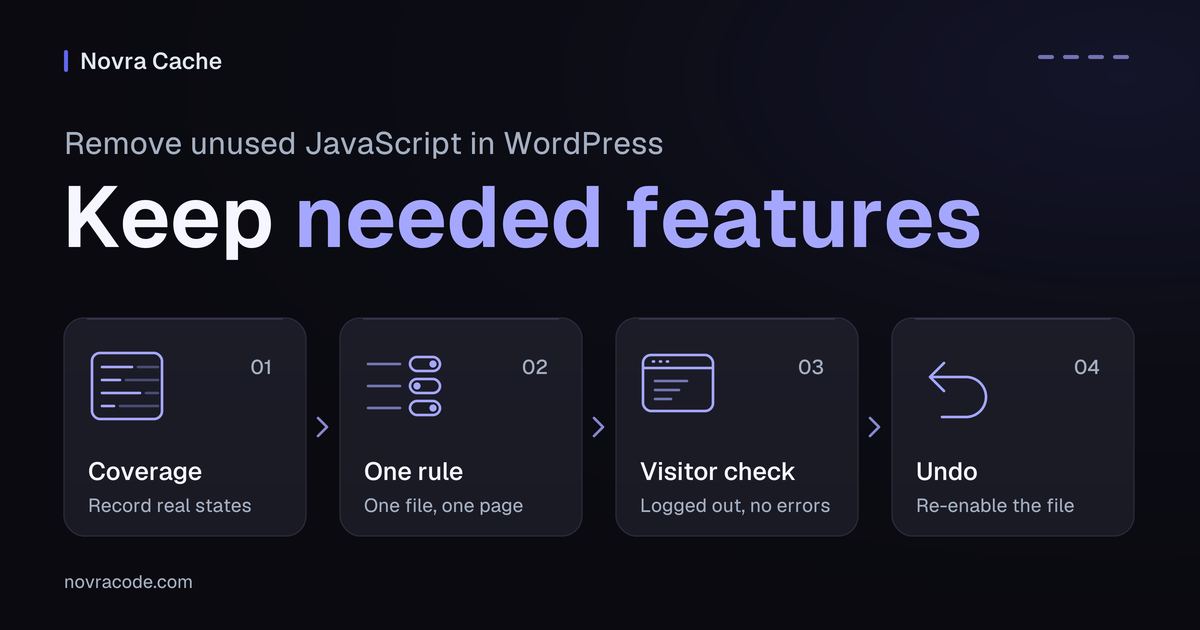
Unused in a recording is not unused everywhere. Chrome Coverage, a browser tool that records code usage, helps you inspect the difference. It shows used and unused bytes for the page states you recorded.
A bundle combines JavaScript for several features in one file. If your menu needs part of that bundle, unloading the file can break the menu. A large unused portion does not change that dependency.
Chrome’s unused-JavaScript guidance also suggests reviewing plugins that load unnecessary code. Consider a lighter alternative with your site maintainer if the plugin repeatedly adds code you cannot avoid. Do not remove a plugin solely because one recording shows unused JavaScript.
Record the states your visitors actually use
Can you test on staging, a separate copy of your site? Start there with a restorable backup and administrator access. Record your current settings and export Script Manager rules separately; the main settings export does not replace that rule export.
Choose the page you want to improve, a page that needs the feature, and another page sharing its footer or popup. Note the login state, cookie choices, screen size and network conditions. Also record whether the browser and server already hold cached copies.
- Open Chrome DevTools, the browser’s inspection tools. Open the Command Menu, type Coverage, then choose Show Coverage.
- Use the Coverage panel’s reload button to start recording from page load. Keep recording while you open menus, use search and trigger relevant forms or popups.
- Repeat with relevant cookie choices and mobile views. Include the first tap or keyboard action, not just repeated clicks after everything has initialized.
- Stop recording after the planned interactions. Select JavaScript in the type filter, then open a resource row to inspect its used and unused code.
- Use the Network panel to inspect the file’s full URL and its Initiator, which identifies what requested it. Match it to its plugin, theme or external provider.
- Record the actual script identifier and its dependencies: other files it needs, or files that need it. Include inline startup code, which may expect that file to exist.
Follow the current instructions to record JavaScript usage with Chrome Coverage. If you cannot identify the file’s owner or purpose, leave it enabled and ask the maintainer. A filename is a clue, not proof that a file serves only one feature.
Keep byte counts separate. Coverage reports resource usage; Network distinguishes transferred data from loaded, uncompressed resources. Fewer transferred bytes do not by themselves prove that less code executed or that the page still works.
Choose a file rule or a code change
| What you found | What to do | What to preserve |
|---|---|---|
| The whole file is unnecessary on this page after checking relevant states and dependencies. | Test a narrow Script Manager rule for this page. | Keep the file on pages that still need its features. |
| The page needs some functions inside the file. | Keep it enabled. Ask its maintainer about smaller components or conditional loading. | Do not delete apparently unused lines from a plugin or theme bundle. |
| The page needs the file, but only later. | Consider a separate loading-timing change. | Protect the first interaction and anything that must initialize immediately. |
A partly needed bundle needs a different solution. Code splitting divides it into smaller pieces that can load when needed. That requires work by the plugin, theme or application developer. See how JavaScript code splitting works; Novra’s file rules do not perform that rewrite.
Test one page-specific rule in Novra Cache
Start with one file on one page. Keep other optimization settings unchanged, so you can connect a result to the rule you changed. Keep Expert Mode off; it exposes protected files that this trial does not need.
- Enable Script Manager in Novra Cache’s settings and enable its asset Testing Mode. Asset rules then apply only for administrators.
- While logged in as an administrator, visit the unrelated frontend page. Open Script Manager through the admin bar.
- Find the exact file identified during your recording. Use Display Dependencies to inspect its relationships, then check your notes for shared features and startup code.
- Disable that file on the current page only and save the rule. Leave broader rules and MU Mode, which changes plugin loading on the server, out of this trial.
- Reload with Network recording from the start. Confirm that the selected file no longer loads in this administrator test context, then repeat the page’s interactions.
- Check the browser Console for new errors. If a required feature changes or a dependency is unclear, re-enable the file before testing another candidate.
The Script Manager rules and testing guide documents the available controls. Use the frontend manager, not the separate JavaScript Visual Script Picker marked Coming soon.
Keep the file on pages that need it
Consider this hypothetical form example, not a measured test. A business has a contact form and a demo-request popup, but no form on its company page. The page names are illustrative, not verified Novra website locations.
| Page | What to establish | Rule to test | Expected behavior |
|---|---|---|---|
| Company page | No form appears in the page, footer or popup. No other feature needs the form-specific file. | Disable only the actual form-specific file on this page. | The file is absent in the targeted context; navigation and other features still work. |
| Contact page | The visible form needs the file and its dependencies. | Keep those files enabled. | Validation and an approved test submission produce the expected response. |
| Demo-request page | A popup form appears only after interaction. | Keep the file enabled. Add an explicit exception before applying any broader disable rule. | The popup opens and validates on the first intended action. |
A form in the shared footer would change this decision. So would a form library used by another widget. Keep the original narrow rule until you know which pages need the file.
If you later expand the rule, list the exact conditions and enable exceptions first. Exceptions preserve a file where a broader disable rule would otherwise remove it. Use identifiers from your site, not a copied filename fragment or a guessed URL pattern.
Verify the result beyond the administrator preview
While asset Testing Mode is active, ordinary visitors should still receive the unchanged behavior. An unchanged logged-out request list is therefore expected. The administrator preview does not prove how visitor rules will behave.
Once the narrow test passes, turn Testing Mode off deliberately on staging to test the visitor experience. Refresh the affected cached pages, then use a fresh logged-out session. If you later apply the rule to your public site, repeat these checks there.
Match the URL, screen size, login state, cookie choices and recording window before comparing requests. Keep browser-cache and server-cache conditions consistent. DevTools’ Disable cache controls the browser cache, not your server or content delivery network.
Confirm why a request disappeared. Check for failed requests, active filters and an incomplete recording. A consent rejection or browser-cached response is not evidence that your rule removed a file. If the cause is unclear, restore the file and repeat the same interaction under matching conditions.
Use this test matrix for features your site actually has. These are checks to perform, not results we have measured.
| State to test | Action | What should remain correct |
|---|---|---|
| Initial desktop and mobile view | Reload, then navigate with keyboard and pointer. | Required controls initialize; no new Console errors appear. |
| First interaction | Tap, click or use the keyboard on menus, search, sliders and accordions. | The first action works, without a missing or duplicated response. |
| Cookie choices | Test fresh sessions before a choice, after rejection and after acceptance. | The banner remains usable and scripts respect the configured choices. |
| Forms and popups | Open hidden and footer forms. Try invalid values and an approved test submission. | Validation, server response and confirmation still work without sending real leads. |
| Analytics, if used | Compare expected events in a permitted test or debug destination. | Events arrive at the intended stage, without duplicates or real conversion data. |
| Shop and account flows, if present | On staging, check product options, empty and filled carts, coupons, shipping, payment selection and account actions. | State stays consistent. Verify payment and confirmation only through an approved test gateway, never a real order. |
| Rule targets and exceptions | Compare the target page, retained feature page and a page sharing the footer or popup. | Only the intended page loses the file; retained features still work. |
| Fresh and repeat visits | Compare logged-out visits before and after caches fill. Repeat on a slow connection. | The intended rule persists and required interactions remain usable. |
If you lack a test gateway or access to a feature’s debug view, record that check as unfinished. A working homepage cannot stand in for a checkout test. Compatibility depends on your particular theme, plugins and enabled optimizations.
Undo a rule when a feature stops working
- Re-enable the affected file or remove the last narrow rule. If an exception is wrong, correct that exception without resetting unrelated rules.
- Save, refresh the affected cached output and repeat the exact failed action in the same testing context.
- Recheck the target page, retained feature page and shared popup or footer. Repeat anonymously when visitor rules are active.
- If the problem remains, stop expanding the rules. Ask the maintainer to check script dependencies and other timing optimizations separately.
Keep a known-good rule export and a note of the change. Reset Everything removes rules and exceptions; it is not a one-rule undo. Do not edit vendor bundles to make the warning disappear.
The Novra Cache asset-testing and JavaScript troubleshooting answers explain related limitations. A cache-bypass URL is not proof that Script Manager rules have stopped applying.
Common unused-JavaScript questions
Does zero recorded usage mean a file is safe to remove?
No. It means the recording did not observe that code running. Check later interactions, cookie choices, related pages and dependencies before considering a file rule.
Does deferring or delaying JavaScript remove unused code?
No. Defer changes when suitable scripts execute after the browser reads the page structure. Delay postpones eligible scripts until interaction. Neither decision automatically removes unwanted functions from a bundle.
Can Novra Cache remove unused functions from any plugin bundle?
No. This workflow stops selected whole files loading on selected pages. A partly needed bundle needs a developer’s loading or build changes, not an indiscriminate file rule.
Is a better performance score enough to keep the rule?
No. Keep a rule only when its intended scope and required features check out. Compare performance under matching conditions, but treat functional failures as a reason to undo the change.
Explore Novra Cache’s per-page controls, then test one script on one page before widening the rule. You can also check your WordPress page’s performance as a separate diagnostic step; it does not replace interaction testing.