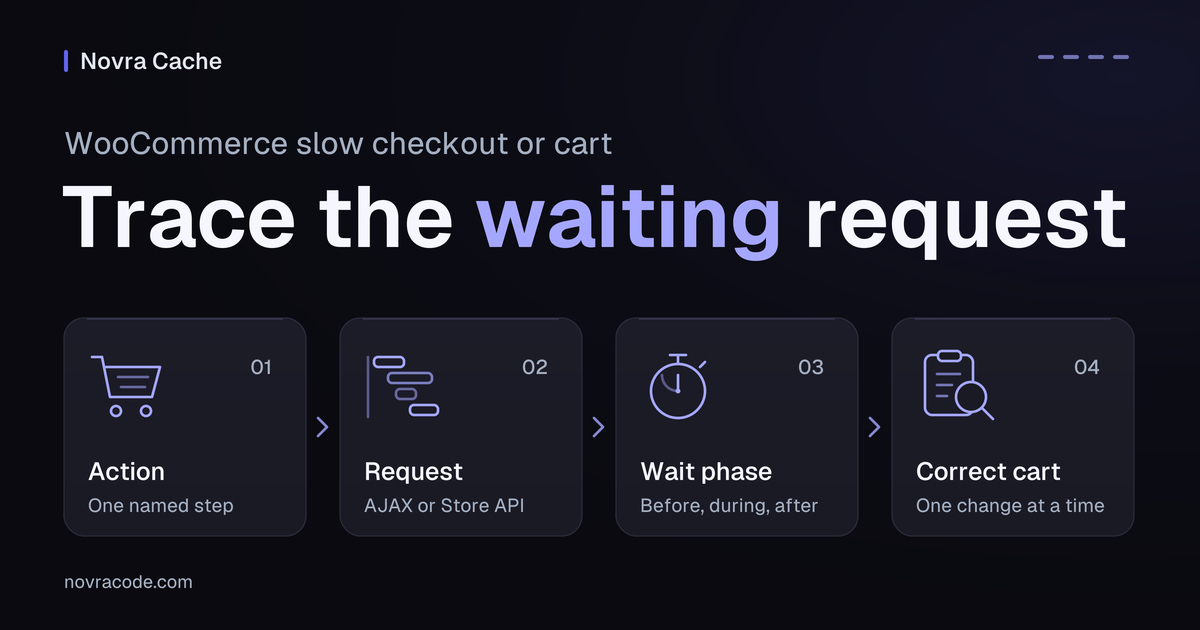
WooCommerce slow checkout problems start with one useful check: find the action that makes the shopper wait. Follow its browser request, the message sent to your shop. Separate time before the request, time awaiting its response, and time after it finishes. A homepage speed score cannot identify that checkout delay.
We recommend Novra Object Cache for reusable WordPress data when repeated, cacheable data work contributes to the wait. It keeps eligible answers in Redis, a memory store running on your server. That can reduce repeated work without serving a shared copy of someone’s cart. It does not fix every payment, shipping, or browser error.
Follow the action that makes your shopper wait
Name the slow step before changing anything. Opening checkout, changing an address, submitting an order, and returning from payment are different actions. A spinner can cover several of them.
Use isolated staging, a separate test copy of your shop, with a representative cart. Keep customer-specific cart and checkout pages out of shared page caching. A page cache stores finished pages; this is different from reusing eligible data inside WordPress.
Prepare the test environment before touching order submission. Use your existing payment provider’s official test mode and isolate outgoing effects. The correctness checks below explain what to confirm.
- Keep the starting state consistent. Record whether the shopper is a guest or signed in. Use the same products, variations, quantities, and test address.
- Open your browser’s developer tools and select Network. Start recording. Enable Preserve log if the action navigates to another page. Keep the browser-cache setting unchanged during the comparison.
- Perform one named action. Look at all requests first. Then use Fetch/XHR for background requests, or Doc for a full page navigation. A background refresh may not be the request your action depends on.
- Record the request method, such as GET or POST, and its path without private values. Note its status, start time, response format, and Initiator: the code or event that started it.
- Open its Timing view. Did the request start late, wait for an answer, or finish while the screen still showed a spinner? Treat an incorrect response separately from a slow, correct response.
Keep cookies, security tokens, addresses, and order keys private. Share a sanitized summary with your developer, not a public network recording. Do not replay cart or checkout requests from copied commands.
Match the request to your cart and checkout
First identify whether your shop uses classic forms, Cart and Checkout Blocks, or custom components. AJAX means a background request without a full page reload. An API is an interface for exchanging structured data; WooCommerce’s Store API supports cart and checkout operations.
For a slow cart, separate the action from its summary
Adding an item, changing its quantity, and refreshing a header mini-cart are not interchangeable. A classic cart can submit a form and reload the page. Another implementation may send a background request. Record which response changes the item, then identify any separate summary refresh.
Use the matrix to choose the next investigation. These request names are identification examples, not URLs to run. Extensions can add work, combine requests, or use custom routes.
| Visible action | Request to identify | Work it can contain | What it cannot prove | Next investigation |
|---|---|---|---|---|
| Adding or changing an item in a classic cart | The actual document submission or relevant AJAX action. Separate it from a later mini-cart refresh. | Cart validation, extension work, and an updated page or response. | A slow page or background request does not identify database work. | Give your developer the action’s timestamp. Match it to a server trace, a record of that request’s work, and inspect errors first. |
| A legacy header mini-cart updates late | A request such as wc-ajax=get_refreshed_fragments, where that implementation uses it. |
Generation of the older cart summary. Its refresh can run separately from your shopping action. | This is not the checkout submission. The Mini-Cart Block does not use this fragments API. | Identify the widget, block, or custom component. Check whether that refresh is needed; do not remove fragments globally. |
| Changing an address or shipping choice delays a classic order review | An observed wc-ajax=update_order_review request. |
Shipping and total calculations, plus relevant extension work. | Browser timing cannot separate database work, other server code, and a remote shipping quote. | Ask your developer to measure those parts within this request. Fix the part that contributes the delay. |
| Quantity, coupon, or address changes wait in a Store API flow | The observed cart operation. Examples include update-item and update-customer; combined requests may contain several operations. |
Updated cart data for the current shopper’s session or signed-in account. | A faster, unrelated fragments request says nothing about this operation. | Inspect this action’s response and resulting cart. Do not apply a legacy-widget fix to a Blocks flow. |
| Checkout waits around order submission | Separate the classic checkout submission or Store API processing request from browser preparation and payment-provider redirects. | Order processing and payment-integration work. Browser-side steps can occur before and after the server request. | HTTP 200, a completed request, or a disappearing spinner does not prove a correct paid order. | Use the installed provider’s isolated test mode. Match developer and provider records, then confirm the test order and return state. |
| A spinner remains after the request finishes, or the response is wrong | The action’s response format and status, alongside the browser Console, where script errors appear. | Browser script processing, validation errors, or an unexpected response. | A stuck screen is not evidence that Redis is missing. | Take the specific error to the responsible developer. Resolve the response or code conflict before changing cache settings. |
The WooCommerce classic AJAX reference separates order-review updates from checkout processing. Do not treat them as the same request simply because both happen on checkout.
WooCommerce changed legacy fragments loading in version 7.8. The cart widget, another script’s dependency, or explicit code can still require it. The official cart-fragments guidance confirms that the Mini-Cart Block does not use this API. That does not mean Blocks make no server requests.
The Store API cart reference describes actions for the current shopper. Its checkout reference distinguishes fetching checkout data from processing an order and payment. Record the method as well as the path: different methods can use the same path. Fetching checkout data can itself create a draft order.
The Checkout Block flow also includes browser-side stages around server processing. If the response looks wrong, the official spinner troubleshooting guide explains JavaScript conflicts and unexpected responses.
Read the wait without guessing the cause
A browser timeline tells you where to look next. It does not reveal how much database work happened inside WordPress.
- Queueing or Stalled: time before the request proceeds. This is not measured database query time.
- Waiting or TTFB: time to the first byte of the response. It includes network latency and the server’s preparation of that response.
- Content Download: receiving the response. Completion does not prove that the shopping interface has finished updating.
- Work after the response: follow browser errors and processing if the shopper still waits.
The Chrome Network reference explains these phases and the Initiator view. A long first-byte wait alone is not a Redis diagnosis.
Your shop server may contact a shipping or payment service itself. That call will not appear as a separate browser request unless the browser makes it. A request’s name cannot identify the slowest operation inside it.
Send your developer the action, time and time zone, method, sanitized path, status, and observed timing phase. Include the shopper state, fixed cart and shipping case, and expected versus actual result.
Ask for a breakdown of that same request:
- Repeated WordPress data work that could reuse cached answers.
- Other PHP work, the server-side code running WordPress and its extensions.
- Waiting for server resources.
- Calls from the server to external services.
If that breakdown is unavailable, record the cause as unknown. Browser timings are useful evidence, but they cannot supply missing server measurements.
Decide whether Redis object caching fits your WooCommerce delay
A Redis object cache for WooCommerce is most relevant when the slow action repeats eligible WordPress data work. WordPress already has an object cache, a temporary store for reusable data. By default, its contents last only for the current request.
A persistent object cache can reuse eligible data across requests. Novra Object Cache stores that data in Redis. This can avoid rebuilding answers where WordPress or an extension uses the object-cache API.
It does not automatically cache every database query. The WordPress object-cache reference explains the mechanism and non-persistent groups. Choosing Redis does not remove all application code or external service calls.
| Evidence from the same action | Decision | Reason and next step |
|---|---|---|
| Repeated data work meaningfully contributes to the delay and uses WordPress’s object-cache API. Your host meets the requirements. | Evaluate Novra Object Cache on isolated staging. | Reuse eligible answers across requests. Compare the same cart or checkout action and verify its result. |
| A slow first byte is the only evidence. | Investigate before choosing the fix. | Network and several server operations contribute. Connecting Redis does not identify which one caused the wait. |
| A payment or shipping service, browser error, or unrelated code loop dominates. | Fix the responsible integration or code first. | Storing WordPress cache data does not remove that work. |
| A persistent object cache is already healthy. | Do not stack another provider or assume switching fixes checkout. | Confirm which provider owns the cache. Measure the remaining delay; plan any replacement deliberately. |
| Redis or PhpRedis is missing. | Resolve the hosting requirements first. | Redis is the separate server service. PhpRedis is the PHP extension that connects WordPress to it. Novra does not install or host Redis. |
Check Novra before comparing the same action
Does your host provide Redis and the required PHP extension? Confirm that first. Current Novra requirements list WordPress 6.0+, PHP 8.0+, Redis 5.0+, and PhpRedis. The documentation recommends Redis 6.0 or newer. These are documented minimums, not advice to keep old software versions.
Have your developer record the current provider and a recovery plan before setup. Follow the Novra Object Cache requirements and setup documentation on isolated staging. Existing-provider replacement is a deliberate change, not a reason to disable a host-managed cache blindly.
Check connection status and installed drop-in status separately. The drop-in is the file WordPress loads to provide its object cache. A Redis connection alone does not show that WordPress uses the intended provider. Plugin activation or a status badge also does not prove correct cart behavior.
Use cache activity as supporting evidence. The hit ratio describes how often the cache had an answer; it is not a checkout-speed benchmark. Do not assume the dashboard identifies each checkout’s database or payment-service costs.
Avoid guessed session exclusions, broad cache flushes, or copied tuning settings. Your developer should choose a focused change from the measured cause, then check that exact shopping action.
Compare one change and keep the cart correct
Use a worksheet for the request, not just a before-and-after page score. Leave timing fields blank until measured. Label first or cold observations separately from repeat or warm observations, when reusable data may already be present.
Action and expected result:
Date, time zone, and staging environment:
Guest or signed-in shopper:
Products, variations, quantities, and test address:
Selected shipping method and coupon:
Request method, sanitized path, and status:
Browser-cache setting and object-cache provider/state:
First/cold or repeat/warm observation:
Time from action to request start:
Queueing/Stalled duration:
Waiting/TTFB duration:
Content Download duration:
Time until the visible result:
Developer's breakdown of this request:
Single change being compared:
Cart/order correctness checks:
Result and recovery decision:
Hypothetical example: an address update waits in the classic order-review request. Your developer finds that a remote shipping quote takes most of the time. Take that evidence to the shipping integration owner.
If repeated, eligible WordPress data work dominates instead, compare Novra Object Cache with the same address and cart state. If only browser timing is known, the cause remains unconfirmed. This is an illustrative decision, not a shop we tested.
After one change, repeat the affected non-payment action under matching conditions. Check quantities, coupons, totals, and the selected shipping option as relevant. Confirm that separate shoppers keep their own cart state.
For order or payment acceptance, use only the installed provider’s official sandbox or test mode on isolated staging. First isolate emails, fulfillment, stock synchronization, outgoing integration notifications, and purchase-tracking events. Test payments can still create orders and emails. Provider behavior varies; use its own instructions.
Do not repeatedly submit payments just to collect timing samples. Confirm the intended test order, payment result, and return state separately. Without a suitable sandbox, leave payment verification open instead of using live transactions.
Stop if correctness changes. Wrong totals, cart contents, stock effects, errors, or failed payment returns outweigh a shorter wait. Restore the last individual staging change using the recorded settings. Your host or developer should handle cache-provider or infrastructure recovery.
Keep private-page exclusions in place. Do not remove unrelated plugins, bypass security, or delete data to improve a score. Hand unresolved integration evidence to its owner.
Choose the next step your evidence supports
Trace the shopping action, identify the waiting phase, and ask what work causes it. Then compare one appropriate change and confirm the cart stays correct.
Review Novra Object Cache with your host if reusable WordPress data work contributes to the delay. Confirm the requirements, then compare that exact shopping action on staging. If another layer causes the wait, use your request evidence to fix that layer first.