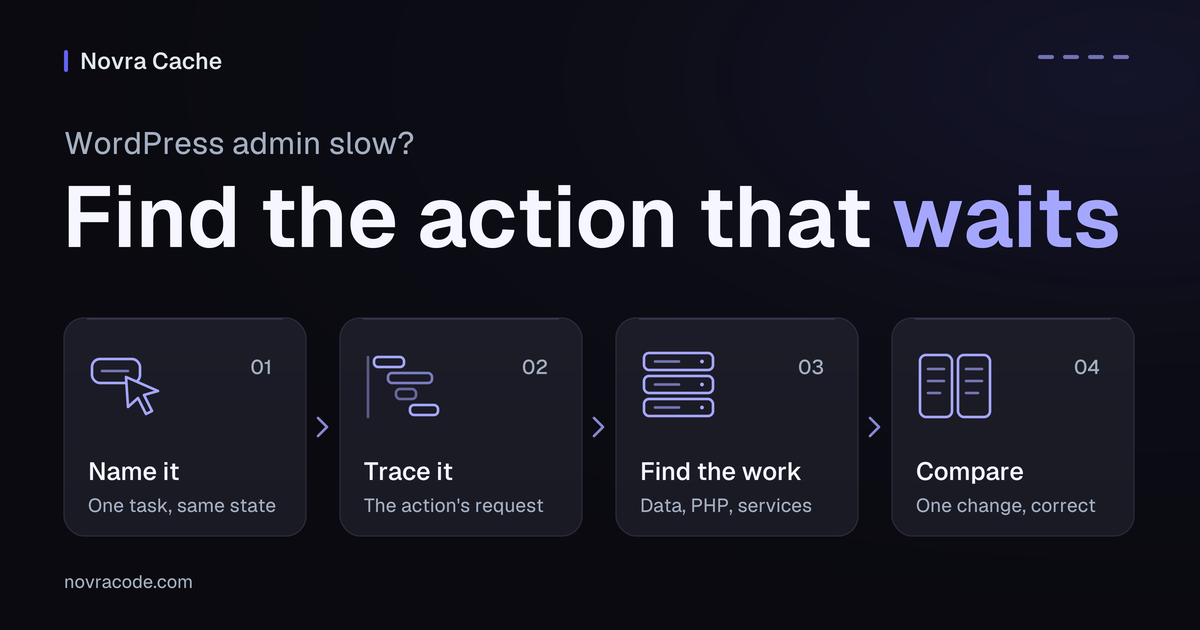
WordPress admin slow? Start with the action that makes you wait. Opening a list, opening the editor, and saving a change need separate checks. Follow that action’s request: the message your browser sends to WordPress. Find out whether you wait for its response or for work afterward.
We recommend Novra Object Cache for reusable WordPress data when repeated data work meaningfully contributes to that delay. It can retain eligible data between requests in Redis, a server-side memory store. Your host must provide Redis and the required server add-on. It will not fix every slow save or browser problem.
Name the admin action that makes you wait
Replace “the dashboard is slow” with one task and its expected result. For example: “Opening All Posts waits before the filtered list becomes usable.” Note when the problem began and the last relevant change. A public homepage speed test does not measure this logged-in task.
Use staging, a separate test copy of your site, for proposed changes and save trials. Ask your developer to prepare an approved, non-public test draft and isolate outgoing integrations. Agree who can restore the previous state before testing.
Keep the comparison state the same
Compare the same action under matching conditions. Keep the same user and role, content, editor, browser, device, and network. For lists, match filters, sorting, page number, visible columns, and posts per page. The WordPress Posts screen options explain these controls. For the editor, keep the same blocks and plugin panels.
Record browser caching separately from object caching, which stores reusable WordPress data. A warm object cache contains the relevant entries; a second request alone does not prove that. Mark an unconfirmed state as unknown. Compare equivalent cold and warm cases separately, without emptying a live cache to create a sample.
Repeated saves are different: they change content, revisions, timestamps, and cached data. Ask your developer to reset the staging test case between equivalent, controlled edits. Record autosaves and any remaining differences. Keep diagnostic tools and their settings consistent too.
Copy this baseline sheet. Leave timing values blank until measured; explain any unknown state.
Named action and expected result:
Date, time, time zone, and staging environment:
Same user alias and role (no personal data):
Test draft/list, editor, filters, sort, columns, and row count:
Content/data snapshot and known staging differences:
Browser/device/network and browser-cache setting:
Object-cache provider; measured/unknown cold or warm state:
Request method, sanitized path, status, and related requests:
Action-to-request-start time:
Queueing/Stalled; Waiting/TTFB; Content Download:
Time until the correct visible result:
Developer's breakdown for this same request:
Save-induced data/revision/cache changes or unknowns:
One change and previous setting/recovery owner:
Repeat result, correctness, and stop/restore decision:
Match the slow action to the next check
Choose the row matching your task. Apply the comparison rules above to each case. An observation narrows the investigation; it does not prove the cause.
| Slow action | What to observe | Next check | Correct result |
|---|---|---|---|
| Open Posts → All Posts | Follow the page request and related requests until the list is usable. | Ask your developer about repeated data reads and list-column work. Many rows or queries alone prove neither the bottleneck nor cache suitability. | The expected rows, permissions, filters, and sorting still match. |
| Open a draft in the editor | Follow the page request and requests needed to load editable content. | Give the waiting request to your developer. A fast first response does not prove the editor is ready. | Content, panels, and editing controls load with the correct access. |
| Save the staging test draft | Identify the request triggered by Save and its returned result. Keep background autosaves separate. | Ask about reads, writes, extension work, and external calls in that request. A finished spinner does not confirm a correct save. | Reopen the draft. Check text, fields, and status, with no unexpected publication or outgoing effects. |
| Interact after the response arrives | Check for errors and further required requests before assuming the network work has finished. | If required responses are correct, investigate browser work with your developer. This delay does not establish a need for Redis. | The same click or typing action works, and the expected state appears without errors. |
Editors can communicate with WordPress differently. The WordPress REST posts reference documents its data interface: GET retrieves a post; POST submits an update. Identify the request your editor actually makes, rather than assuming one universal route. Do not replay a copied save request.
Saving may also trigger extension code after WordPress stores a post. The WordPress post-save action reference documents this extension point. That makes additional work possible; it does not identify a faulty plugin on your site.
Read the request without guessing its cause
You can collect useful evidence without diagnosing the server yourself. In Chrome, open developer tools and the Network panel before the chosen action.
- Start with All requests. Enable Preserve log if the action navigates to another page.
- Use Doc to find page navigation and Fetch/XHR for background exchanges. Follow the action’s request, not an unrelated request that looks large.
- Record its method, path, status, and time. Inspect Initiator, the code or event that started it, and any required follow-up requests.
- Separate the delay before a request starts from Queueing/Stalled, Waiting/TTFB, Content Download, and the time until the screen works.
TTFB means time to first byte: the wait before response data starts arriving. The Chrome request timing reference explains that Waiting/TTFB includes network latency and server preparation. It is not a measurement of database query time. A server’s own external call also need not appear as a separate browser request.
Ask your developer to account for that same request’s work. This can include reusable data reads and PHP, the server-side language running WordPress. Extension code, external services, or waiting for hosting resources may also contribute. Unknown portions should remain unknown.
Query Monitor query grouping can help a developer identify database queries by plugin, theme, or function. That view alone does not provide the complete breakdown above. Let the developer choose suitable tools for the particular request.
If responses are correct but interaction still waits, investigate the browser next. Chrome’s main-thread activity reference explains how to inspect work on the browser’s main execution thread. This can help locate a delayed interaction, but does not measure PHP or database execution.
Before sharing evidence, remove private content and sensitive values from request paths. Do not post cookies, access tokens, or complete raw network exports publicly.
Separate background polling from your action
WordPress Heartbeat polling sends background requests to the server. A busy background request is not automatically your save request or the cause of waiting. Identify its relationship to the task before changing anything. Do not globally disable Heartbeat, autosave, plugins, or security features as a shortcut.
Use Novra Object Cache when the data work fits
Novra fits when reusable data work is a meaningful part of the delay. For example, a list or editor response may repeatedly need eligible WordPress data. Retaining that data between requests can avoid rebuilding it each time. The benefit depends on what the affected action actually does.
Four pieces have different jobs:
- The WordPress object-cache API is a set of functions for storing and retrieving reusable data. WordPress or an extension must use it for the relevant data.
- Persistence means keeping eligible entries between requests. WordPress’s default object cache normally lasts only for the current request.
- Redis is the separate memory-store service holding those persistent entries.
- PhpRedis is the PHP extension, or server add-on, that connects Novra Object Cache to Redis.
The WordPress object-cache reference also describes groups that deliberately remain non-persistent. Novra does not automatically store every database query, write operation, or external call. Saving still needs its actual writes and relevant checks. Unrelated extension code and browser work require their own investigation.
A page cache stores finished pages, not these internal data entries. It is a different layer, not a reason to share cached admin responses between users.
| Your evidence | Best next step |
|---|---|
| Meaningful repeated reads use the object-cache API; hosting requirements are met. | Evaluate Novra Object Cache on staging for that exact action. |
| Only a long first-byte wait or high query count is known. | Identify what consumes the time before choosing a fix. |
| Save-related code, an external service, browser work, an error, or hosting wait dominates. | Fix that layer with its owner first. |
| A persistent object cache already exists. | Confirm its provider, condition, and support owner before considering a switch. |
| Redis or PhpRedis is unavailable. | Resolve the hosting requirement before evaluating Novra. |
Check hosting and the current cache provider first
Ask your host whether Redis and PhpRedis are available. Novra does not install, host, or manage Redis for you. Its documented minimum requirements are:
- WordPress 6.0 or higher.
- PHP 8.0 or higher.
- Redis 5.0 or higher, with 6.0 or higher recommended.
- The PhpRedis extension.
These are documented minimums, not advice to operate outdated software. Review the Novra Object Cache requirements and setup guide with your host and developer. Use the agreed staging plan rather than copying configuration changes into production.
Record the existing object-cache provider and who owns recovery. Do not stack providers or blindly replace a working host-managed cache. A healthy existing service is not evidence that switching will improve this task.
Check the Redis connection separately from the installed drop-in. A drop-in is the file WordPress loads to provide its object cache. Confirm whose implementation is active, then check the actual editing task. A connected Redis status alone does not prove Novra is providing the cache.
Novra reports cache hit ratio, how often stored data was found, alongside reply time and memory use. These support the investigation, but are not admin-speed scores. A successful connection is not a successful workflow test.
Compare one change and keep editing correct
Hypothetical example — not a site we tested: imagine All Posts opens slowly, while a small draft opens promptly. Your developer finds meaningful repeated reads using WordPress’s object cache in the list request. With suitable hosting and a recovery plan, compare Novra Object Cache on staging. Keep the same user, list, data, and recorded cache conditions.
If an external service instead dominates saving, take that finding to the integration owner. If only browser timing is known, the cause remains unconfirmed. Neither case justifies inventing a cache benefit.
Choose one change after identifying the relevant work. Compare repeated observations, not a single quick response. Use the resettable test case for saves and record remaining differences. Treat timing and correctness as separate results:
- For lists, check the expected rows, permissions, filtering, and sorting.
- For editors, check loaded content, panels, access, and editing controls.
- For controlled saves, reopen the draft and confirm the intended text, fields, and status.
- For delayed interactions, check the same click or typing action and its visible result.
Stop if a save is unclear or the data is wrong. Confirm the saved state before trying again. Unexpected publication, access changes, new errors, or repeat regressions also need investigation. Preserve the evidence and have the assigned developer or host restore the last change using the agreed recovery plan.
Do not chase a faster result with broad cache clearing or database cleanup. Keep public-page script-delay settings out of this admin diagnosis. Faster editing only helps when the right content and permissions remain intact.
Choose the next step from the evidence
Start with one action, establish matching conditions, locate the wait, and investigate that request. Then compare one justified change and verify the result.
If the cause is unknown, send your developer the completed baseline and sanitized request details. Include the expected result, actual result, recent changes, and any unknowns. Involve the host for service or resource issues, or the integration owner for identified external-service work.
If reusable WordPress data work contributes to the delay, review Novra Object Cache with your host. Confirm the requirements, then compare the same admin action on staging. If another layer dominates, fix that layer first.