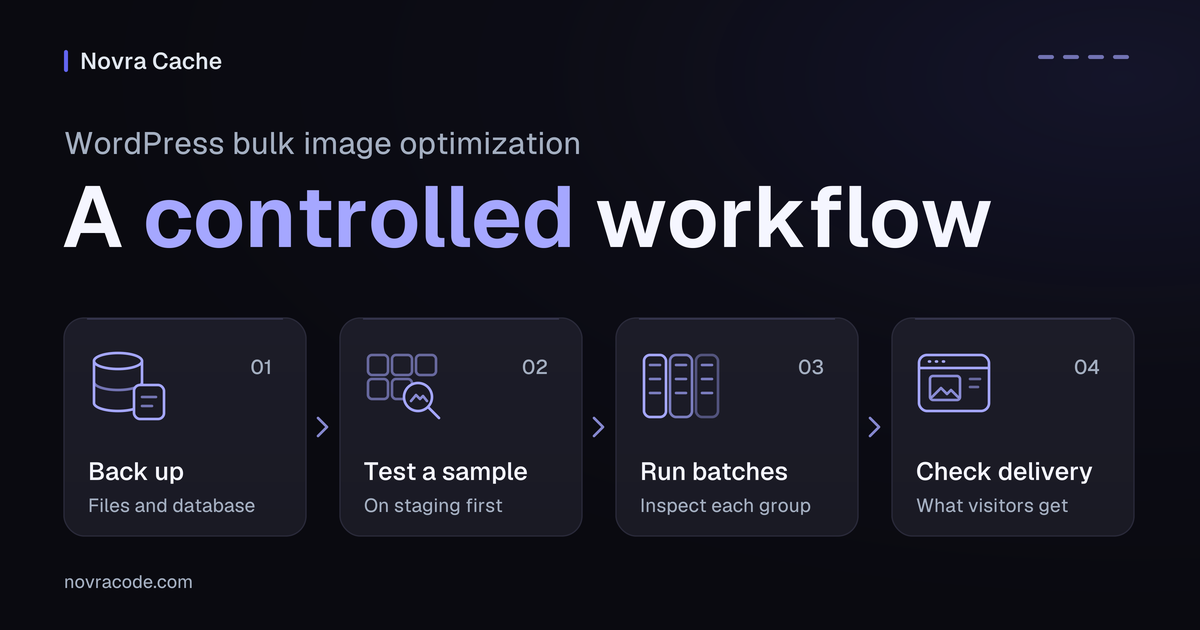
WordPress bulk image optimization should start with a restorable backup and a small staging sample, not a whole-library button. Confirm server support, choose whether originals may change, inspect the output, then expand in controlled stages. A completed progress bar does not prove that visitors receive better images.
For an existing library, we recommend Novra Cache’s existing-library image tools when local processing fits your hosting. They can generate missing WebP/AVIF variants and reprocess existing images, avoiding individual exports. They also include source-image optimization, so review those settings separately. The benefit depends on successful generation, acceptable quality and correct delivery.
Decide what you need to change
Bulk means processing many images. It does not describe which operation happens to them. Set one clear goal before you touch the library.
| Operation | What changes | Reason to choose it |
|---|---|---|
| Compression | The file’s stored data, sometimes with visible detail loss. | The current dimensions fit, but the files are unnecessarily heavy. |
| Resizing | The image’s pixel dimensions. | Visitors download images much larger than their displayed size requires. |
| WebP or AVIF generation | An alternative file format. | A sample produces a useful size reduction without unacceptable quality loss. |
| Lazy loading | When the browser requests an image. | Noncritical images load before visitors need them. This does not shrink the files. |
Do not turn all four on as one experiment. A late-loading hero can need different treatment from oversized gallery images. Format conversion also does not guarantee a better loading score.
Inventory images and server support
- Record the attachment count, storage use and current optimization tools. Identify remote or offloaded files that may not exist locally.
- Choose representative photos, transparent logos, text-heavy screenshots, galleries and unusually large images. Put animated files in a separate group.
- Record source dimensions, the displayed dimensions and the file actually requested on a sample page.
- Check Tools → Site Health → Info → Media Handling. Confirm support for reading each source format and writing the desired output.
- Ask your host about available disk space, processing limits and scheduled WordPress tasks before planning a large job.
WordPress uses server image libraries such as GD or Imagick. Novra’s conversion runs locally and needs suitable format support. A checkbox cannot install a missing encoder, the software that writes a format.
Novra Cache lists WordPress 6.2+, PHP 8.1+ and administrator access as requirements. PHP is the server-side language running WordPress. Native AVIF uploads additionally require WordPress 6.5+ and compatible image support. Use a maintained release, not an old minimum version.
Read the Novra Cache image-processing documentation before choosing a mode. SVG vector graphics are not converted. Supported input decoding and output encoding are separate checks, even when a format appears in the library.
If your host or current image tool already handles the library correctly, keep that working setup. Avoid overlapping image processors. Also resolve a competing WordPress page-cache plugin before adopting Novra Cache.
Back up originals and metadata
Back up both site files and the database. Image files contain the pixels; WordPress attachment records describe files and their generated sizes. The WordPress backup guidance distinguishes these parts of a restorable site.
- Keep a separate copy of the original uploads and any files stored outside the normal uploads location.
- Keep a matching database backup and record its date. Confirm how your backup provider restores the relevant files and attachment records.
- Record current Novra image settings and the previous tool’s settings. A settings export is not an image backup.
- Practice restoration on staging before processing valuable originals.
Novra creates additional WebP and AVIF variants, but its JPEG/PNG/GIF optimization can also rewrite source files. Smaller WordPress image sizes can be involved too. Do not confuse keeping a fallback image with keeping an untouched original.
The reviewed generator can rewrite smaller GIF versions even with source-optimization controls off. This is another reason to test animations separately.
The public documentation does not establish a persistent, one-click original-image restore feature. Plan recovery through your independent backup. Regenerating variants from a degraded source cannot recover its lost detail.
Choose the right Novra operation
| Documented action | Purpose | Important limit |
|---|---|---|
| Generate Missing AVIF/WebP | Fill gaps in modern-format variants. | Review source-optimization settings too. The name is not a promise that originals remain untouched. |
| Regenerate All | Reprocess existing library images. | This is broader than filling missing variants. Use it only for an identified need after a successful sample. |
| Delete Generated Files | Remove generated variants. | This is deletion, not restoration of original quality. It is not part of this optimization workflow. |
| Cleanup Orphaned Files | Remove files considered unneeded by cleanup logic. | This is a separate cleanup decision. Do not combine it with a first conversion run. |
For a variants-only trial, review JPEG, PNG and GIF source-optimization controls before you process anything. Do not assume that disabling both modern formats leaves the same source-processing pipeline running. The documentation explicitly notes that this skips that generation pipeline.
Async Image Generation schedules processing through WP-Cron, WordPress’s scheduled-task system. It can let an upload finish before the variants are ready. Queued is not the same as generated or served. Confirm that scheduled tasks run and inspect the actual output.
Test a small nonproduction sample
Use staging with a restorable copy of representative media. For a bulk trial, prepare a staging library containing only the approved sample. A complete production clone can still contain the entire library. Keep production unchanged while you judge the result.
- Select a small group covering your important image types and page templates. Record attachment IDs and source sizes in a simple list.
- Set one output goal and record the chosen quality settings. Leave source optimization off if you are testing variants only.
- Have your developer prepare the limited staging library and verify its attachment count. Only then use the appropriate library action for that sample.
- If your installation exposes the Media Library’s Regenerate AVIF/WebP action, individual sample checks are another option. This is not a selectable batch-size control.
- Compare visible detail, colors, transparency, crops and animation where relevant. Check the smaller image sizes used by the theme, not just the full-size file.
- Check representative pages and actual image requests before you accept the sample.
Modern formats are not guaranteed to be smaller for every image. Novra can discard a generated variant without a size advantage. An absent AVIF or WebP can therefore be expected; investigate before repeating the same job.
Keep animated media out of a blanket conversion decision. Format-level animation support does not prove that the installed encoder preserves frames and timing. Approve those files only after separate visual checks.
Plan controlled batches and watch failures
Confirm the scope before starting a bulk action. The documented library actions are not evidence of a user-selectable batch size, pause/resume control or automatic rollback. A workflow sending files sequentially can still target the entire library.
For a large library, arrange a genuinely batch-limited workflow with your developer or host if your installed interface cannot provide one. Process a defined group, inspect it, then approve the next group. There is no universal safe number of images per batch.
- Choose a quiet processing window and confirm sufficient free storage. Keep your backup independently of the working library.
- Do not overlap full-library jobs. Record the start time, operation, selected group and settings.
- Watch server load, storage, scheduled-task progress and request failures. Record failed or skipped attachment IDs rather than only the completion count.
- After each limited group, inspect representative outputs and pages. Proceed only if quality, delivery and resource use remain acceptable.
- If errors or load increase, stop starting new work. Have your host or developer check active and scheduled work before restarting.
Do not read 100% as a success rate. In the implementation reviewed for this guide, the bulk counter advances after failed requests too. Check individual results and produced files even when the interface reports completion. This code review is not a test of your installed version.
Closing an admin tab is also not proof that work already scheduled through WP-Cron has stopped. Confirm active and scheduled work with your host before restarting.
The Novra Cache troubleshooting guide covers stuck processing and server dependencies. Repeatedly restarting the whole library will not add a missing encoder or repair a blocked scheduler.
Check the files visitors receive
Novra documents delivery through eligible picture elements, which offer alternative formats while retaining a fallback image. srcset lists candidate files for different display sizes. The browser chooses a candidate; the existence of a generated file does not prove it was chosen.
- Open a sample page while logged out at phone and desktop widths. Check the actual visible image, galleries and product variations.
- Open the browser’s Network panel and reload under consistent browser-cache conditions. Find the image request that belongs to the displayed image.
- Record its URL, response Content-Type, transferred size and pixel dimensions. Compare equivalent before-and-after requests, not unrelated sizes.
- Check for broken images, inappropriate crops, lost transparency, animation changes and unexpectedly large downloads.
- Check the page delivered through your normal hosting and CDN path. A CDN is a network that can serve cached copies from another server.
The Chrome Network reference explains response inspection and disabling the browser cache. That browser setting does not clear WordPress, hosting or CDN copies. Refresh affected copies through your site’s approved process and verify again.
Use this short record for each accepted group. Fill it with observations, not assumed savings.
| Record | What to write down |
|---|---|
| Scope | Attachment IDs, page templates, operation and settings. |
| Before and after | Matching dimensions, file format, file size and visible quality. |
| Delivery | Selected request, Content-Type, browser/view size and cache conditions. |
| Exceptions | Failed, skipped or discarded variants and the reason, where known. |
| Decision | Accept the group, investigate, or restore; identify the backup needed. |
Recover without confusing cleanup and restore
If a sample changes quality or breaks delivery, stop expanding the work. Record the affected files and settings before changing another variable.
- Only delivery settings changed: restore the previous setting and verify the affected page after its cached copies are refreshed.
- Originals or attachment data changed: use the matching files-and-database backup through your tested recovery procedure.
- A variant is missing: diagnose support, scheduled work, exclusions and size-based discards before deciding whether regeneration is needed.
Turning a setting off does not restore rewritten pixels. Deleting generated variants does not reverse compression. Do not use Reset All Settings or orphan cleanup as an undo button.
On a live shop, a blanket database rollback can also remove newer orders or content. Have your host or developer plan targeted recovery that preserves subsequent activity. Prove that procedure on staging before relying on it.
If the sample passes and the scope is controlled, review Novra Cache’s image tools and requirements for the wider library. Novra uses one-time licensing without a subscription. Keep the backup until your quality and delivery checks are complete; a smaller file is useful only when visitors receive the right image.