A WordPress page cache saves a finished public page so later eligible visits need less WordPress processing. Start with one page-cache owner, protect personal responses, and verify a normal repeat visit. Add cache preload only after that works.
For an unmet need for reusable public pages, we recommend Novra Cache’s page caching and sitemap preload. Its page controls and exclusions let you decide what can be shared. Its preload prepares eligible copies from a sitemap, a list of public page addresses. Keep your existing host-managed cache if it already does the job.
Know what a cache hit proves
HTML is the markup containing a page’s structure and text. On a cache miss, no suitable saved copy is available, so WordPress may build it. On a later eligible request, a cache hit can reuse that HTML before most WordPress code runs.
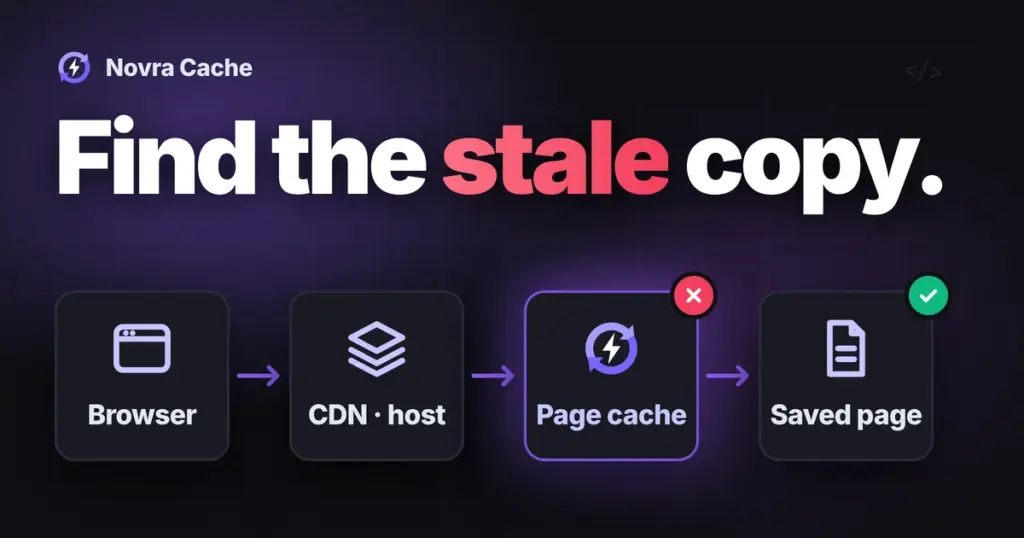
A browser cache stores responses on the visitor’s device. An object cache stores reusable WordPress data, not finished pages. Your host or a content delivery network (CDN) may hold another page copy. A CDN serves copies from distributed servers. The origin is the server running WordPress. These layers do not share one universal status indicator.
The WordPress guide to caching layers explains this distinction. A fast second visit alone does not identify which layer helped. Nor does a page-cache hit prove faster images, working forms or better search rankings.
Record the starting point
Use staging, a separate test copy of your site, with a restorable backup. Record production differences, especially access protection and host caches. Keep private material protected; if protection prevents a meaningful anonymous check, arrange a suitable harmless test page with your maintainer.
- Ask your host which layers already cache HTML and who maintains their exclusions and update behavior. Do not stack competing WordPress page-cache plugins.
- Record the installed Novra version, current settings and a way to restore each change. Export the main settings through Tools if you already use Novra.
- Open Novra Cache → Dashboard and review its health checks. Confirm writable cache storage and the required WordPress page-cache integration. Resolve ownership conflicts with your host or developer.
- Choose one harmless public content page without personal output or actions. Record its normal URL, expected text, device, login state and relevant cookie names.
Novra currently documents WordPress 6.2+, PHP 8.1+ and administrator access. PHP is the server language running WordPress. These are minimum requirements, not advice to keep old software. Page caching and preload start disabled on a new setup; existing installations retain their saved choices.
Choose WordPress cache settings by purpose
There is no best settings preset for every site. Use the Novra Cache page-caching settings guide to check the controls in your version. Leave unrelated styling, script and media settings unchanged during this trial. Also leave Instant Pages, Novra’s browser link-prefetch feature, unchanged.
A cookie is browser-held data used to recognize a visitor’s state. A query parameter is an extra value after the question mark in a URL. Neither is automatically harmless because a page looks public.
| Control | Starting decision | What to verify |
|---|---|---|
| Page Caching | Enable only after confirming the intended provider and a shareable public response. | A normal repeat request reuses the intended page copy and returns correct content. |
| Mobile Cache | Use separate copies when the server sends different HTML to mobile visitors. | A responsive layout alone does not require separate HTML. Check the actual desktop and mobile output. |
| Cache Lifespan | Record the current value. The documentation lists hours and a default of 10, not a universally optimal setting. | Choose around content freshness and rebuilding cost. Zero disables time-based expiry; it does not mean instant refresh. |
| Page and Advanced exclusions | Keep personal pages, actions and relevant cookie states out of shared page caching. | The real routes and visitor states remain separate across every active HTML cache. |
| Query-string controls | Leave them unchanged unless you understand each parameter’s effect. | Do not ignore a value that changes content, permissions, prices or required server-side tracking. |
| Preload Cache | Leave it off for the initial page-cache check. | Add warming only after ordinary caching works and the sitemap scope is appropriate. |
Novra documents bypasses for logged-in users and WooCommerce cart/session cookies. Keep cart, checkout, account and other personal responses dynamic, meaning generated for the current visitor. The WooCommerce page and cookie exclusion workflow covers the store-specific checks. Do not remove exclusions to produce more hits.
Separate expiry from content updates
Expiry ends a copy’s time-based eligibility. Invalidation stops treating a copy as current after a change; a purge removes it. Novra documents automatic purging for supported public content changes, including posts and product updates. Custom dependent pages may need separate handling.
A shorter lifespan is not a substitute for a correct update workflow. A zero lifespan leaves freshness dependent on purging. Neither value guarantees that a host, CDN or browser has already replaced its own copy.
Enable and check public page caching
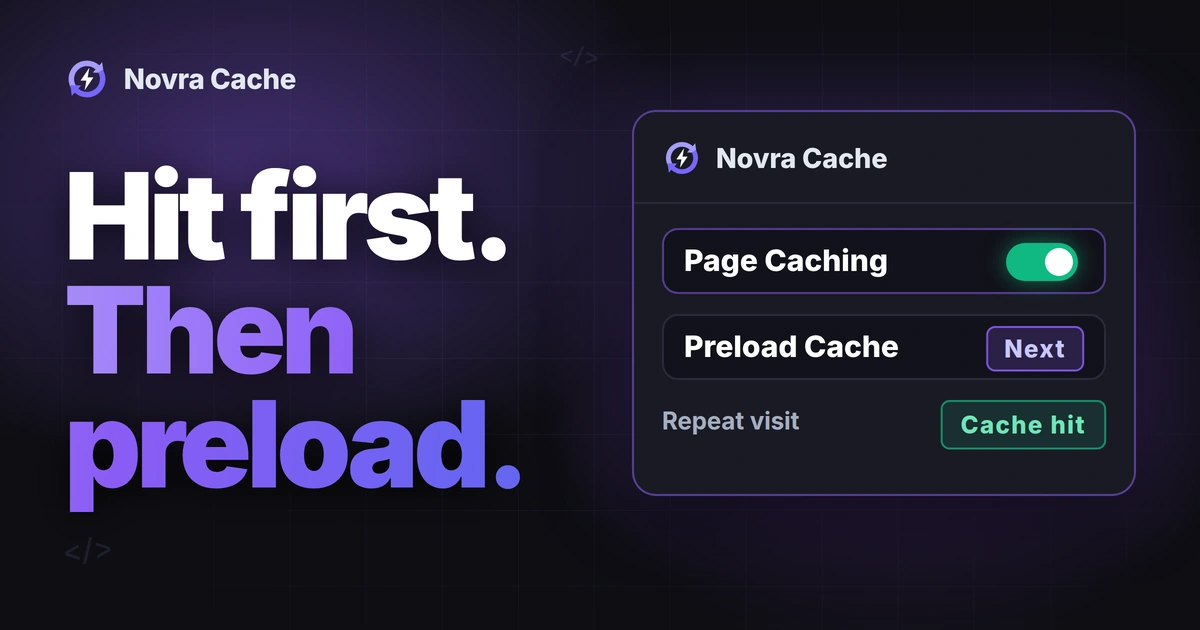
The following is a proposed staging check, not a completed test. With Novra installed and its health requirements resolved, open Novra Cache → Settings → Cache. Enable Page Caching and save. Keep preload and the unrelated optimizations at their recorded baseline.
- Open a fresh logged-out browser session without cart or other personal-session cookies. Use the chosen ordinary URL, not an editor preview or a cache-bypass address.
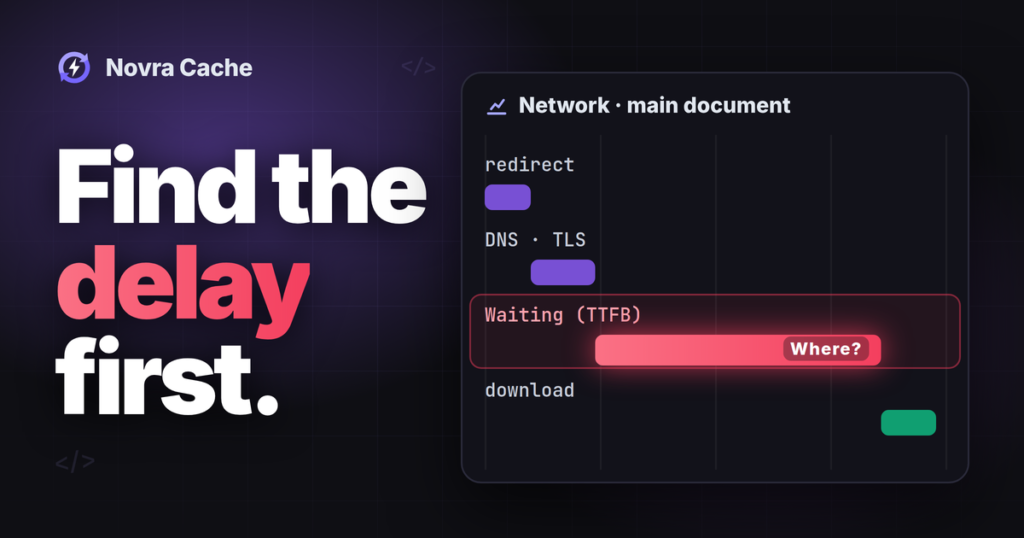
- Open Chrome DevTools, the browser’s inspection tools, and select Network. Keep the panel open and select Preserve log.
- Visit the page, then revisit the same URL. Select the main HTML document, not an image or script.
- Read Headers for request and response details. Read Response for the returned page content. Record the URL, status, expected text and each layer’s documented cache signal.
- Confirm the Novra-side result with your maintainer when another cache can answer first. Use a version-appropriate response marker or existing server diagnostics, not a guessed header name.
- Repeat the ordinary visitor check at a useful mobile width. Confirm the right content, navigation and visible controls still work.
Chrome’s Network panel reference for headers and responses explains those inspection views. Keep Disable cache unchecked for the ordinary acceptance check. Record any browser-cache reuse separately; a browser-held response cannot prove a fresh origin cache hit.
Disabling the browser cache is a separate diagnostic, not a server-cache purge. Forced-refresh behavior can also change the request your cache receives. If you cannot observe the origin, mark its state unknown. An HTTP 200 status means a successful response, not proof that Novra served a cached page.
Keep a compact result record: URL, time, expected content, visitor state, browser-cache state, host/CDN state, Novra evidence and pass or unresolved. A checked settings switch or healthy dashboard does not replace this request-level evidence.
Add WordPress cache preload when it helps
Cache preload prepares server-side page copies before a visitor requests them. Novra uses eligible URLs from a sitemap, a list of public content addresses. This can move page-building work ahead of an arrival. It does not remove that work or guarantee every first visit is warm.
Consider it when useful public pages otherwise remain cold between visits and your host can support the extra requests. Keep it off if the sitemap scope is unclear or ordinary page caching is not working. Preload is not a fix for personal pages or an overloaded server.
Review the sitemap and enable warming
- Identify the sitemap your installation discovers and inspect its listed URLs. Novra documents common sitemap locations and nested sitemap indexes.
- Keep personal routes and action URLs outside warming. In Settings → Preload, use Exclude URLs from Preload for unwanted URLs, one per line. Do not treat this as a replacement for page-cache exclusions.
- Confirm that scheduled jobs run and the server can request its own pages. These return requests are called loopbacks. If WordPress’s scheduler is disabled, the host needs a working replacement.
- Enable Preload Cache and save. Follow the queue of waiting jobs and the health information while scheduled processing runs. Keep Instant Pages unchanged.
- Watch server load and request errors with your host. Do not repeatedly restart warming because it has not finished immediately.
The Novra Cache preload and queue requirements locate these controls. A blocked sitemap, failed loopback or scheduler problem needs investigation. There is no documented universal completion time to wait for in this guide.
Prove preload, not just a second visit
For a controlled check, have your maintainer identify one eligible, harmless sitemap page without an existing warm copy. Confirm its queue inclusion. Do not manually visit it before warming finishes, and account for other visits that could prepare it.
After background processing, inspect the first ordinary visitor response and the corresponding Novra-side evidence. Check that the returned content is correct. A hit only after two manual visits does not prove preload worked. The first manual visit may have created the copy.
A queue marked started is not a completed warm page. Conversely, a CDN hit alone does not establish that Novra’s queue prepared the origin. Record which observation supports each conclusion. If that evidence is unavailable, leave preload effectiveness unverified.
Novra documents rewarming after supported purges when preload is enabled. Removing an old copy and preparing its replacement are separate stages. Do not promise that every affected page becomes warm immediately after an edit.
Keep other preloading features separate
Instant Pages anticipates a next navigation in the visitor’s browser. Image or font preload tells the browser to fetch a resource for the current page early. Neither is the sitemap-based server warming described here.
Keep those controls out of this first trial. Do not copy a link-prefetch concurrency value, another plugin’s batch rate or an image-preload setting into your cache-warming plan.
Keep or reverse the change
Keep page caching only when eligible public responses remain correct and personal responses stay separate. Compare performance under matching URLs, devices and visitor states, recording cold and warm conditions separately. The cache state is evidence about reuse, not a measured whole-site improvement.
- Wrong or personal content: stop the staging experiment, restore the last specific setting and preserve required exclusions. Have the maintainer handle affected stored copies before retesting.
- Stalled warming or increased errors: restore the recorded Preload Cache setting. Have the maintainer confirm remaining queue activity and investigate the sitemap, scheduler and loopbacks.
- Unclear benefit: keep the known-good setup. Do not shorten expiry or add more optimization switches just to make another indicator green.
Restoring a toggle does not prove that already-running work stopped or outer caches changed. Verify the resulting behavior. Do not use Reset All Settings as a one-setting undo.
If your site needs these controls, review Novra Cache’s requirements and page-cache tools, then start with one representative public page. Novra uses one-time licensing. Choose it for a setup you can verify, not a promised score.