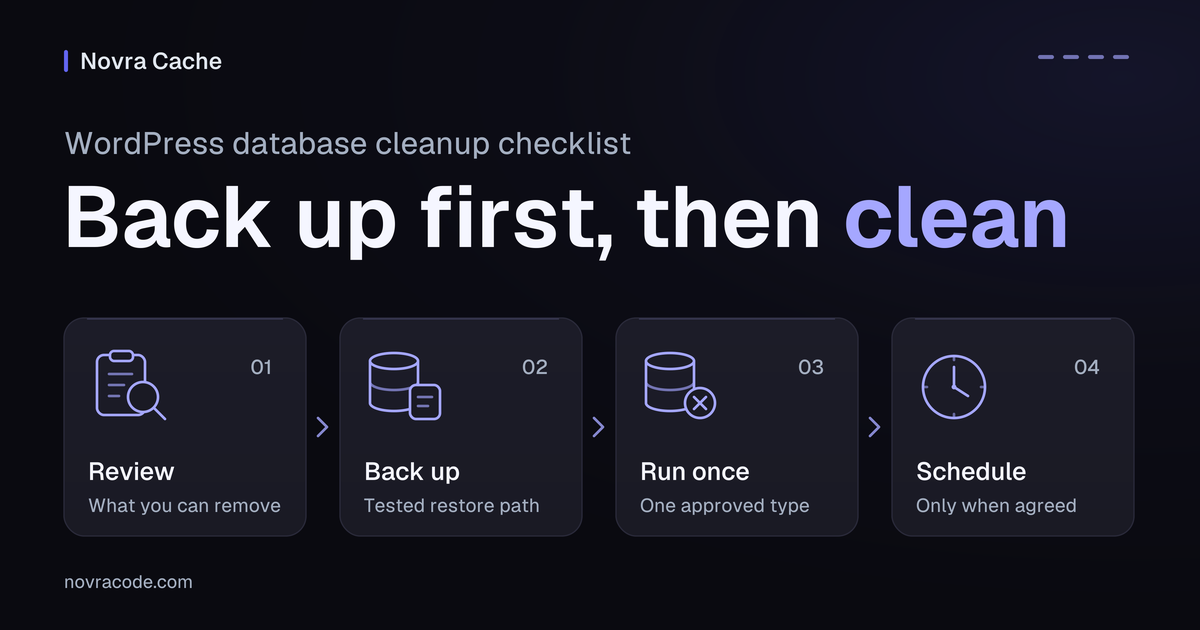
For WordPress database cleanup, back up first, then remove only data you have reviewed and no longer need. Keep revisions if you still need that editing history. A large database alone does not explain why a site feels slow.
Novra Cache’s database maintenance tools let you select cleanup categories and run them manually or on a schedule. This brings focused maintenance into the same plugin as your page-performance controls. Keep an independent backup; cleanup is not an undo system or a guaranteed speed fix.
Decide what you can remove
Your database stores posts, comments, settings and other site records. Before deleting anything, identify what is growing and who needs to keep it. Ask your host or developer to investigate unfamiliar tables, the containers that hold those records.
Novra’s database maintenance guide documents these categories. The choice applies to a category, not just the example record you inspected.
| Category | What it means | Check before selecting it |
|---|---|---|
| Revisions | Earlier saved versions of posts and pages. | Novra removes saved revisions, without a keep-last-N policy. Leave this unselected if you need that history. |
| Auto drafts | Automatically created starting records, not your normally saved draft articles. | Save unfinished editing work first. Do not confuse auto drafts with ordinary drafts or autosaves. |
| Trashed posts | Content already placed in Trash. | Review it for anything you might restore. Cleanup makes the removal permanent. |
| Spam comments | Comments marked as spam. | Check for legitimate comments marked incorrectly. Pending and approved comments are different categories. |
| Trashed comments | Comments already marked for removal. | Recover anything still needed before permanent cleanup. |
| Expired transients | Temporary cached information whose expiry time has passed. | This targets expired database entries, not every active transient or every cache. |
| Table optimization | Separate maintenance for eligible tables with reclaimable space. | Novra targets non-InnoDB tables. Ask your host whether this applies; it is not a universal speed improvement. |
InnoDB is a common database storage engine: the system that manages how tables store data. Table optimization is not permission to delete tables. An unfamiliar name does not make a table unused.
Keep the history you may need
The WordPress revisions guide explains how saved versions let you compare changes and restore earlier content. Deleting those records removes that recovery history.
WordPress stores autosaves as a special type of revision. An autosave is an automatic recovery copy; it is not an auto draft. Treat revision cleanup as a recovery decision, not harmless housekeeping.
Novra’s database cleanup FAQ confirms that revision cleanup removes all saved revisions rather than retaining a chosen number. If you need to keep recent versions, leave revision cleanup off. Do not assume a schedule creates a retention policy.
Separate expired data from active caches
A transient is temporary cached information stored by WordPress or a plugin. Expired entries and still-valid entries are not interchangeable.
The WordPress Transients API documentation notes that transients can live outside the database when an external cache is used. Clearing expired database entries does not clear that entire external store. It also does not justify deleting every temporary-looking option.
Prepare a real recovery path
Before the first cleanup, arrange a current database backup and confirm who can restore it. A settings export does not contain your posts, comments or complete database.
The WordPress backup guide distinguishes database backups from file backups. Keep both for full-site recovery. Ask your host to demonstrate restoration on staging, a separate test copy of your site, before relying on the backup.
- Record the backup time and confirm that the backup can be opened and restored.
- Review the selected categories and their current counts with the person responsible for that content.
- Agree how long editing history and recoverable comments should remain available.
- For a shop, agree how recovery would protect orders and changes made after the backup.
- Keep scheduled cleanup disabled while deciding what may be removed.
Restoring an older database can also rewind newer site changes. Your host should plan recovery around that risk, especially on an active shop. If restoration is unverified, postpone deletion.
Run one reviewed cleanup with Novra Cache
Use a representative staging copy for the first run. Keep its outgoing integrations isolated so test activity does not affect customers. The following steps are a workflow to follow, not a report of tests performed on your site.
- Open the Database settings in Novra Cache. Keep Automatic Cleanup set to Disabled during the initial review.
- Choose only the category you have approved for removal. Leave revisions and other useful records unselected. Do not select everything to make the counts smaller.
- Review the displayed counts and confirm that the backup covers the data about to change. If the scope is unclear, stop and ask your maintainer.
- Use Run Cleanup Now for the reviewed selection. Allow the operation to finish before taking another action.
- Check the resulting counts and inspect representative posts, saved drafts and comments. Reopen an editing task and check the features your site actually uses.
- Record the categories, before-and-after counts, time and observed result. Investigate unexpected changes before planning another run.
A lower count confirms a different amount of stored data, not a faster website. If you are investigating speed, compare the same task under matching conditions separately. Do not invent a performance gain from the cleanup message.
If needed content disappears or a workflow fails, stop further cleanup. Ask the recovery owner to restore the affected data using the agreed plan. Changing the checkbox back does not restore deleted records.
Example, not a test result: imagine a small business blog with unwanted spam comments and revision history its editor still needs. Review the spam, keep revision cleanup off, then trial only the approved category. The correct outcome is retained editorial history and removal of the reviewed spam, not a promised speed score.
Schedule only an agreed cleanup
Novra documents Disabled, Daily, Weekly and Monthly under Automatic Cleanup. These are available intervals, not a recommendation to clean every website daily or weekly.
Choose a schedule only after a manual trial, a retention decision and a working recovery process. Consider how quickly unwanted records return and who will review the results. Manual-only maintenance remains a valid choice.
A schedule repeats cleanup; it does not preserve selected versions. Recheck the saved categories before enabling it. Do not assume old records are filtered by an age limit that the documentation does not specify.
Scheduled execution also needs to work. WordPress’s WP-Cron guide explains its system for scheduled tasks and how normal execution depends on page loads. Your host may use another trigger. Ask them to confirm the site’s actual arrangement and whether the cleanup ran.
A selected schedule is not proof of a completed run at an exact clock time. If work does not run, investigate scheduling with your host. Repeated manual deletion is not a scheduling repair.
Choose maintenance for the right problem
Use database cleanup for reviewed, unwanted records. It is not a replacement for diagnosing a slow checkout, reducing heavy images or refreshing an outdated page copy.
Explore Novra Cache’s maintenance and performance controls, then start with the category your review supports. Novra offers one-time licensing with no subscription. Keep the backup, useful history and working site functions ahead of smaller counts.