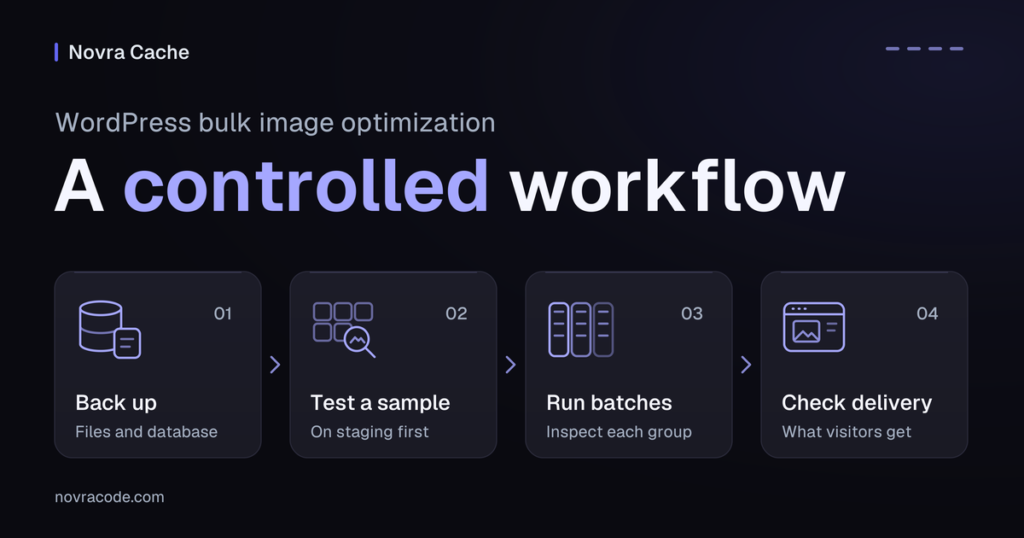
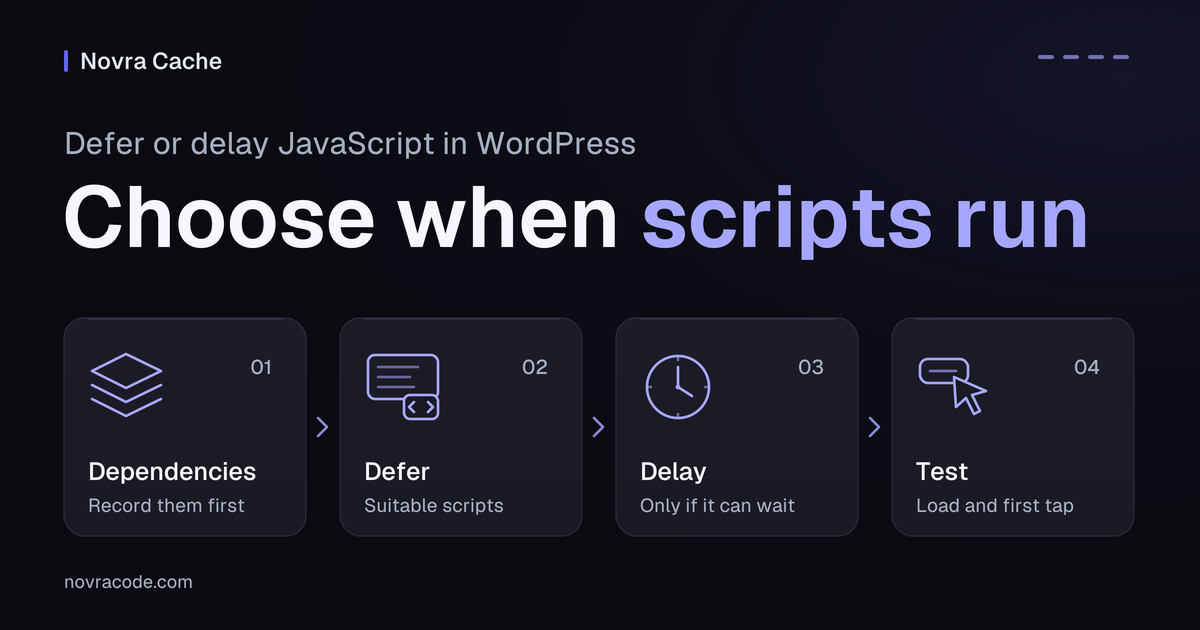
To defer JavaScript in WordPress, let suitable external scripts run after the browser has read the page’s structure. Scripts are the code behind features such as menus and forms. Delay JavaScript execution only when a feature can wait for interaction. Neither setting removes unused functions from a code file.
Choose when each script needs to run
For a site that needs script-timing controls alongside page caching, we recommend Novra Cache’s JavaScript controls. Page caching keeps ready-made page copies; separate Defer and Delay settings control when scripts run. Dedicated exclusions let you keep essential scripts outside each optimization. That gives you a practical way to test one change without applying the same timing to everything.
Defer and delay solve different timing problems. Start on staging, a separate copy of your site for testing. If another plugin already handles caching or JavaScript, review that setup before enabling competing controls.
| Choice | When scripts run | When to consider it | What it does not do |
|---|---|---|---|
| Defer | After parsing: the browser reading the HTML and building the page structure. | The feature is needed on this page, but its script does not need to run during parsing. | Wait for a visitor action or remove unused code. |
| Delay | After an interaction triggers eligible scripts. | The feature can wait, and its first action still works correctly. | Replace consent controls or remove unused code. |
| Async | As soon as the script finishes loading, without guaranteed document order. | The script’s maintainer designed it for independent execution. | Protect a sequence of dependent scripts automatically. |
| No timing change | At the existing initialization point. | Early startup is required, or a timing test breaks the feature. | Prevent you from investigating other performance improvements. |
For suitable external scripts, native defer preserves their order in the document. It does not wait for every image to finish loading. Moving a script to the footer is also different from deferring it. The official WordPress script-loading strategies explain this distinction.
Keep essential startup behavior available
List what must work before a visitor scrolls or taps: consent controls, visible navigation, form setup and required analytics initialization. Consent is the visitor’s choice about permitted tracking or storage. Delay is not a substitute for respecting that choice.
An optional widget is only a delay candidate if its actual role can wait. A menu, payment control or essential form should not need an extra tap because its code was unavailable.
Record dependencies before changing timing
A dependency is code another script needs first. For example, a menu may need a shared library and a small setup script. An inline script sits inside the page HTML instead of a separate file. If that setup runs before its library is ready, the menu can fail.
Before changing anything, keep a restorable backup and export the current Novra Cache settings. Existing installations retain saved choices, so do not assume the switches match a fresh installation. Record these details for each representative page:
- The page address, feature and plugin or theme responsible for it.
- Actual script addresses, registered names if available, and related inline setup. Ask the maintainer to identify dependencies you cannot trace.
- Current Minify, Defer and Delay choices, plus their exclusions and any other optimizer affecting the same scripts.
- Whether you are logged in, your consent choice, device and network conditions, and any shop state.
- What should happen on page load and the first interaction, alongside what happens before the change.
In Chrome’s developer tools, the Network panel shows requested files and what initiated them. The Console shows script errors. A request finishing successfully does not prove that scripts executed in the required order.
For custom implementation, ask your maintainer to use WordPress guidance on script dependencies. WordPress considers registered dependencies when choosing a loading strategy. That protection is not a promise that later optimization by another plugin preserves every relationship. Avoid a blanket code snippet that adds defer to all scripts.
Keep the Novra Cache JavaScript settings and exclusions open while following either workflow below. Test one timing change at a time; leave minification and file-removal rules unchanged.
Defer suitable external scripts in Novra Cache
- Start with basic Defer on staging. Open Novra Cache’s JavaScript settings and record the starting values. For this isolated trial, leave Delay and Defer Inline JS & jQuery off.
- Enable Defer JavaScript and save. Refresh the affected staging page’s cached output so the test uses the new setting. Coordinate any server or delivery-network cache with your maintainer.
- Inspect the HTML returned for the page. Check whether the target external script has the expected defer behavior. Already asynchronous or deferred scripts are treated separately; do not expect every script to change.
- Reload without interacting, then test the menu, search, forms and other required controls. Check new Console errors against your baseline and repeat on mobile.
- If a feature breaks, restore the last change before investigating. Identify the affected script and its dependencies, then try a focused entry in Defer Exclusions.
- Save, refresh the affected output and repeat the exact failing action. Keep the change only if the relevant checks below pass.
Use an identifiable fragment of the actual script address, or matching script text, as documented for exclusions. Do not paste a generic list from another website. Excluding one library while leaving incompatible timing on its setup script may leave the problem unresolved.
Basic Defer has no documented administrator-only safe mode. Delay JS Safe Mode does not protect this trial. Keep Defer experiments on staging.
Defer Inline JS & jQuery is a separate, more aggressive option. jQuery is a shared JavaScript library used by many WordPress features. Leave this option for a separate test after checking the basic result. If basic defer already meets your needs, there is no reason to enable it just to use another switch.
Delay JavaScript execution in WordPress only when it can wait
Restore the recorded timing baseline before comparing a delay-only trial. For this comparison, keep Defer and Defer Inline JS & jQuery off, recording any change needed to isolate Delay. Keep minification unchanged and do not add Script Manager removal rules.
- On staging, open the JavaScript settings. Enable Delay JavaScript Execution together with Delay JS Safe Mode, then save.
- Stay logged in as an administrator for this first check. Load a representative page without interacting and check what is available immediately.
- Trigger one action, such as opening the menu. Confirm that the intended action happens, not merely that scripts start downloading.
- Repeat from a fresh page load for a tap, click and keyboard activation. Test your actual mobile controls, not only a resized desktop window.
- Investigate failures with the relevant Delay Exclusions before extending the test to ordinary visitors.
Safe Mode is an administrator-only delay preview. Ordinary visitors do not receive that delay behavior while it is active. An unchanged anonymous session is therefore not evidence that Delay failed, or that the delayed experience works for visitors.
Set delay exclusions and test the first action
Keep scripts that require early initialization outside Delay. Add matching script addresses or text to Delay Exclusions, with the necessary dependencies. Defer Exclusions and Minify Exclusions solve different problems; changing either does not substitute for a Delay exclusion.
Quick Exclusions provide presets for selected common libraries or plugins. Use a preset only when it applies to your site, then verify the affected feature and its dependencies. A preset is a starting point, not a compatibility result.
Click Replay replays the initial interaction after scripts load to address first-tap problems. Test the actual control: does the first tap open the menu, and does a second tap behave normally? Also check keyboard use and watch for duplicate actions. Click Replay does not guarantee that a payment widget or mobile control works.
After the administrator trial passes, turn Safe Mode off on staging to test ordinary visitor behavior. Refresh the relevant cached output, then use a fresh logged-out session. Turning Safe Mode off expands who receives Delay; it is not an undo step. Do not make that transition on your live site just to run the first visitor test.
Illustrative example, not a tested Novra site: a business site has a mobile menu, an optional review widget and consent controls. These choices need checking on that site.
- Mobile menu: trial basic defer only if the theme supports the timing. Keep its library and setup compatible, and require the first tap and keyboard action to work.
- Optional review widget: consider Delay if it can appear later. Confirm it appears when intended without swallowing the action that triggered loading.
- Consent and required startup events: preserve necessary early initialization. Do not postpone them simply to improve a speed score.
Test page load and interaction together
Test the first action, not only the page load. Use the following checks on representative pages after each trial. They are a testing plan, not results claimed for your site.
| State | What to do | What needs to remain correct |
|---|---|---|
| Desktop and mobile, before interaction | Load without scrolling or tapping. Check visible content, controls and keyboard focus. | Required startup behavior is available, with no new unexplained script errors. |
| First and repeated actions | Try the first tap, click and keyboard activation on menus, search, sliders or accordions you use. | The intended action works immediately and is not duplicated. Later actions also work. |
| Consent unknown, rejected and accepted | Use fresh sessions for each choice. Compare the banner and expected script behavior. | Consent choices remain accessible and respected. Required enforcement is not delayed. |
| Forms, popups and search | Open footer and popup forms. Try empty or invalid values, then a test submission routed away from real leads. | Validation, the server response, confirmation and search results work as expected. |
| Analytics and other events | Compare expected events in a debug or test destination before interaction, after consent and after interaction. | Required events happen at the right stage without duplicates. Do not manufacture real conversion data. |
| Shop and account features, if present | Use staging with product options, empty and filled carts, updates, coupons, shipping and account access. | Values and state remain consistent. Test payment widgets and confirmation only with a sandbox or test gateway. |
| Administrator and ordinary visitor | Record the active mode. Repeat logged out after enabling visitor behavior on staging and refreshing relevant output. | The anonymous experience passes separately; an administrator-only preview is insufficient. |
| Fresh and repeat visits | Compare matching browser-cache and server-cache conditions, including a warmed page and a slow connection. | Both initial loading and interaction remain usable under the conditions visitors encounter. |
If no test gateway is available, leave payment and confirmation checks unverified. Do not place a real order for this exercise.
A warm page cache already holds a ready-made response. A browser cache stores files on the visitor’s device. Chrome’s Disable cache option affects the latter, not your server cache or a delivery network. Record both states so an old response does not hide the change.
Once the functions work, run a free WordPress speed check as a separate diagnostic. Compare the same page, device profile, network and cache conditions. A better lab score does not prove that a first tap works or that required events were recorded. It also does not guarantee rankings or sales.
Restore working behavior before widening the change
- Return the last changed timing option or exclusion to its recorded value. If Delay introduced the failure, restore the previous Delay state first.
- Refresh only the affected cached output through your usual site-maintenance process. Reload and repeat the exact action that failed.
- If the failure disappears, identify the script and its dependencies before retrying. Use the relevant Defer or Delay exclusion, keeping related code in compatible order.
- Repeat the same anonymous, mobile and consent checks. Keep the known-good behavior if you cannot verify an alternative.
- Export the stable settings and record the reason for each exclusion. If you already use Script Manager, its rule export is separate from the main settings export.
Do not use Reset All Settings, uninstall the plugin or delete files as a one-setting rollback. A cache-bypass query is also not proof that every optimization layer is disabled. If restoring the setting does not restore behavior, stop adding changes and ask your maintainer to isolate the remaining layer.
The JavaScript optimization troubleshooting answers explain related limitations. Explore Novra Cache’s script controls, then keep the timing setup that meets your site’s needs and passes your checks.
Common defer and delay questions
Does defer remove unused JavaScript?
No. Defer changes execution timing; it does not remove unused functions from a bundle, a file containing combined code. Delay also changes timing. Removing unnecessary code or stopping a file from loading requires a different investigation.
Can I use async instead of defer?
Only when the script’s design supports it. Async does not guarantee document order, so dependent scripts can run in the wrong sequence. Ask the script’s maintainer which strategy fits.
Is Delay JS Safe Mode the same as Script Manager Testing Mode?
No. Delay JS Safe Mode limits delay to logged-in administrators. Script Manager Testing Mode previews asset-disabling rules for administrators. Neither is a substitute for checking ordinary visitor behavior. The JavaScript Visual Script Picker is documented as Coming soon, not a tool to use for these steps.
Will these settings work with my theme and plugins?
Compatibility depends on your setup and the options you enable. Keep exclusions focused, test the important journeys and retain the working baseline. A higher performance score alone cannot establish compatibility.