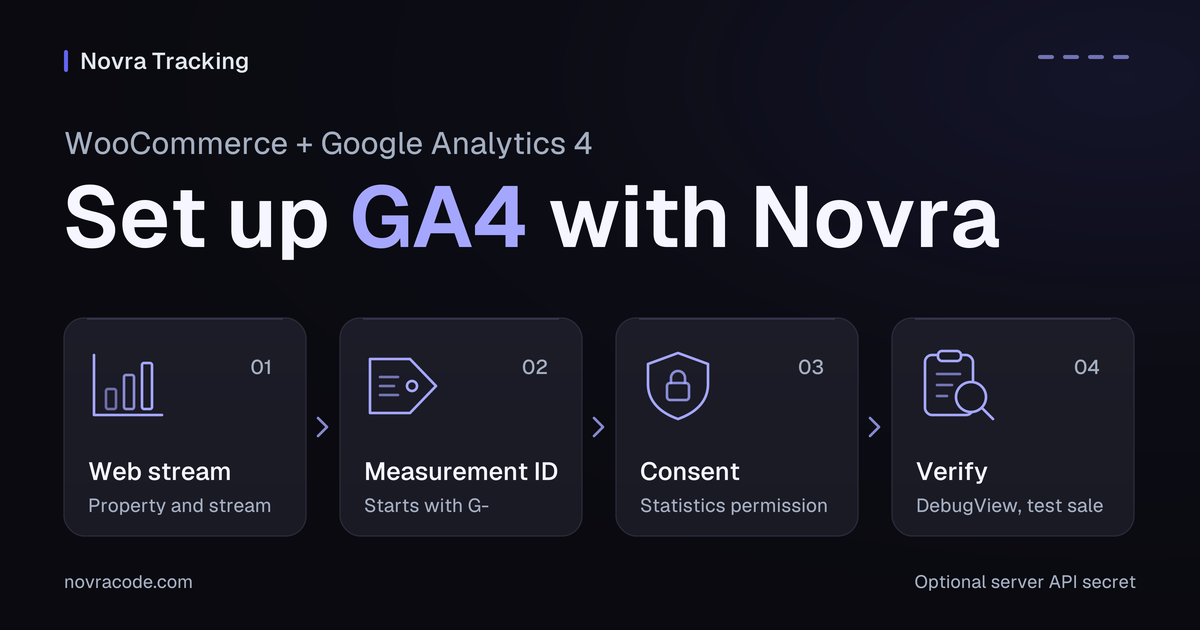
WooCommerce Google Analytics 4 setup needs a GA4 web connection and an integration that sends your shop events. A page-view tag alone is not a complete ecommerce setup. An event records an action, such as adding a product to the cart.
Novra Tracking for WooCommerce connects supported product, cart, checkout and purchase events to GA4 without writing event code. This guide takes you from your Google account to a configured connection and a practical verification checklist.
Choose your WooCommerce Google Analytics integration
If you mean Google Analytics for WooCommerce by Woo, use the official Woo extension setup guide. Its settings are under WooCommerce → Settings → Integration → Google Analytics.
The instructions below use Novra Tracking, a separate plugin from Novra Code. It is not Woo’s extension or a Google product. You do not need to install Woo’s extension alongside Novra for this setup.
Already have a working integration? Check what it sends before replacing it. Choose Novra when its supported shop events, optional GA4 server features and WordPress diagnostics fit your needs. This is a setup guide, not a claim that one plugin fits every store.
Prepare access and assign one sender
- WordPress access: you need permission to install and configure Novra Tracking. Its documented WooCommerce requirements are WordPress 6.4+, PHP 8.0+ and WooCommerce 8.0+.
- Your Google account: use an Analytics account your business controls. Creating a property requires Editor access on the Analytics account. Configuring its web stream requires Editor or higher access on that property.
- Your destination: a GA4 property holds your reporting setup. A web data stream connects a website to that property. Identify the correct shop and stream before copying any ID.
- Your consent setup: identify the cookie banner, its statistics permission and who manages its Google consent settings. Novra reads supported banners; it does not replace one.
- Your current event sender: list existing analytics plugins, theme snippets and Google Tag Manager tags. Tag Manager is a tool for managing tracking scripts.
Assign one integration to each GA4 event and destination. A plugin may deliberately manage both browser and server delivery. That is different from two unrelated plugins reporting the same purchase.
Plan the handover with whoever manages your existing tags. Do not remove an entire Tag Manager container to change one GA4 sender; other services may depend on it. A shared order ID is not a universal safeguard against competing integrations.
Select or create the GA4 destination
If the correct property and web stream already exist, reuse them and continue to the measurement ID. A new plugin does not require a new property. For a new business setup, follow Google’s Analytics account, property and web-stream instructions:
- Sign in to Google Analytics with your Google account. For your first Analytics account, choose Start Measuring. Otherwise, use Admin → Create → Account only if you need another account.
- Create the property during that flow, or open Admin → Create → Property. Enter its name, reporting time zone and currency. Complete the business information and objectives, then create the property.
- In the selected property, open Admin → Data collection and modification → Data streams. Choose Add stream → Web.
- Enter your shop’s primary website URL and a recognizable stream name. Review the enhanced-measurement options, then choose Create stream.
Enhanced measurement does not replace your WooCommerce ecommerce integration. It collects page views and other supported interactions. Your shop integration still needs to send ecommerce events and their product or order details.
Copy the web stream’s measurement ID
Open Admin → Data collection and modification → Data streams. Select the Web tab and your shop’s stream. Copy the Measurement ID, which starts with G-. Google’s measurement-ID guide identifies the exact field.
Record the property name, stream name, website URL and measurement ID together. This is your destination check for the remaining steps. Do not substitute an advertising conversion ID or a different property’s identifier.
Connect Novra Tracking to the stream
Novra documents support for WooCommerce’s classic and block checkouts. That does not confirm every custom theme, gateway or checkout extension. Its installation and first-setup documentation covers the plugin’s requirements.
- Install Novra if needed. Download your plugin ZIP. In WordPress, open Plugins → Add New Plugin → Upload Plugin, select the ZIP, then choose Install Now and Activate.
- Connect GA4. Open Novra Tracking → Settings. In the Platforms group, select Google Analytics 4 under Analytics. Switch the platform on, enter the measurement ID from your chosen stream and save.
- Review the shop events. In Settings, open Shop & Events under Store. Check the WooCommerce actions you intend to collect rather than assuming that a page view proves shop tracking.
- Confirm consent. Open Consent under Privacy. Check that your banner is detected and that its statistics permission reaches the integration.
- Review readiness. Open Novra Tracking → Dashboard and read its recommendations. Resolve missing settings before checking incoming events. A ready platform or high setup score is not proof of received purchases.
Enter your license under Novra Tracking → License if you want plugin updates. The documented license requirement is for updates, not for switching tracking features on. Google Tag Manager is not required for this Novra setup.
Check what happens before consent
In Novra’s default Basic mode, nothing loads or sends before the required consent. GA4 waits for statistics permission. Its server path also respects the consent recorded at checkout.
Advanced mode is different: Google tags can send measurements without cookies while consent is denied. Google’s Basic and Advanced consent documentation explains the distinction. Do not treat “without cookies” as “no data sent” or as a legal-compliance guarantee.
Keep the existing consent owner involved. Adding Novra is not a reason to activate conflicting consent defaults or bypass the banner to make an event appear.
Add the optional GA4 server connection
The measurement ID connects browser tracking. Novra’s documented GA4 server features also require the stream’s API secret, a private credential for server requests. It is not your Google password or your Novra license key.
The GA4 purchase fallback is not an immediate second copy of each sale. Novra documents a fallback 30 minutes after payment when the browser has not confirmed its purchase hit. Refunds and subscription renewals have separate server handling; renewals are not reported as new purchases.
If you need these features, use the same stream as the browser connection. Google’s Measurement Protocol setup instructions describe the secret. Measurement Protocol is Google’s interface for receiving server-sent events.
- In Google Analytics, select the intended account and property. Open Admin → Data collection and modification → Data streams, then select the shop’s web stream.
- Open Measurement Protocol API secrets. Choose Create, enter a recognizable nickname, then choose Create again.
- Copy the Secret value. In Novra’s Google Analytics 4 section, enter it in the API-secret field. Enable the server option if that control is shown, then save.
- Keep the secret private. Do not paste it into your theme, browser scripts or a public support message.
The Novra browser and server delivery guide documents the GA4 route. Its optional GA4 Data API connection has a different job: reading Analytics data for dashboard checks. That separate read connection is not a prerequisite for sending browser events.
Verify your GA4 connection
When implementing this setup, separate diagnostic activity from production reporting. For the purchase check, connect an isolated test store to a separate GA4 test property. Use the payment provider’s test mode too. If that environment is unavailable, leave the purchase and server checks unverified.
Use a non-administrator visitor session. Novra excludes administrators and shop managers from normal tracking by default. A private window changes the session; it does not itself isolate test events from a production property.
For a single-device browser check, Google documents using Tag Assistant to enable debug mode. In the correct GA4 property, open Admin → Data display → DebugView and select your device. Follow Google’s DebugView instructions, then inspect event parameters as you perform the intended shop actions.
Google also recommends filtering developer traffic so debug events do not distort reports. Do not assume that viewing events in DebugView automatically excludes them from reporting.
| Check | Evidence to keep | What is not enough |
|---|---|---|
| Correct destination | The property, web stream and measurement ID match your setup record. | An event appearing in some other property. |
| Consent behavior | For Basic mode, no analytics delivery before statistics permission, then the expected browser events after permission. | A detected banner without checking its actual choice. |
| Shop actions | View a product, add it to the cart and begin checkout. Check view_item, add_to_cart and begin_checkout with the relevant items. |
A page_view event alone. |
| Controlled purchase | Check purchase, its transaction identifier, items, value and currency against the intended test order. |
A thank-you page or a transport-success message. |
| One intended purchase sender | Trace the controlled order to the configured integration and check for duplicate purchase events. | Assuming matching transaction IDs fix arbitrary extra senders. |
| Optional server route | A separate, controlled check of the documented fallback conditions and destination receipt after the documented delay. | A successful browser purchase; that does not exercise the fallback. |
Use this checklist to assess your own setup. Check only the routes you configured and record any untested payment or checkout variation. Event diagnostics also do not prove that a sale will receive credit in an advertising report.
Separate DebugView from server validation
Novra’s Debug mode is under Settings → Advanced → Testing and logs. It marks browser GA4 hits for DebugView, but sends server GA4 hits to Google’s validation endpoint instead of normal collection.
Its Tools test-purchase feature sends a synthetic request; it does not place a WooCommerce order. Google’s validation documentation confirms that these requests do not appear in reports and do not validate the API secret.
A passed validation check does not verify the server connection end to end. Normal server receipt needs a separate controlled check outside that validation path. Even a normal Measurement Protocol HTTP success response does not prove that Analytics processed the event.
Finish by ending your diagnostic session and turning off any plugin Debug mode you enabled. If evidence is missing, inspect the destination ID, visitor role, consent and selected delivery route before adding another tag.
Keep a clear setup record
Keep the property and stream names, measurement ID, chosen sender, consent owner and completed checklist together. Record whether the optional server route was configured and verified, without including its secret.
Novra Tracking brings the supported WooCommerce events and connection controls into WordPress. If that matches your needs, compare Novra Tracking plans for your website count. Plans use a one-time payment and include a 30-day money-back guarantee.