WordPress Consent Mode v2 works in two steps: a default before any Google tag, then an update after the visitor chooses. Your cookie banner asks the question. Google tags then receive four signals: ad_storage, analytics_storage, ad_user_data and ad_personalization. In a WooCommerce shop, the same choice also decides which purchase data leaves your site, including copies sent from your server. This guide shows how the pieces fit together and how you check them.
You get Google’s signal model and the difference between basic and advanced mode. Then we cover the WooCommerce cases: refusal, acceptance and a later change. At the end there is a test matrix you can work through in a private browser window. This is a technical guide, not legal advice.
What Consent Mode v2 does on a WordPress site
Consent mode is Google’s way of telling its tags what a visitor allowed. The tags then change how they behave. Google says plainly that consent mode does not provide a banner. It only receives the choice from your banner or a consent management platform, called a CMP.
Version 2 added two signals to the older two. Google’s consent mode setup guide asks sites to send ad_user_data and ad_personalization in addition to ad_storage and analytics_storage.
| Signal | What it controls | When it is denied, according to Google |
|---|---|---|
analytics_storage |
Analytics cookies, for example to measure visit duration | Analytics cookies are not read or written. Measurements without cookies can still go to Google Analytics. |
ad_storage |
Advertising cookies and identifiers | No advertising cookies are read or written. Ads products shorten IP addresses at collection. |
ad_user_data |
Sending user data to Google for advertising | Personal data for advertising is not collected, for example hashed customer data for Enhanced Conversions. |
ad_personalization |
Personalized advertising, such as remarketing | Remarketing and personalized ads do not receive the data. |
Google lists three more consent types for functionality, personalization and security storage. For Google Analytics and Google Ads, the four signals above are the ones Google’s troubleshooting guide asks you to check.
Four separate jobs: ask, store, pass on, act
Many setups break because one job has no owner. It helps to split consent into four tasks:
- Ask. The cookie banner shows the choice and collects the answer.
- Store. The answer is saved, usually in a cookie of the banner. Google notes that consent mode itself does not save choices.
- Pass on. A default goes to Google before any tag, and an update follows after the choice.
- Act. Each tag and each server connection behaves according to that choice.
Your banner owns the first two jobs. A tracking plugin can own the last two. Whoever owns which part, write it down before you test anything.
Basic vs advanced consent mode
Google offers two ways to implement consent mode. The difference is what happens before the visitor agrees.
| Question | Basic consent mode | Advanced consent mode |
|---|---|---|
| When do Google tags load? | Only after the visitor agrees | Right away, with the defaults set to denied |
| What is sent before consent? | Nothing, not even the consent status | The consent state and measurements without cookies |
| What is sent after consent? | The default, then the update, then normal measurement | Full measurement, with cookies |
| Modeling of missing conversions | A general model | A model specific to your account |
“Without cookies” does not mean “no data”. According to Google’s consent mode overview, these pings can carry a timestamp, the browser’s user agent, the referrer and the consent state. They can also show whether an ad click ID was in the page address. Treat advanced mode as a different data flow, not as an anonymous one.
Which mode fits your site is a decision for you and your legal advisor. Google’s guide says the same: check your company’s guidelines before you pick a method and its defaults.
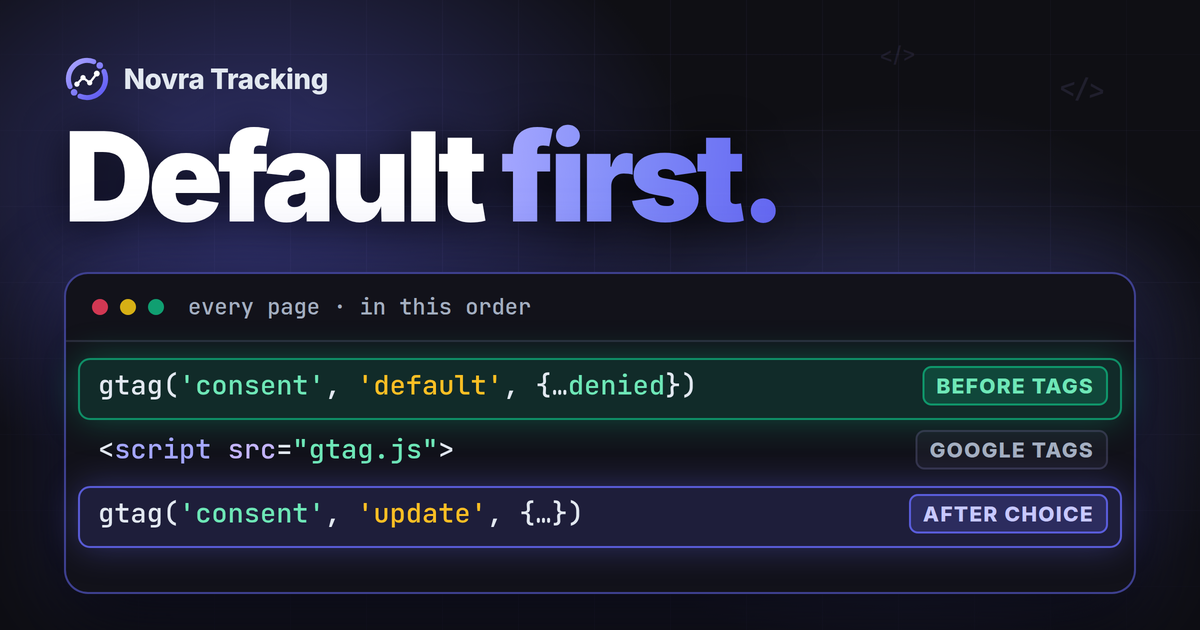
The default before the first tag, the update after the choice
The order matters more than any single setting. Google’s guide calls it “vital”. On every page, this has to happen:
- Set the default. A
consent defaultcommand runs before any command that sends data. A typical default denies all four signals. - Load the banner. If it loads late, Google’s
wait_for_updatesetting gives it a short time, for example 500 milliseconds, to report the choice. - Send the update. After the visitor chooses, a
consent updatecommand sends granted or denied for each signal. - Repeat on the next page. The saved choice is read again, and the update follows the default on every page.
Google’s example default looks like this:
gtag('consent', 'default', {
  'ad_storage': 'denied',
  'ad_user_data': 'denied',
  'ad_personalization': 'denied',
  'analytics_storage': 'denied'
});
A default that runs after the first tag is a common error. Google’s Tag Assistant troubleshooting guide lists it as “Default consent set too late”. Two scripts that each set their own default cause similar confusion. Keep one source of defaults on the page. If you are adding GA4 itself, our guide to WordPress Google Analytics without Google Tag Manager covers the basic connection.
Defaults can differ by region. Google lets you deny consent for some countries and allow it elsewhere. If you use regions, test each one, because a correct test from your own country proves nothing about the others.
Connect your cookie banner to the tags
Most WordPress cookie banners can pass the choice on in one of three ways. Some send Google’s consent commands themselves. Some offer a JavaScript event or cookie that other plugins read. Many use the WP Consent API, a shared interface in WordPress for consent categories. The WP Consent API does not ask for consent itself. It needs a banner plugin that supports it.
Banners usually group the choice into categories such as statistics and marketing. Your tracking setup then turns these categories into the four Google signals. A typical mapping is statistics to analytics_storage and marketing to the three ad signals. Check the mapping in your own setup, because some banners offer finer choices.
Google’s consent signals are made for Google tags. Meta, TikTok and other ad platforms do not read them as their permission. Their pixels need their own rule, usually “load only after marketing consent”. Our guide to the WooCommerce Facebook Pixel and Meta Conversions API shows that check for Meta.
WooCommerce cookie consent tracking: what happens to a purchase
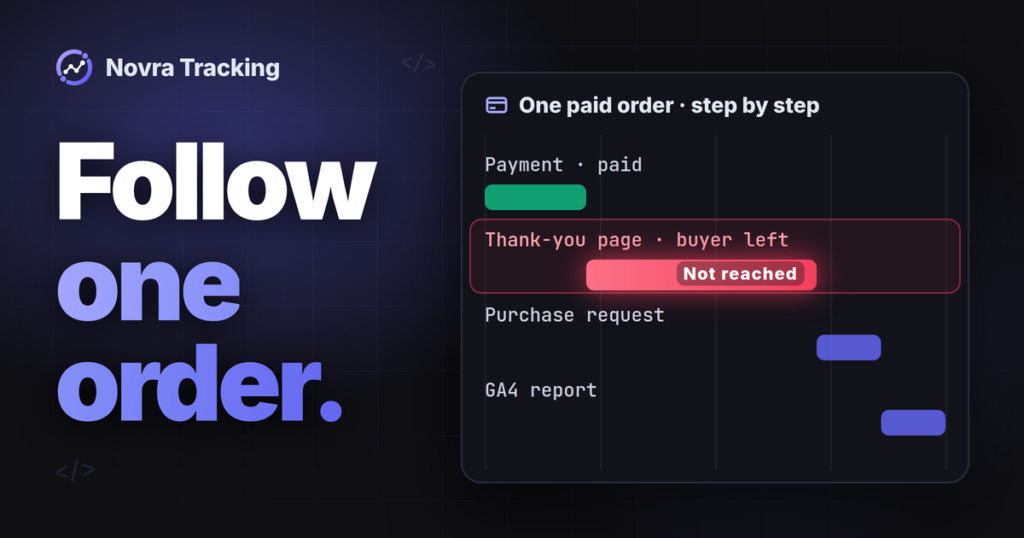
A shop adds three moments to the normal page view: the checkout, the payment and the thank-you page. Consent can be different at each of them. A purchase can also be reported twice: by the browser on the thank-you page and by your server after payment.
When the visitor refuses
With basic consent mode, Google tags do not load for this visitor. The browser therefore sends no purchase to Google. Ad pixels should not load either. In advanced mode, Google tags load with all signals denied and can send measurements without cookies, as described above.
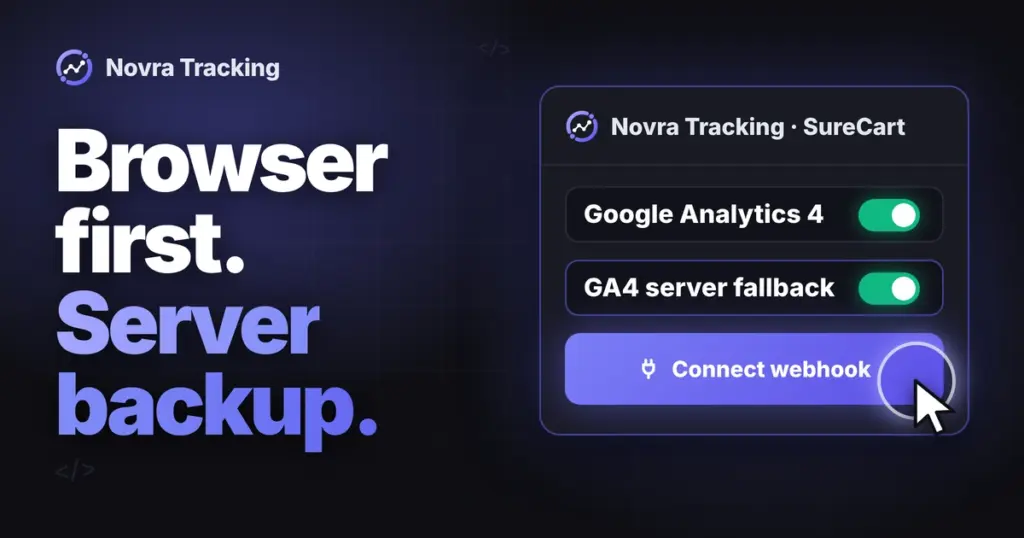
A server connection does not change this. Server-side tracking is not a way around a refusal. If your server reports orders to GA4 or an ad platform, it has to know the choice made in the browser. In practice, that means the choice is saved with the order at checkout.
When the visitor accepts
The tags load and the thank-you page reports the purchase. Server copies of the purchase can go out too, if you use them. Hashed customer data for Google Ads Enhanced Conversions also depends on ad_user_data. When it is denied, Google does not collect that data. Our guide to WooCommerce Google Ads conversion tracking covers that setup in detail.
Partial consent is common. A visitor may allow statistics and refuse marketing. Then GA4 can measure the purchase, while ad platforms should receive nothing.
When the choice changes later
Google’s guide asks for an update command whenever a visitor changes the choice, including from granted to denied. The new choice must be saved, so the next page starts with the right state.
A changed choice affects tracking from that moment on. It does not undo data that platforms already received. For an order that is already placed, the choice recorded at checkout is the reference point for server copies. Keep this in mind when you compare orders with reports.
Server copies and consent
Google’s Measurement Protocol reference describes the interface servers use to send events to GA4. It accepts a consent field for ad_user_data and ad_personalization. If the field is missing, GA4 uses the consent from the visitor’s matching browser activity. That field passes a choice on. It does not make a request consent-free.
If you are still choosing between browser-only, plugin-based server tracking and a tagging server, read how to choose a WooCommerce server side tracking route first.
Test matrix: check each state separately
Work through these rows in a private browser window, as a normal visitor and not as an admin. Google’s Tag Assistant troubleshooting guide shows where to find the default and the update. Each row proves one thing only. The last column tells you what it does not prove.
| State | Action | Expected signal | Where to check | What this does not prove |
|---|---|---|---|---|
| First visit, no choice yet | Open any page | Basic: no Google tag. Advanced: a default with all four signals denied, before any tag. | Tag Assistant: the earliest Consent event and the On-page Default column | That every other script on the page also waits |
| Banner open | Accept all | An update with all four signals granted. Tags fire. | Tag Assistant: the latest Consent event and the On-page Update column | That the platform stored or reported the data |
| Banner open | Allow statistics only | analytics_storage granted, the three ad signals denied. Ad pixels stay off. |
Tag Assistant, and the browser’s network tab for ad platform requests | That your banner’s categories match your privacy policy |
| Banner open | Refuse all | Basic: still no Google tag. Advanced: all signals stay denied. | Tag Assistant and the network tab | That no server copy goes out later. Check the order separately. |
| Choice refused | Place a test order | No browser purchase to ad platforms. No server copy to marketing platforms. | The network tab on the thank-you page, then the platform’s test view | That a different payment method behaves the same way |
| Choice accepted | Place a test order | A browser purchase. Server copies, if you use them. | GA4 DebugView, Meta Test events and similar test views | That the purchase appears in reports or gets credited to an ad |
| Choice accepted earlier | Withdraw consent in the banner settings | An update to denied. Platform scripts stop on the next pages. | Tag Assistant: a new Consent event with denied values | That a platform deleted data it already received |
| Choice saved | Come back in a new tab later | The default, then an update from the saved choice, before tags send data | Tag Assistant: default and update on the first page | That the banner keeps the choice as long as your policy says |
Run test orders only where they are allowed, for example on a staging copy or with a test payment method your shop owner approves. Do not switch consent handling off to make a test pass. Google also notes that GA4 DebugView shows no events while analytics consent is denied. An empty DebugView after a refusal is therefore expected.
Write each row’s result next to the date, the browser and the consent choice you made. When numbers drift months later, this record tells you which state you already checked.
How Novra Tracking handles Consent Mode v2
The hard part of consent in WooCommerce is keeping the banner, the Google signals, the ad pixels and the server copies in line. Novra Tracking, our tracking plugin for WordPress and WooCommerce, takes over the “pass on” and “act” jobs. It reads your visitor’s choice from your cookie banner. It does not replace the banner.
Three consent modes
- Basic is the default. Our docs state that no tag loads before the visitor agrees. Events that happen before the decision wait on the page and are sent once the visitor agrees.
- Advanced uses Google Consent Mode v2. Google tags load with everything denied until the visitor agrees. Meta, TikTok and Microsoft Ads still wait for marketing consent in this mode. Only in advanced mode can you limit consent handling to selected countries. Visitors from other countries then start with tracking allowed.
- Off turns consent handling off completely. Use it only if no consent is needed for your visitors.
In basic mode, Google Analytics waits for statistics consent. Google Ads, Meta and the other ad platforms wait for marketing consent. Google’s consent defaults are set before any tag.
Which banners it reads
Novra Tracking reads the choice from Complianz, Cookiebot, CookieYes, Borlabs Cookie, OneTrust, GDPR Cookie Compliance, Cookie Notice, Usercentrics, iubenda and Termly. It also reads banners that implement the WP Consent API, for example Real Cookie Banner, and banners that set Google Consent Mode themselves. IAB TCF, a standard consent format for ad technology, is supported for Google tags with certified consent platforms.
A custom banner can pass the choice with one call:
novraTracking.consent( { statistics: true, marketing: true } );To keep one set of defaults, Novra Tracking switches off the Consent Mode output of Complianz, Cookiebot and Beautiful Cookie Consent while it sets Google Consent Mode. Their own settings stay unchanged. The dashboard warns when another script sets its own defaults.
What happens to WooCommerce purchases
- Server copies use the consent recorded at checkout. A buyer who did not agree to marketing does not have the order sent to the marketing platforms.
- A withdrawn consent stops the platforms. Their cookies are removed where the site can remove them.
- A missing banner is flagged. In basic mode, the dashboard warns when your customers’ browsers found no consent source at checkout. Without one, no tag would load.
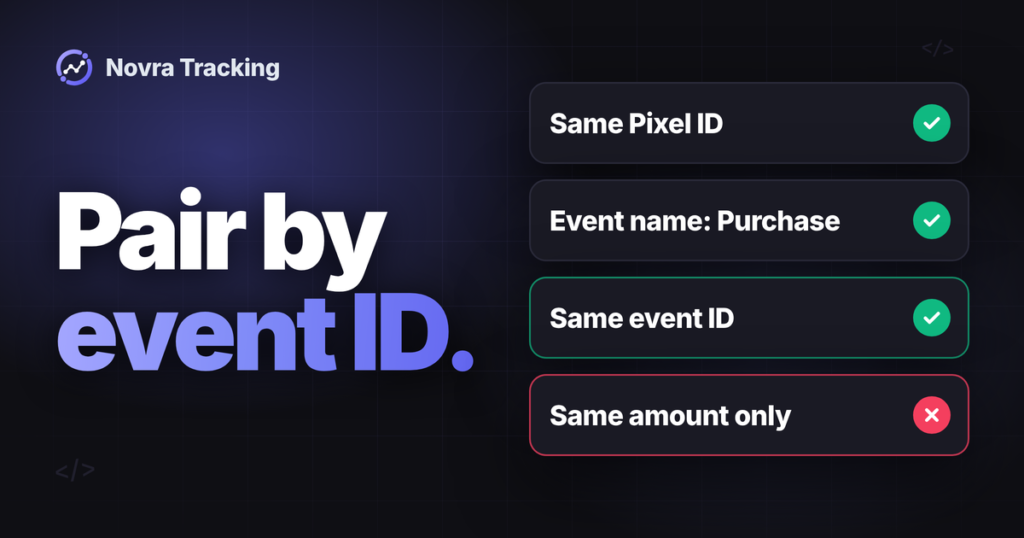
- Browser and server copies are paired. When the browser and the server both report a purchase, they share one event ID, so the platform keeps one.
Set it up and check it
- Open Novra Tracking → Settings → Privacy → Consent and choose a mode.
- Check that the Consent section shows your banner as detected.
- Make sure your banner reports a statistics and a marketing category.
- Open your site in a private window. Administrators and shop managers are excluded from tracking by default.
- Add
?nvtr_debug=1to the address to see each event in the browser console. Add?nvtr_debug=0to end it. - Work through the test matrix above, then check the dashboard recommendations.
Where it does not help
Novra Tracking is not a cookie banner, and it does not tell you whether your setup meets the privacy law of your country. Its docs describe how server copies follow the checkout choice. They do not describe how a change made after the order affects a server copy that is still waiting. If that case matters to you, ask before you rely on it. It also supports only WooCommerce, FluentCart and SureCart as shops.
If you want your cookie banner, Consent Mode v2 and WooCommerce purchases handled in one place, see how Novra Tracking respects your visitors’ consent. It is a one-time payment, and you can request a full refund within 30 days.
FAQ
Do I need Consent Mode v2 if I use basic mode?
Basic mode is one way to implement consent mode. Google tags wait for consent, and after consent they send the default and the update for all four signals. Check with your legal advisor which mode and defaults your site needs.
Does advanced mode send data without consent?
Yes, in a limited form. According to Google, tags send the consent state and measurements without cookies while consent is denied. This is not the same as sending nothing, and it is not an anonymity guarantee.
Does server-side tracking avoid the cookie banner?
No. A server copy of a purchase still needs to follow the visitor’s choice. A good setup saves the choice with the order at checkout and sends only what that choice allows.
Do Meta and TikTok use Google’s consent signals?
No. Google’s four signals are made for Google tags. Other ad platforms need their own consent rule, usually loading only after marketing consent.