If you use WP Super Cache and wonder about a WP Super Cache alternative, the honest first answer is: you may not need one. It is a free page cache from Automattic, and it does that one job well. Novra Cache is worth a look when you want more than a page cache and would rather have it in one plugin than combine several.
We make Novra Cache. We compared Novra Cache 1.0.0 with WP Super Cache 3.1.4 using both plugins’ code (WP Super Cache from WordPress.org) and their public pages, checked on 8 October 2026. This is a feature guide, not a speed test.
When switching makes sense
A page cache saves ready-made copies of your pages, so WordPress repeats less work for each visitor. Both plugins do that. The differences are in what comes on top.
Keep WP Super Cache if a simple, free page cache is all you need. A switch only pays off when it solves a problem you can name:
- It is free and made by Automattic. It has no Pro version and nothing is locked behind a license. It has been on WordPress.org since 2007, and its WordPress.org listing shows more than a million active installations (8 October 2026). Novra Cache is a paid plugin at version 1.0.0.
- It is easy to start. Its Easy tab has one switch for caching and fixed recommended settings.
- Expert mode and CDN links. In Expert mode it hands out saved pages through Apache rewrite rules without running PHP. It can also rewrite your file links to a CDN, a network of servers that delivers files from closer to your visitors. Novra Cache does neither.
- More options for some sites. It supports multisite networks, can cache pages for logged-in visitors, and can show the old copy of a page while a new one is being built.
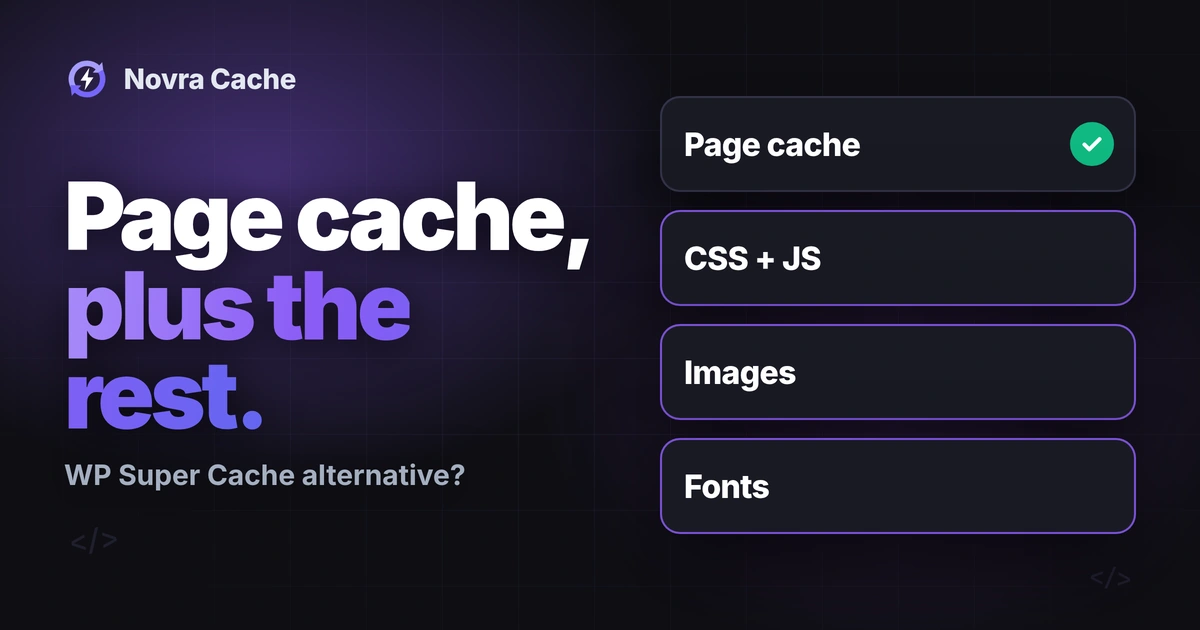
Novra Cache makes sense when you want more than a page cache. WP Super Cache stops there, and its settings page recommends Jetpack Boost for optimizations beyond caching. Novra Cache adds these tools:
- CSS and JavaScript. Novra Cache minifies and defers code, and can delay scripts. It also removes unused CSS automatically (this needs an active license).
- Images. It creates WebP and AVIF images on your own server and lazy-loads images, iframes and YouTube previews.
- Fonts, scripts and database. It hosts Google Fonts on your own server, has a Script Manager for switching off plugin files page by page, and cleans your database on a schedule.
- Cloudflare and NGINX. It clears only the changed pages in Cloudflare and can clear an NGINX FastCGI cache. WP Super Cache has neither.
- WooCommerce. Novra Cache skips the cache for shoppers with items in the cart and refreshes products when stock changes. WP Super Cache has no WooCommerce-specific rules in its code. For cart and checkout it relies on WooCommerce’s own no-cache flag.
Novra Cache and WP Super Cache: the practical differences
One plugin or several. WP Super Cache is a page cache and says so. Anything else, such as image formats, unused CSS or font hosting, needs another plugin or a hosting service. Novra Cache puts these jobs in one settings screen. That is the only reason to switch. It is not a promise of a faster site.
How pages are served. In its recommended Simple mode, WP Super Cache serves pages through PHP, like Novra Cache does. Expert mode writes rules into your .htaccess file and serves saved files without PHP. These rules are for Apache and LiteSpeed. For NGINX, its settings page says the rules are not officially supported. Novra Cache has one method that works on Apache, LiteSpeed and NGINX.
Preloading. Both plugins can build cached pages before visitors ask for them, and both start with preloading off. WP Super Cache reads your posts and terms. Novra Cache reads your sitemap.
Logged-in visitors. Novra Cache always shows logged-in visitors an uncached page and has no option to change that. WP Super Cache has several settings for them.
See the full Novra Cache vs WP Super Cache comparison for the feature table and every area where WP Super Cache is stronger.
Compare the cost honestly
These were the displayed prices on 8 October 2026:
- Novra Cache: $79 once for 1 website.
- WP Super Cache: free.
If a page cache is enough, nothing beats free. The price only matters if you would otherwise add other plugins for CSS, JavaScript, images or fonts. Novra Cache is paid once and keeps your updates, with a 30-day money-back guarantee. Check the price comparison by number of websites for the plan you need.
Check your host and your site first
A feature list cannot tell you whether your hosting suits Novra Cache. Before you test it, confirm these basics:
- Supported software: Novra Cache needs WordPress 6.2 or later and PHP 8.1 or later. WP Super Cache needs PHP 7.4 but WordPress 6.8, so check your versions before you plan a switch.
- Working cache storage: the server must let Novra Cache write its drop-in file and its cached files. Its health panel checks these.
- What you rely on today: if you use CDN link rewriting, multisite, caching for logged-in visitors or WP Super Cache’s Dynamic caching for developers, Novra Cache will not replace them.
- Image formats: Novra Cache creates WebP and AVIF with your server’s image tools. Which formats you get depends on your server.
- Cloudflare: Novra Cache clears Cloudflare with an API token. It does not set up Cloudflare page caching for you.
Test a switch step by step
Treat the switch as a controlled test, not a one-click move. Novra Cache does not import WP Super Cache settings, so plan to set it up by hand.
- Work on a staging copy first. A staging site is a private copy of your site where mistakes cost nothing. Back up your site before you start, including your wp-config.php and .htaccess files.
- Write down your WP Super Cache settings. Note whether you use Simple or Expert mode, your rejected URLs and cookies, your CDN settings, the caching option for logged-in visitors and whether preloading is on.
- Record a baseline. Test your homepage, a content page and an important product or form page. You can run our free speed test and note the device and connection you used.
- Deactivate WP Super Cache, but do not delete it yet. Only one plugin can be your page cache. On deactivation, WP Super Cache cleans up after itself. It deletes its advanced-cache.php file from wp-content, but only if it is its own. It empties its cache folder, turns caching off in its settings and removes the WP_CACHE and WPCACHEHOME lines from your wp-config.php file. It also empties its block in your .htaccess file, which only holds rules if you used Expert mode.
- Check what is left. If your server or file permissions blocked a step, WP Super Cache cannot finish the job. If it cannot edit wp-config.php, it shows an error and asks you to remove the lines yourself. If it cannot edit .htaccess, it emails the site admin. Open your .htaccess file and check that nothing remains between “# BEGIN WPSuperCache” and “# END WPSuperCache”, and that your normal WordPress block is still there. Then look in wp-content and check that advanced-cache.php is gone, or belongs to a plugin you still use.
- Keep the plugin for now. Deactivating keeps WP Super Cache’s settings file. Deleting the plugin removes it. Delete WP Super Cache only after your test is finished. Until then it is your way back.
- Set up Novra Cache in small steps. Activate your license and check the health panel. Page caching starts switched off, so turn it on first. Turning it on installs Novra Cache’s drop-in and adds the WP_CACHE line to your wp-config.php file again.
- Turn on preloading. It is off until you switch it on. With it on, Novra Cache fills the cache from your sitemap, so first visits to your pages can get a ready-made copy. Open your sitemap in a browser first and check that it loads. The Novra Cache documentation explains where to find each setting.
- Add code and image improvements one group at a time. Start with one group, check your pages, then add the next. On shops, place a safe test order and check cart, checkout and account pages.
- Check as a logged-out visitor after each step. Look at menus, popups, forms and your cookie banner on desktop and mobile. Clear your Cloudflare and host caches if you use them, so you do not look at an old copy.
- Measure again and decide. Compare the same pages under the same conditions. If a problem remains that you cannot fix, roll back as described below.
Roll back if something doesn’t fit
Export your Novra Cache settings as a file before you change them. You can also reset everything from the Tools tab. To go back to WP Super Cache:
- Deactivate Novra Cache.
- Reactivate WP Super Cache and turn caching on again in its Easy tab. If you used Expert mode, open the Advanced tab and check that it is selected and its rules were written to your .htaccess file again.
- Clear your Cloudflare and host caches, then check your key pages while logged out.
If you already deleted WP Super Cache, its settings file is gone and you set it up again from your notes. That is why the notes in step 2 matter.
Choose the setup you can maintain
- Test Novra Cache if you are adding other plugins or services for CSS, JavaScript, images, fonts, Cloudflare or WooCommerce, and you would rather manage one.
- Keep WP Super Cache if a free page cache does what you need, or if you rely on CDN link rewriting, multisite, caching for logged-in visitors or Expert mode.
- Wait with the switch if your host requirements are unclear or you have not yet found what makes your site slow.
If Novra Cache fits your needs, compare the Novra Cache plans and try it on your own site. One payment, no subscription and a 30-day money-back guarantee. Judge the result by working pages and customer journeys, not by a promised score.
FAQ
Is WP Super Cache enough for my site?
Often, yes. It is a free, well-known page cache from Automattic. Novra Cache is for when you also want CSS and JavaScript tools, WebP and AVIF images, local fonts or WooCommerce rules in the same plugin.
Can I run Novra Cache and WP Super Cache together?
Not as two page caches. Only one plugin can be your page cache, so deactivate WP Super Cache before you turn on caching in Novra Cache.
Does Novra Cache import my WP Super Cache settings?
No. Write down your WP Super Cache settings first, then set up Novra Cache step by step and check your pages after each change.
Should I turn on preloading in Novra Cache?
It is off until you turn it on. With it on, Novra Cache fills the cache from your sitemap instead of waiting for the first visitor to each page. Check that your sitemap loads first.