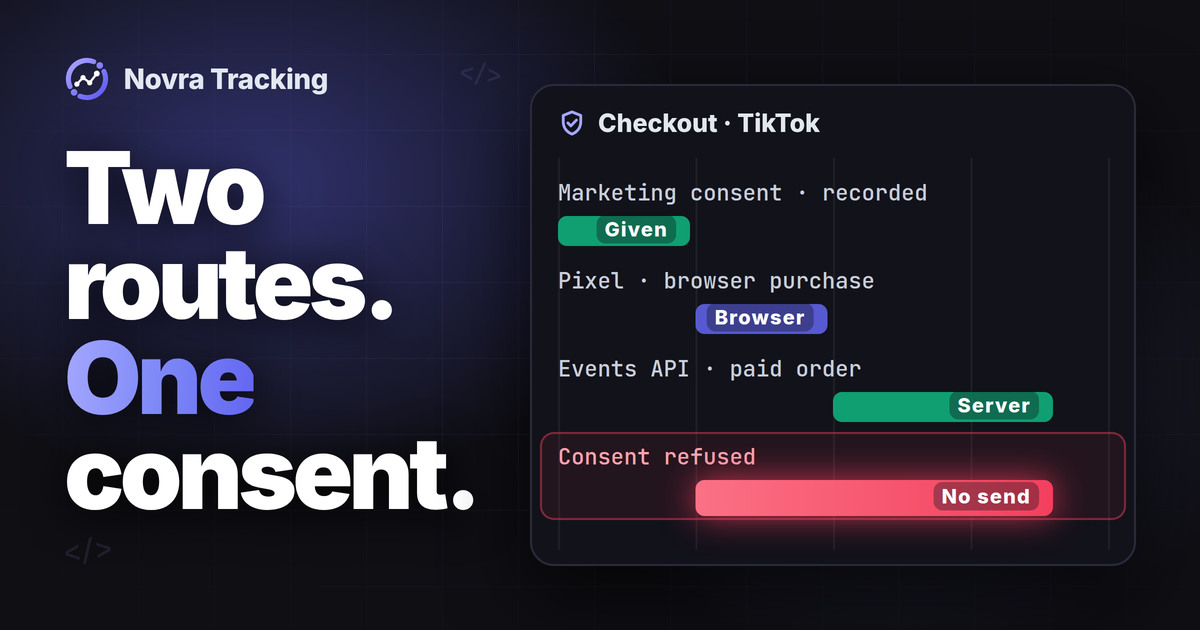
WooCommerce TikTok Pixel setup connects browser shopping events to TikTok. Add Events API when you also need your website to report supported purchases directly. With Novra Tracking, connect the intended Pixel, keep marketing consent intact, and check event names, values and duplicate handling before trusting the reports.
Novra Tracking for WooCommerce and TikTok brings those connections into WordPress. It documents product, cart, checkout and purchase tracking through the Pixel, plus server purchases through Events API. The server route can reduce reliance on buyers returning to your thank-you page. It does not guarantee that every order becomes an ad-attributed sale.
Choose your TikTok integration first
If you mean the official extension, use the TikTok for WooCommerce documentation. That integration also covers TikTok Shop, catalog connections and advertising features. This guide uses Novra Tracking, a separate plugin from Novra Code, not the official TikTok extension.
Before enabling another sender, list your existing TikTok plugins, theme snippets, Google Tag Manager tags and server connections. Tag Manager is a tool for managing tracking scripts. Also check for events configured through TikTok’s Event Builder.
Assign one integration to each event and destination. One integration may deliberately coordinate browser and server reports. Two unrelated plugins need a planned handover. Do not disable an entire working extension or container without preserving its catalog, campaign and unrelated tracking responsibilities.
Prepare the correct Pixel and access
- Your shop: Novra documents WordPress 6.4+, PHP 8.0+ and WooCommerce 8.0+. Classic and block checkouts are supported; check your particular gateway and checkout extensions separately.
- Your platform access: use a TikTok Ads Manager account your business controls. You need access to the intended web data source and permission to manage its connection. Have the account owner resolve missing access.
- Your consent setup: identify the cookie banner and the person responsible for its marketing permission. Novra reads supported banners; it does not supply one.
- Your test environment: use an isolated test store and a separate TikTok data source, kept out of production campaigns and audiences. Use the payment provider’s test mode for order checks.
If that test environment is unavailable, begin with a read-only review of your existing settings and documentation. Postpone event-generating checks until you can separate them from production.
In TikTok Ads Manager, open Tools → Events Manager and select the intended web data source. Record the account, Pixel name, Pixel ID and shop domain together. Reuse the appropriate existing production Pixel for a later production connection; a plugin change alone is not a reason to replace it.
For a new source, TikTok’s web data connection setup guide starts with Connect Data Source → Web and your website URL. It then separates partner integration from manual setup. Follow the route for your chosen integration; do not install a second base-code snippet alongside Novra’s Pixel.
Connect the Pixel in Novra Tracking
Start on your isolated test store with its separate Pixel. The Novra platform-connection guide documents the following settings:
- Install the plugin if needed. Upload your Novra ZIP under Plugins → Add New Plugin → Upload Plugin, then install and activate it.
- Connect TikTok. Open Novra Tracking → Settings, select TikTok, switch the platform on and enter the intended Pixel ID. Save the settings.
- Review the shop actions. Open Shop & Events under Store. Identify the product, cart, checkout and purchase actions you need.
- Check the banner. Open Consent under Privacy and confirm the detected banner and its marketing permission.
- Review readiness. Open Novra Tracking → Dashboard and resolve missing configuration. A ready status or setup score is not proof of received events.
Google Tag Manager is not required for Novra’s documented connection. If you keep an existing container, make sure its TikTok tags do not independently repeat Novra’s events.
Keep marketing consent intact
In Novra’s default Basic mode, its tracking waits for the required consent. TikTok also waits for marketing consent in Advanced mode. Google’s different Consent Mode behavior does not give TikTok permission to send before that choice.
Novra’s server purchases follow the marketing consent recorded at checkout. Check accepted and refused choices in the test environment. Do not select Off merely to make an event appear. Server delivery is not a consent bypass, and a detected banner is not a legal-compliance certificate.
Add WooCommerce TikTok Events API purchases
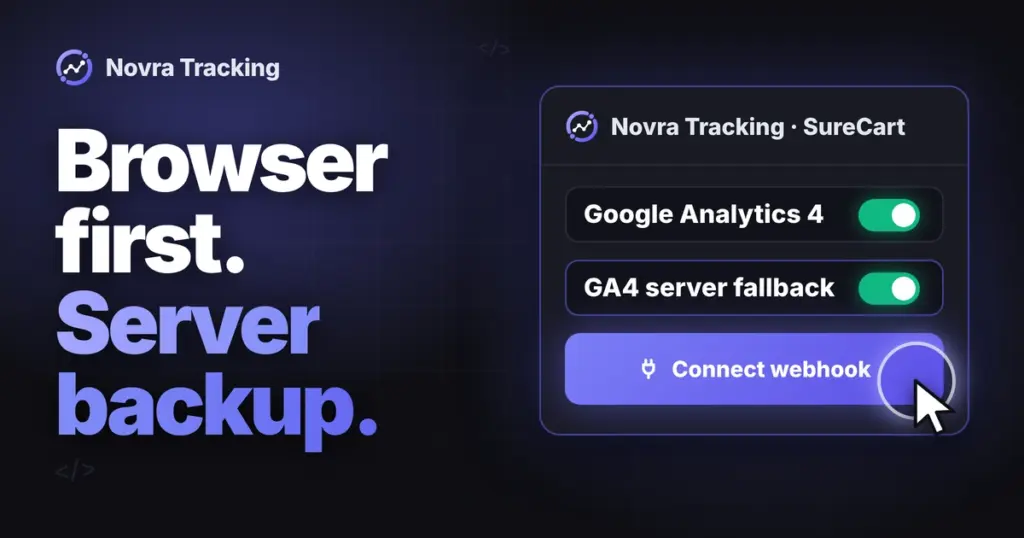
The Pixel runs in the visitor’s browser. Events API is TikTok’s interface for receiving events directly from a server. Novra’s documented option adds eligible paid-order reports; enabling it does not establish that every browser action has a server copy.
You need an access token, a private credential for the server connection, as well as the Pixel ID. TikTok documents the token controls in the prerequisites of its Events Manager credential instructions. Those TikTok-side controls are separate from the partner-specific mappings later on that page.
- Select the same intended Pixel in TikTok Events Manager.
- Open Settings and find Events API. Use Generate Access Token if available. If the control is missing, have the account owner check access and the current setup flow.
- Return to TikTok in Novra Tracking → Settings. Enter the token in the server-connection credential field.
- Enable Send purchases from the server and save. Check the Pixel identity again before proceeding.
Keep the token out of browser scripts, public HTML, URLs and shared screenshots. Novra documents encrypted storage and omission of tokens from its settings export and system report.
Novra describes these server purchases as background deliveries a few minutes after payment, with the recorded marketing consent. Its TikTok rule limits this route to orders paid within 47 hours of being placed. That is Novra’s documented order-eligibility rule, not TikTok’s general API acceptance limit. Late-paid orders need separate review.
Check event names and order values
A shop action and an event code are not interchangeable. TikTok’s current standard-event reference lists these relevant codes. This table is a TikTok reference, not a verified event map for your installed Novra version.
| Action to identify | TikTok standard code | What to compare |
|---|---|---|
| Viewing a relevant product page | ViewContent |
The intended product and its identifier. |
| Adding a product to the cart | AddToCart |
The product, quantity and cart action. |
| Starting checkout | InitiateCheckout |
The checkout action, not a completed payment. |
| Making a purchase | Purchase |
The intended purchase trigger, value and currency. |
Novra’s public documentation describes the shopping actions but does not publish a field-by-field TikTok event map. Older TikTok material also uses names such as Complete Payment. Record the exact outgoing name from each route in your version. Do not assume CompletePayment, Purchase and GA4’s purchase are interchangeable. Resolve an unexpected name with the integration’s current guidance before adding another event.
For purchases, compare the event with the order’s actual payment confirmation. Then check value, currency, quantities and product identifiers. Agree whether the intended value includes tax, shipping, fees or discounts. Do not copy a GA4 or Meta value formula into TikTok by assumption. Novra’s public TikTok description does not establish those calculation defaults.
If you use a product catalog, compare the event’s content identifiers with the catalog’s product or variation identifiers. A product title alone does not establish that mapping. Keep the chosen definition in your setup record.
Understand matching without adding unneeded data
Matching helps TikTok associate an event with an advertising interaction. TikTok’s Events API matching guidance describes click IDs, hashed email and phone, external IDs, device information and a first-party cookie identifier. These fields have different handling rules; not all are hashed.
Novra documents TikTok advanced matching, but not a complete public list of its TikTok fields. Confirm the fields your installed version sends if that affects your requirements. Hashing changes an identifier’s representation; it does not make the data anonymous or remove consent requirements. Keep sensitive information out of event labels and diagnostic examples.
Check browser and server deduplication
Deduplication means recognizing two reports of the same action. TikTok’s event-deduplication guidance requires matching event and event_id for corresponding copies. A matching amount or Pixel name is not sufficient.
- Confirm both routes use the intended Pixel.
- Compare the exact event names and event IDs for the same purchase.
- Check that different purchases do not reuse the same event ID.
- Inspect event timing and TikTok’s event details, including deduplication information.
TikTok describes a 48-hour window for identical event-name/event-ID pairs. Its browser/server section additionally describes merging or deduplicating arrivals after five minutes and within 48 hours, where applicable. This is not an instruction to delay your integration manually. Check the platform’s current handling rather than treating a short-lived pair of received copies as two counted sales.
Novra documents a shared browser/server purchase identifier, but its public TikTok guide does not specify the identifier’s exact format. Do not substitute a WooCommerce order number or copy another plugin’s ID convention. Confirm the actual pair. Novra’s separate 47-hour payment rule does not replace TikTok’s matching conditions.
Diagnose the connection in stages
Begin with existing evidence, not another production purchase. Record the intended action, Pixel, sender, consent state and event name. Read Novra’s setup status and available logs, then compare them with TikTok’s received-event details.
The Novra testing guide documents a per-tab browser console view using ?nvtr_debug=1. It shows local event activity, not proof that TikTok received it. Novra also documents failed server hits under Settings → Advanced and background-job warnings on its Dashboard.
TikTok’s monitoring and diagnostics guide separates browser and server connection methods. Event Details includes parameters, matching and deduplication information. Test Events can filter browser and server activity. Overview data can arrive with a delay.
| Symptom | First focused checks | What not to infer |
|---|---|---|
| No browser Pixel activity | Confirm TikTok is enabled, the Pixel ID is correct, marketing consent permits it, and the session is not an excluded administrator or shop manager. Then inspect browser errors and cached settings. | A server event does not prove the browser Pixel loaded. |
| Server delivery fails | Read the failed-hit details. Check the intended Pixel, token setup, server option and background-job warnings. | A saved token or green setup status does not prove API acceptance. |
| A purchase is missing | Confirm payment, recorded marketing consent, Novra’s 47-hour paid-order rule and the selected TikTok source. Allow for background delivery and display latency. | A checkout visit or order creation alone does not prove an eligible server purchase. |
| The purchase appears twice | Compare event names, IDs and connection methods. Inventory extra plugins, snippets, Event Builder rules and server senders before planning a change. | Two received copies are not automatically two counted sales. |
| The value looks wrong | Compare the same order and currency. Check the value definition, discounts and product identifiers in each route. | The full payment amount is not automatically the value definition your integration used. |
Verify a controlled checkout separately
Use the isolated store, separate TikTok source and test payment mode prepared earlier. A private window, debug setting or test event code alone does not establish that separation. Do not treat a test code as a blanket guarantee about production reporting, audiences or billing.
- Use a customer-like session; Novra excludes administrators and shop managers from normal tracking by default.
- Check the intended consent state, then follow a product view, cart action and checkout. Compare each action with the exact events received.
- Complete an eligible test order and verify payment, event names, identifiers, value and currency. Inspect browser and server receipt separately, allowing for documented delivery delays.
- Inspect duplicate handling and record any unverified gateway or custom-checkout variation.
Novra’s Tools test-purchase control sends synthetic data; it does not place a WooCommerce order or exercise the checkout. A successful connection check therefore cannot replace the controlled checkout above. Use synthetic tests only within the same separated test setup.
Receipt is not attribution. TikTok’s Total Events includes attributed and unattributed events. Attribution assigns credit to an ad, using TikTok’s reporting rules. Event receipt, a counted purchase and an ad-attributed purchase are different outcomes.
When checks finish, end the per-tab console session with ?nvtr_debug=0 and remove any temporary test settings you enabled. Keep a record of the destination, event owner, confirmed mapping and remaining checks, without credentials or customer details.
Decide whether Novra fits your shop
Novra Tracking fits a WooCommerce shop that wants documented TikTok browser events and eligible server purchases managed from WordPress. Keep a working integration if it already meets your requirements. Resolve any required event-mapping or value detail before a production handover.
Your next step is to compare Novra Tracking’s features with your event plan. Choose the supported connection, verify it in stages and keep one clear owner for each event. Neither route guarantees complete tracking, correct ad attribution or higher revenue.