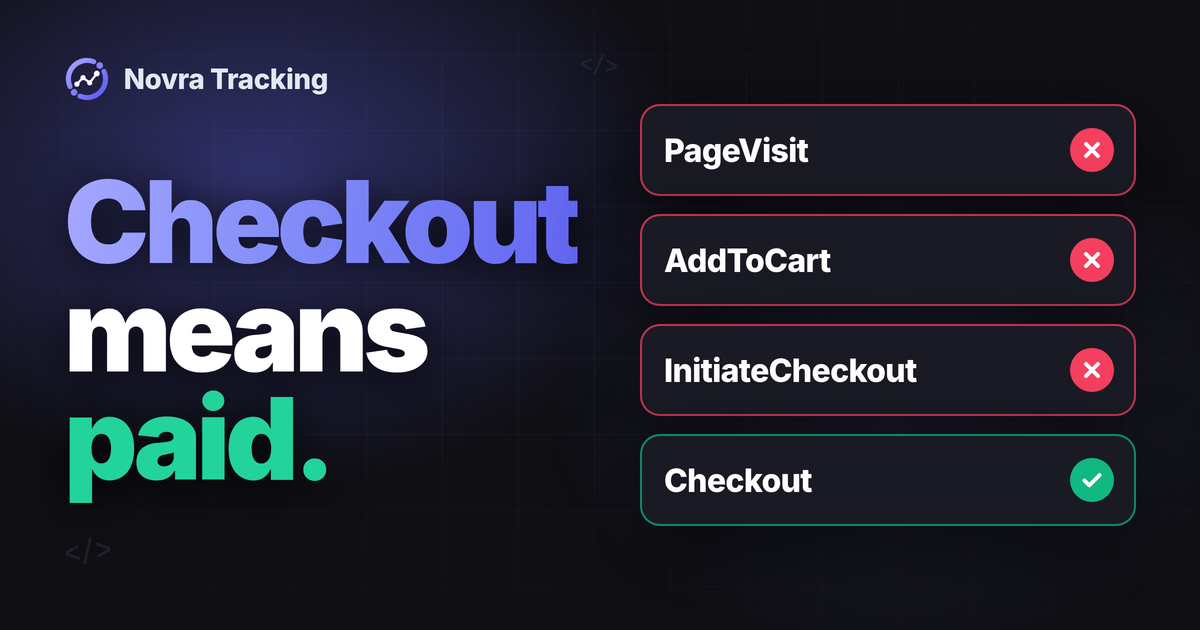
WooCommerce Pinterest conversion tracking needs a correctly connected tag and correctly defined purchase events. Use Pinterest’s Checkout event for a completed transaction, not a visit to your checkout page. Then verify the destination, purchase details and handling of browser and server copies.
Novra Tracking for WooCommerce and Pinterest provides a WordPress setup for documented browser shopping actions and eligible server purchases. Its Pinterest Tag integration includes Enhanced Match, which helps associate events with Pinterest users. The optional Conversions API purchase route reduces reliance on buyers returning to your thank-you page. Neither route guarantees an ad-attributed sale.
Identify your existing Pinterest connection
If you want the official extension, start with the Pinterest for WooCommerce documentation. That extension handles catalog synchronization, Pinterest features for products and conversion tracking. Its documentation lists both the tag and Conversions API. Do not assume it is browser-only.
This guide uses Novra Tracking, a separate plugin from Novra Code. Its Pinterest connection is not a replacement for product-feed synchronization or campaign management.
Before adding it, identify the existing advertiser account, tag and event sender. Check the official extension, other tracking plugins, theme snippets, Google Tag Manager and server connections. Tag Manager manages tracking scripts; its presence alone does not tell you which events it sends.
Give each event and destination one clear owner. That owner may coordinate both browser and server reports. Plan any transition with the current operator, preserving catalog sync and unrelated tags. Do not disconnect an entire working integration just to remove an overlapping purchase event.
Distinguish purchases from checkout starts
Pinterest’s tag event reference separates a completed transaction from starting checkout. The corresponding API event names use a different naming format.
| Shop action to identify | Pinterest Tag label | Conversions API name |
|---|---|---|
| Viewing a primary page, including a product page | PageVisit |
page_visit |
| Viewing site content | ViewContent |
view_content |
| Adding an item to the cart | AddToCart |
add_to_cart |
| Starting checkout | InitiateCheckout |
initiate_checkout |
| Completing a transaction | Checkout |
checkout |
This is a Pinterest reference, not a verified map of your installed Novra version. Tag labels are not a copy-and-paste JavaScript recipe. Novra’s public description lists shopping actions, but does not specify every outgoing Pinterest code or WooCommerce trigger.
For your purchase check, confirm payment and inspect the actual outgoing event. Do not map a checkout-page view to a completed purchase, rename events to GA4’s names, or add both page-view types simply because both exist.
Connect the intended tag in Novra
Novra documents WordPress 6.4+, PHP 8.0+ and WooCommerce 8.0+, including classic and block checkout support. Check your particular payment gateway and checkout extensions separately. You need WordPress setup access and a Pinterest business account with the intended advertiser account.
In Pinterest’s Conversions area, identify your shop’s tag. Record the advertiser account, tag name, Tag ID and shop domain together. The Tag ID and advertiser account ID are different identifiers. Have the account owner resolve missing access; do not borrow a token from another business.
For a new tag, follow Pinterest’s tag setup instructions. Reuse an appropriate existing production tag when planning a later migration. Do not add a manual base-code snippet alongside a plugin that already supplies it.
Rehearse configuration on an isolated test store connected to a separate Pinterest test destination, kept outside production campaigns and audiences. Use your payment provider’s test mode for order checks. Without that separation, begin with existing settings and logs and postpone event-generating checks.
- Install Novra if needed. In WordPress, use Plugins → Add New Plugin → Upload Plugin to install and activate your Novra ZIP.
- Connect Pinterest. Open Novra Tracking → Settings, select Pinterest, switch it on and enter the intended Tag ID. Save the settings.
- Review shop actions. Under Store, open Shop & Events and identify the actions your setup needs.
- Check consent. Under Privacy, open Consent and confirm the detected banner and its marketing choice.
- Inspect readiness. Read Novra Tracking → Dashboard recommendations. A saved ID or high setup score is not proof that Pinterest received a purchase.
The Novra platform-connection guide explains these controls. Google Tag Manager is not required for this connection. An existing container still needs checking for overlapping Pinterest tags.
Check Pinterest consent explicitly
In Novra’s default Basic mode, tracking waits for the required consent. Its advertising tags require marketing permission. Server purchases also follow the marketing choice recorded at checkout.
Do not infer Pinterest’s behavior in Advanced mode from Google’s Consent Mode. Confirm the Pinterest behavior for your installed version before choosing that mode. Check refusal and acceptance in the separated test setup; selecting Off merely to make events appear defeats that check.
Novra documents Pinterest Enhanced Match. Pinterest’s Enhanced Match guidance describes matching with hashed email addresses. Hashing changes an identifier’s representation; it does not make the data anonymous. Confirm which customer fields your version sends. A detected banner or server connection is not a legal-compliance guarantee.
Add the optional server purchase route
The Pinterest Tag runs in the visitor’s browser. Conversions API is Pinterest’s interface for server-sent events. Novra documents a server route for eligible paid orders, not a server copy of every Pinterest browsing action.
Use Pinterest’s Conversions API access instructions for the intended advertiser. In Conversions, find Set Up API and Generate new token. Pinterest’s developer guide places this under Conversions API in the current account overview. Use the current account interface if its navigation differs.
- Confirm the advertiser account associated with the token matches your intended Pinterest connection. Business Access is needed when managing an account you do not own.
- Open Pinterest in Novra Tracking → Settings and enter the token in its server credential field. Follow the fields shown by your installed version; an account ID is not a substitute for the Tag ID.
- Enable Send purchases from the server and save. Keep the browser and server routes assigned to the same intended advertiser.
A token is a private credential. Keep it out of page code, URLs and shared screenshots. Novra documents encrypted storage and omission of credentials from its settings export and system report.
Separate Novra’s limit from Pinterest’s timing
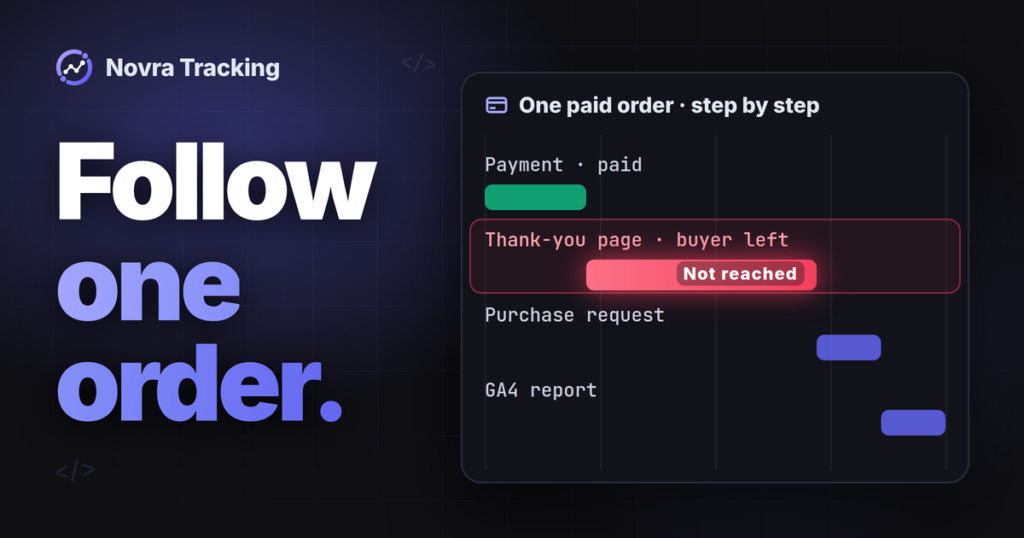
Novra describes background delivery after payment, subject to checkout consent. Its documentation limits Pinterest server copies to purchases less than 55 minutes old, with later-paid orders relying on the browser tag alone.
That is a Novra eligibility limit, not Pinterest’s universal acceptance or attribution window. The public wording does not precisely identify whether its clock starts at order creation, payment or another recorded timestamp. If delayed payments matter to your store, confirm that detail before relying on this route.
Pinterest separately recommends sending events in real time, within about an hour. Its current API deduplication guidance describes removing redundant events within 48 hours. Do not extend Novra’s cutoff yourself or treat an older purchase as automatically recoverable.
Inspect purchase values and identifiers
Compare one intended purchase across the shop record and both delivery routes. Confirm the same transaction, actual payment timing, currency, quantity and products before comparing totals.
Pinterest’s API product-event guidance defines custom_data.value as purchased-item value before tax and shipping. It recommends sending currency with value. This platform definition does not prove the calculation used by your installed plugin.
- Check discounts, fees, tax and shipping against the recorded order and intended value definition.
- Compare browser and server values; do not assume the full payment total is the correct comparison.
- If you use a catalog, compare product and variation identifiers with its records. A matching product name is not enough.
Novra’s public Pinterest description does not establish its exact value defaults, product-ID format, WooCommerce status triggers or refund mapping. Resolve any required detail with the installed integration’s evidence or support. That documentation limit does not establish that a feature is missing. Do not import another platform’s profit, refund or renewal rules.
Check that two copies represent one purchase
Deduplication means recognizing repeated reports of the same action. Pinterest asks integrations to pass the event name and event identifier across sources, using the same identifier for corresponding copies. Different purchases need distinct identifiers.
Novra documents a shared browser/server purchase ID, but does not publish its exact Pinterest ID format. Inspect what both routes actually send. Do not replace it with an order-number convention copied from another integration.
In Pinterest, use Events Overview → the relevant event → Deduplication. Its event-testing and deduplication guide explains event-ID coverage and duplicate-removal metrics. Two received copies are not automatically two counted sales, and a shared amount does not prove successful pairing.
Diagnose the missing evidence
Start with existing logs and platform records, not another production order. Novra documents failed server hits under Settings → Advanced and background-job warnings on its Dashboard. Its payment-method view helps locate delivery gaps; it is not a Pinterest-side receipt certificate.
| Symptom | First focused check | Evidence still needed |
|---|---|---|
| No browser tag activity | Check Pinterest is enabled, the Tag ID, marketing consent, excluded administrator roles and cached settings. | The intended tag and action visible in browser diagnostics. |
| Checkout event appears before payment | Identify the sender and whether it uses a checkout-page view or checkout-start action. | A completed transaction represented separately from starting checkout. |
| Server purchase missing or rejected | Read available error details, account/token association, server option, payment timing, recorded consent and Novra’s eligibility limit. | Receipt by the intended advertiser, not just a saved token. |
| Possible double purchase | Compare event types, identifiers and sources; inventory independent plugins and server senders. | Duplicate handling in Pinterest, not merely two incoming records. |
| Wrong value or product match | Compare the same order’s currency, item value, discounts and product or variation identifiers. | Agreement with the documented definition and relevant catalog records. |
For browser checks, Pinterest documents Pinterest Tag Helper and Ads Manager Test events. Inspect individual event details, including value and quantity. Tag Helper does not verify a separate server request or prove ad attribution.
Use Pinterest tests with their actual limits
Pinterest’s API test instructions document a test=true request mode. Those API test events go to a sandbox and are not processed for reporting or optimization. That specific promise does not cover ordinary browser activity or every plugin debug setting.
Novra’s published Tools test-purchase instructions do not list Pinterest. Do not assume that button tests its connection, or that Novra’s debug mode applies Pinterest’s API test parameter. Have the integration operator confirm the available test route.
Once the isolated store, separate Pinterest destination and gateway test mode are ready, use a customer-like session. Novra excludes administrators and shop managers from normal tracking by default.
- Check refusal and acceptance of the intended marketing permission.
- Follow a page or product view, cart action and checkout start. Compare each with its actual Pinterest event.
- Complete an eligible test order. Check payment and compare browser and server receipt, identifiers, value and currency separately.
- Inspect duplicate handling. Record untested gateways, custom checkouts or delayed-payment cases instead of assuming they also passed.
A private window or test payment alone does not separate destination data. If you cannot establish the test setup, keep the review read-only. Record missing evidence without credentials or customer details.
Compare reports only after delivery checks
Event receipt, a counted conversion and ad attribution are different outcomes. Attribution assigns credit to an advertising interaction. Pinterest’s conversion and attribution window explanation distinguishes the relevant lookback periods and click or view interactions.
Compare equivalent dates, currencies and purchase definitions. A WooCommerce order total is not expected to equal the number of purchases credited to Pinterest ads. Investigate missing evidence before adding another sender.
Choose Novra when its documented WooCommerce actions, WordPress controls and eligible Pinterest server purchases fit your requirements. Keep a working integration if it already does the job. Confirm delayed-payment eligibility and any required mapping before a production handover.
Your next step is to review Novra Tracking against your Pinterest requirements. Start with the intended tag, one event owner and a verified purchase path, not a promise to capture every sale.