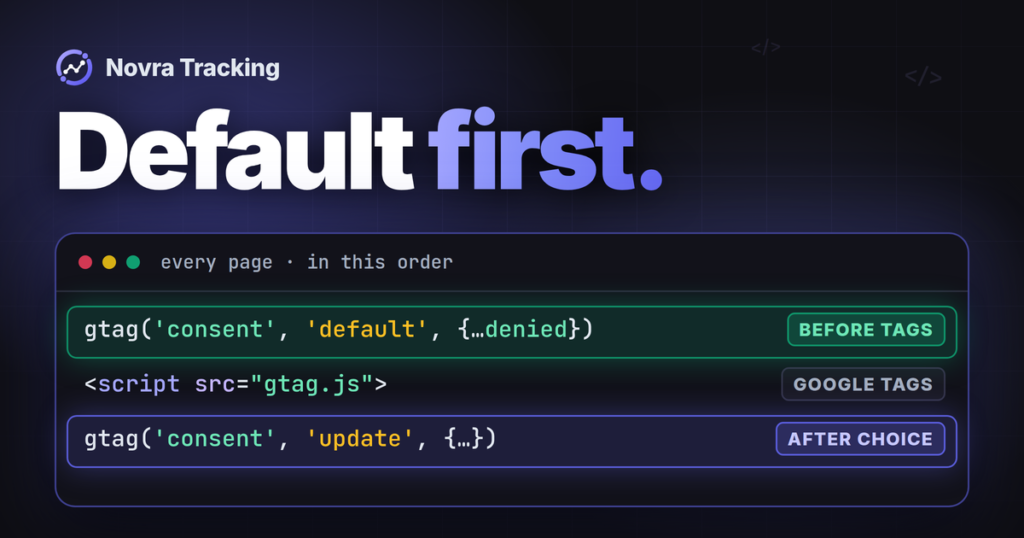
You can set up WordPress Google Analytics without Google Tag Manager. Google Analytics 4 (GA4) can receive website events through a directly installed Google tag. That is the core of WordPress GA4 without GTM: you do not need to create a Tag Manager container first.
Novra Tracking for WordPress provides this direct route: enable GA4, enter your web stream’s measurement ID and check consent. A shop and a Measurement Protocol API secret are not requirements for basic browser page views. Start with that connection, then verify the actions you actually need.
Understand the three Google tools
These names describe different jobs. Google’s comparison of the Google tag and Tag Manager confirms that the tag can work on its own.
| Tool | Its job | What it means for your setup |
|---|---|---|
| Google Analytics 4 | Collects and reports activity from your website or app. | Your GA4 property contains the reports; its web data stream identifies the website connection. |
| Google tag, often called gtag.js | Sends measurement data from your website to Google destinations. | A WordPress integration can load it directly, without a GTM container. |
| Google Tag Manager (GTM) | Manages tags, triggers and variables in a container. | It is another way to deploy the Google tag and other tracking scripts. |
No GTM does not mean no Google script. Google’s direct tag can load from the googletagmanager.com domain. That hostname alone does not prove that you installed a GTM container.
Choose one GA4 sender before installing anything
Check existing analytics plugins, Site Kit, theme settings, header snippets and GTM tags. A working integration may already send your page views. Adding another sender can duplicate events.
- Choose Novra’s direct route when you want its supported tracking and consent controls managed in WordPress. You can enable GA4 without enabling advertising platforms.
- Keep a working direct integration if it already meets your needs. A manual Google tag or another suitable plugin can also work without GTM.
- Keep GTM where it serves a purpose, such as managing additional third-party tags or custom triggers. Removing a container could break unrelated tools.
For example, a company website measuring page views can start with one direct GA4 connection. A site with a managed GTM container for several services should inventory those tags before changing its GA4 sender. Neither example establishes that one route is faster or more accurate.
Novra can also write events to dataLayer, a shared event list that GTM can read. That optional output is not an installed container. It does not automatically create your GTM tags or their event mappings. Assign one intended integration per event and destination; it may deliberately coordinate browser and server delivery.
Find the right GA4 measurement ID
You need access to WordPress and the correct Analytics property. A new plugin does not require a new property. If none exists, follow Google’s Analytics account, property and web-stream setup instructions first.
- In Google Analytics, select the intended account and property.
- Open Admin → Data collection and modification → Data streams.
- Select the Web tab and your website’s stream.
- Copy its Measurement ID. Record the property name, stream name and website URL beside it.
Google’s measurement-ID documentation identifies this web-stream value by its G- prefix. A GTM- container ID is not a replacement. Neither is a numeric property ID, a stream number, or a Google Ads AW- conversion ID and label. Use the specific identifier requested by Novra’s GA4 field.
Connect WordPress with Novra Tracking
Novra documents WordPress 6.4+ and PHP 8.0+ as requirements. A shop plugin is optional. Its installation and first-setup guide covers the starting requirements.
- Install the plugin if needed. Open Plugins → Add New Plugin → Upload Plugin. Select your Novra ZIP, install it and activate it. The license page handles updates; a license activation is not what enables tracking features.
- Connect the browser route. Open Novra Tracking → Settings. In Platforms, select Google Analytics 4 under Analytics. Switch it on, enter the chosen stream’s measurement ID and save.
- Confirm the consent connection. Open Consent under Privacy. Check the detected banner and its statistics permission. Keep the existing consent owner involved.
- Review the Dashboard. Resolve missing-configuration recommendations. A ready status or setup score is not evidence that GA4 received an event.
Do not also paste Google’s manual snippet into your theme for the same connection. If another integration already sends GA4, agree on the handover before enabling overlapping collection. Do not disable all its features merely to replace one sender.
Start without a shop
Novra documents page views, searches, sign-ups and logins on non-shop sites. Phone clicks, email clicks and scroll-depth tracking are optional and off by default. Confirm the actual action and event mapping on your installation before relying on one.
A sign-up feature does not mean every contact form, membership plugin or custom interaction is automatically supported. Google also offers enhanced measurement for selected interactions. Review its enabled options alongside plugin tracking, particularly overlapping scroll or search events.
Add shop measurement only when needed
A shop needs more than a page-view check. Novra documents integrations for WooCommerce, FluentCart and SureCart, not arbitrary shop plugins. Check the supported checkout and payment behavior separately.
For WooCommerce-specific product, cart and purchase setup, use our WooCommerce GA4 connection guide. You do not need those ecommerce steps for an ordinary WordPress website.
Check consent before relying on measurement
Novra reads supported cookie banners; it does not replace one. Google Consent Mode changes tag behavior according to consent signals. It does not obtain consent for you or certify legal compliance.
- Basic: Novra’s tags wait for the required consent. GA4 uses statistics permission. Check the refused state as well as the accepted state.
- Advanced: Google tags can load and send measurements without cookies while consent is denied. Google’s consent-mode documentation explains the distinction. This is not the same as sending no data or guaranteeing anonymity.
- Off: Novra does not handle consent. Do not use this as a troubleshooting shortcut to force events through.
Consent Mode v2 includes signals for advertising data use and personalization as well as storage. Check the applicable choices and actual tag behavior with whoever owns your consent setup. A detected banner alone proves neither. Server delivery is not a way around a visitor’s choice.
Verify what GA4 receives, one level at a time
Agree on a separate test property before generating diagnostic events. For shop checks, also confirm an isolated test store and the payment provider’s test mode. A private window or test payment alone does not keep activity out of production Analytics.
If those arrangements are unavailable, review existing settings and event evidence, and leave active checks unverified. Do not create test purchases or change consent merely to fill a report.
- Check a visitor session. Novra excludes administrators and shop managers by default. In the agreed test environment, use a non-admin session and record the consent choice.
- Inspect tag delivery. Use Google Tag Assistant to inspect the page’s Google tag and destination. Check relevant page types, not just the home page.
- Look for the received page view. In the correct property, open Reports → Realtime. Google’s Realtime guide explains the report and its processing limits. Match the page and observation period; do not assume a fixed waiting time guarantees success.
- Inspect a specific action. Google’s DebugView instructions describe enabling device debug mode with Tag Assistant. Open Admin → Data display → DebugView, choose the device, and inspect event parameters.
| Evidence | What it establishes | What remains to check |
|---|---|---|
| The Google tag loads. | The browser received the script. | Consent, destination and event receipt. |
| GA4 receives page_view. | A page view reached the selected property. | Other actions, duplicates and business outcomes. |
| The intended action produces its event. | That action’s mapping works in the checked case. | Parameters and whether it should be a key event. |
| A shop purchase event arrives. | GA4 received purchase data. | Payment, order identifier, value, currency, duplicates and attribution. |
A key event is an event designated as important to your business. Google’s key-event explanation starts with collecting the underlying event. Marking an event as important does not create the missing form or purchase integration.
DebugView is not an automatic exclusion from reporting. Confirm test isolation and any developer-traffic filtering with the property owner. Consent restrictions can also prevent events from appearing there. Realtime and DebugView provide limited attribution analysis; neither proves which campaign deserves credit.
Keep server validation separate
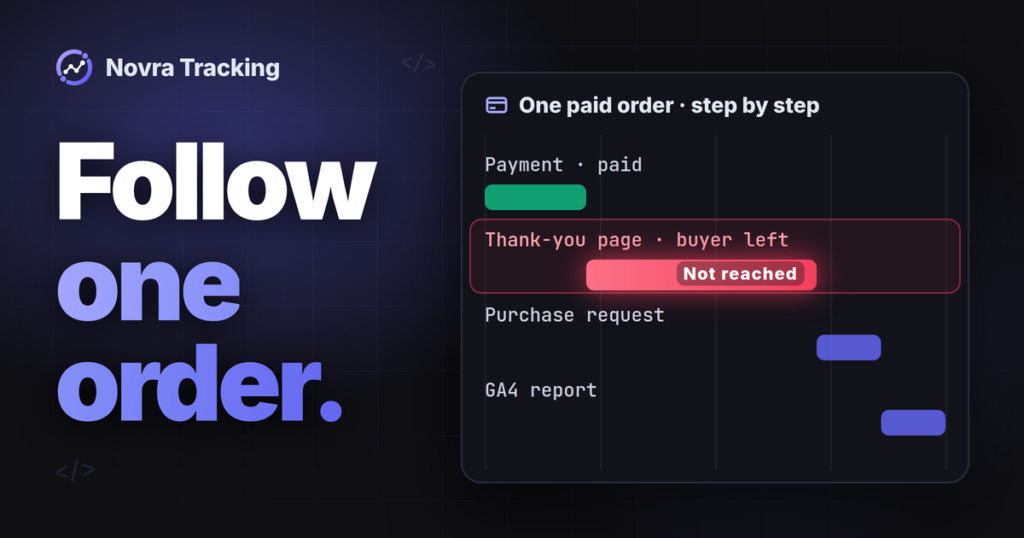
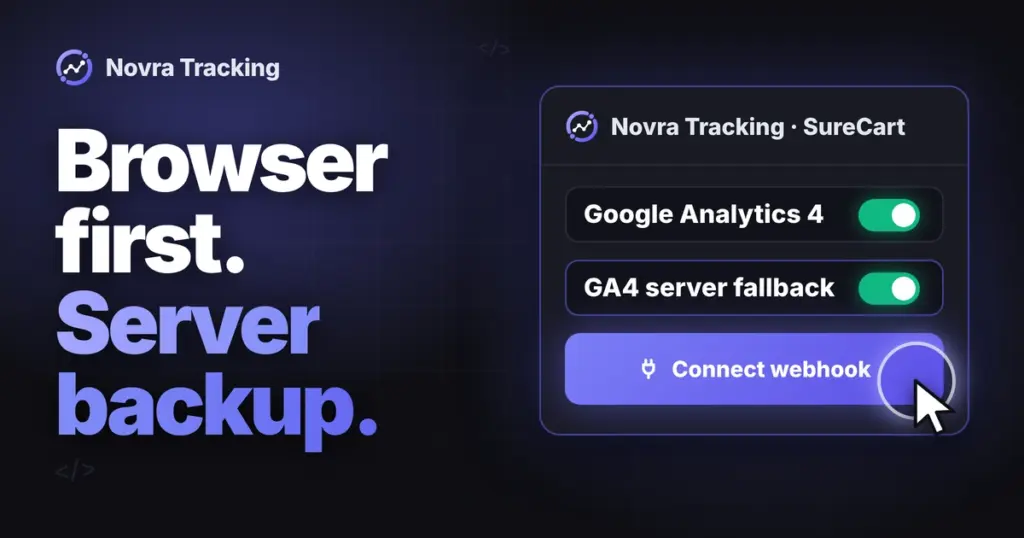
Measurement Protocol is Google’s server-event interface. It is optional here, not a prerequisite for direct browser tracking. Novra documents a GA4 purchase fallback 30 minutes after payment when the browser has not confirmed its purchase hit. That route requires the web stream’s API secret and appropriate checkout consent. Refunds and renewals have separate handling.
Novra’s Debug mode, under Settings → Advanced → Testing and logs, marks browser GA4 events for DebugView. Its GA4 server requests instead go to Google’s validation endpoint. The Tools test purchase is synthetic; it does not exercise your shop checkout.
Validation is not a received-sale test. Google’s validation documentation says validation events do not enter reports and the API secret is not validated. A connection or format check cannot prove the complete browser, purchase or reporting path. Even a normal Measurement Protocol HTTP 200 response does not prove correct processing.
Do not enable this server path just to obtain page views. Google describes Measurement Protocol as supplementing normal collection, not replacing it. End the diagnostic session and turn off any plugin Debug mode you enabled when finished.
Diagnose missing or duplicate events in order
- Destination: compare the saved measurement ID with the intended property and web stream.
- Delivery: inspect the affected page in Tag Assistant. Check whether an old cached page, script delay or blocking rule prevents the intended tag from running.
- Consent and exclusions: check statistics permission, the visitor’s role and opt-out state. Do not assume an administrator’s missing hit represents a visitor problem.
- Duplicate senders: compare plugin, theme and GTM sources for the same event. Novra’s home-page conflict check is useful, but does not audit every page or custom mapping.
- Action coverage: confirm that the form, interaction or shop action is supported and mapped. For shops, inspect the payment gateway and checkout variation separately.
- Reporting: distinguish received events from processed reports and attribution. Escalate a specific missing layer instead of installing another tag.
Keep a short record of the destination, event owner, consent behavior and checks that passed. If this direct WordPress workflow fits your needs, review Novra Tracking’s features and plans. Plans use a one-time payment and include a 30-day money-back guarantee. Choose it for the supported workflow, not a promise to capture every visit.