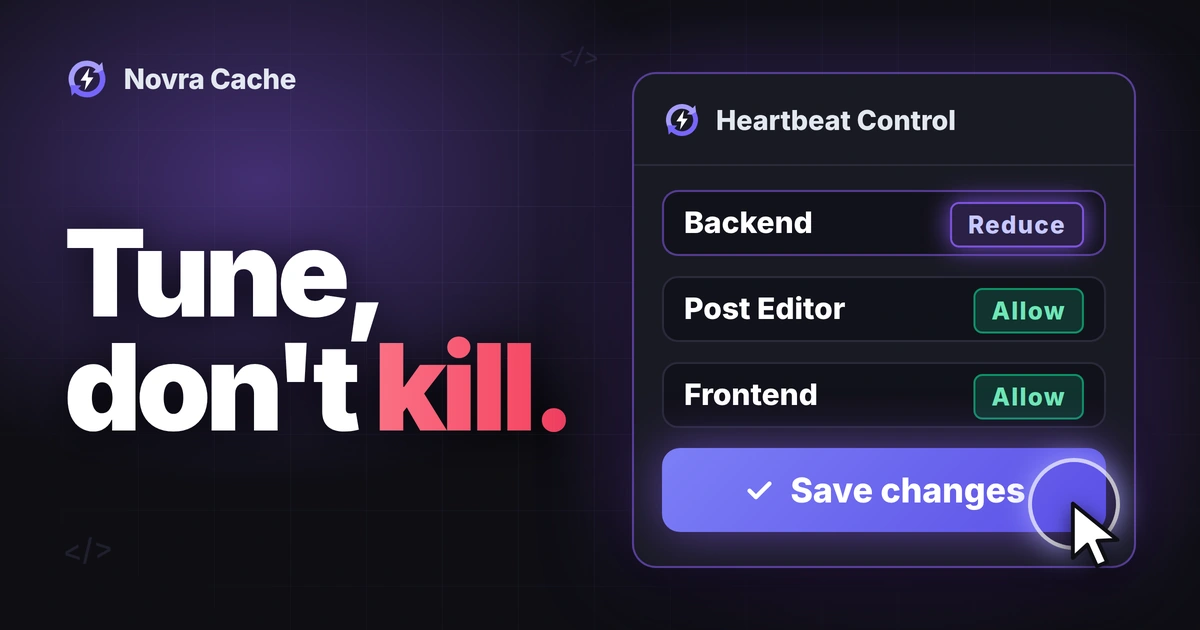
WordPress Heartbeat control should start with an identified background request, not a blanket shutdown. Adjust only the context that needs it, and preserve editing features. Leave the Post Editor on Allow unless you have a verified reason to change it.
Novra Cache’s Heartbeat controls separate Backend, Post Editor and Frontend settings. That lets you investigate one area without deliberately disabling all three. A lower request count is useful only if the affected work still functions.
Understand the background check-in
Heartbeat lets your browser regularly check in with WordPress without reloading the whole page. Polling means repeating that check. AJAX is the background exchange that sends information and receives a response.
The WordPress Heartbeat API guide explains this exchange and how plugins can add their own data. That means a quiet-looking screen can still use it for a useful feature.
Heartbeat supports work such as post locking, autosave-related exchanges and login-expiry notices. Post locking warns when another editor is working on the same post. Autosave keeps a recovery copy while you edit.
Editors and plugins can also use other request mechanisms. A successful manual save does not prove that Heartbeat-dependent features still work. Check the editor and plugins you actually use.
Identify Heartbeat before changing it
Save your work and close unused admin tabs first. Then identify whether Heartbeat contributes meaningfully to the problem. Lots of background requests alone do not prove a server bottleneck.
- Open the affected screen and your browser’s developer tools. In the Network panel, inspect Fetch/XHR requests, the background exchanges.
- Find requests whose submitted action field is
heartbeat. Other requests can use the same destination, so the address alone is insufficient. - Record the screen, login state, number of open tabs and observation period. Note whether the tab stays active or goes into the background.
- Observe repeated request start times, response status and the feature being updated. Do not infer server processing cost from frequency alone.
- If your host reports high load, ask them to relate it to these requests before choosing a setting change.
Record observations, not guessed savings. Keep request tokens, cookies and private content out of shared notes. Do not replay a copied request to test the setting.
Illustrative example: an administration screen repeatedly sends Heartbeat requests, while the post editor works normally. If your host identifies meaningful unnecessary work there, trial a Backend change on staging. This is a decision example, not a measured result.
Keep the three contexts separate
The Novra Heartbeat settings guide documents Allow, Disable and Reduce for each context when Heartbeat Control is enabled.
| Context | What to consider | Conservative starting point |
|---|---|---|
| Backend | Administration screens outside the post editor can contain plugin features that refresh in the background. | Investigate the specific screen before trialling Reduce. Check its plugin panels afterward. |
| Post Editor | Editing can depend on autosave-related behavior and locks that coordinate different authors. | Keep Allow during the initial investigation. A normal-looking editor is not a complete check. |
| Frontend | Visitor-facing pages can use Heartbeat through plugins. This is separate from dashboard behavior. | Check whether it is used before changing it. Include relevant signed-in and interactive page states. |
- Allow leaves Heartbeat unmodified by this Novra control. Other site code can still affect it.
- Reduce applies the configured interval. Compare the observed timing before and after; the label does not prove fewer requests.
- Disable stops Heartbeat through this control in the selected context. Dependent features can be affected, so it is not the default recommendation.
Treat the interval as a setting, not a result
Novra documents an interval input from 15 to 300 seconds, with 60 as its default. This is a configuration range, not a promised request frequency. WordPress code, other extensions and browser activity can affect the timing you observe.
The WordPress Heartbeat client source includes different handling for background tabs and inactivity. It also warns that long enforced intervals can interfere with features such as post locks. An accepted number is not proof that the number suits your editor.
Choosing 60 seconds may change nothing if the relevant requests already run at that interval. Choosing 300 is not automatically better. Start from the observed behavior and the needs of dependent features, not the largest available value.
Record which contexts already use Reduce. Changing the shared interval can affect those contexts too. If you change it, include them in the checks; do not describe that as a one-context-only trial.
Trial one small change and check editing
Use staging, a separate test copy of your site, with a way to restore the previous settings. Keep the same editor and relevant plugins as the live site. Note differences that could affect the result.
- Record the original setup. Note the Heartbeat Control switch, all three context modes and the interval before changing anything.
- Review all three modes before enabling the main control. Existing selections in another context matter too.
- For a justified Backend trial, select Reduce for that context. Preserve the editor and frontend behavior. If those modes are Allow, leave them there.
- Change the interval only if your observed baseline supports it. Keep track of other contexts already using Reduce.
- Save, reload the affected screens and repeat the same observation period. Match tab activity, login state and open-tab count.
- Check the actual work below before accepting the setting. Restore the previous values if a feature fails or the change offers no useful benefit.
Check more than a Save button
- Autosave and recovery: enter a distinct sentence in a disposable test draft. Wait for the editor’s autosave indication, then check recovery through that editor’s supported workflow. Test a manual save separately.
- Saved content: reopen the test draft and confirm its intended text, fields and status. A stopped spinner alone is insufficient.
- Parallel editing: keep the test draft open with one test user. Open it with a different test user and confirm the expected editing-lock warning. Do not force a takeover while the first user is saving.
- Plugin features: check the live-updating panels or workflows identified in your baseline. Include the relevant frontend interactions if that context was affected.
- Return after inactivity: revisit the screen after it has been in the background. Check connection notices and whether the required features resume correctly.
The WordPress revisions and autosaves guide explains recovery copies. Use your editor’s actual behavior as the acceptance check, not an assumption that every editor saves through the same request.
To undo an unsuccessful trial, restore the recorded switch, modes and interval. Reload the affected screens and repeat the checks. Avoid resetting the entire plugin to reverse one Heartbeat change.
Keep Heartbeat separate from other background work
Heartbeat is not a general switch for WordPress background activity. WP-Cron schedules time-based tasks; a host can also use an external scheduler to trigger work. Changing Heartbeat does not configure either scheduler.
The WordPress REST API is another interface for exchanging data, used by editors and plugins. Heartbeat control is not a REST control. It also does not establish how a shop processes checkout, payments or background orders.
If saving or checkout remains slow, investigate that specific action. Do not keep increasing the Heartbeat interval, delete database records or disable unrelated services to chase a lower request count.
Keep only a useful, verified change
Keep the original and final settings beside your observations. Record request behavior and working features separately. Fewer requests do not prove lower server load, and lower load does not excuse lost editing functions.
Review Novra Cache’s targeted Heartbeat controls if this is a problem your site actually has. Novra offers one-time licensing with no subscription. Choose a limited, reversible change and keep it only after your editing and plugin checks pass.