WooCommerce Google Ads conversion tracking needs one clear purchase source and the right conversion action. Use Novra Tracking’s direct Ads connection, or import an already verified GA4 purchase. Then check the destination, order value and duplicate controls. Enhanced Conversions can supplement matching; they are not another sale.
Novra Tracking for WooCommerce and Google Ads connects supported shop purchases to Google’s tag from WordPress. It provides the purchase connection, optional customer-data matching and recovery after a missed thank-you page. You still manage the Ads account, its conversion actions and campaign goals.
Choose your purchase source before adding a tag
A conversion action defines an outcome Google Ads measures, such as a purchase. GA4, Google’s analytics service, can supply a separate Analytics-based conversion. A tag loading on your site does not establish either purchase path.
| Route | What reports the purchase | When it fits |
|---|---|---|
| Direct Google Ads website action | Novra’s browser connection sends the purchase to an Ads conversion ID and label. | You want a direct Ads purchase action and its optional Enhanced Conversions setup. |
| GA4-based Ads conversion | Google shares conversion data from the selected Analytics event or key event. | Your GA4 purchase and value definition already work, and Analytics is your intended source. |
| Enhanced Conversions for web | Eligible customer details supplement an existing website conversion for matching. | The base conversion works and the data-use requirements are met. This is not a third purchase source. |
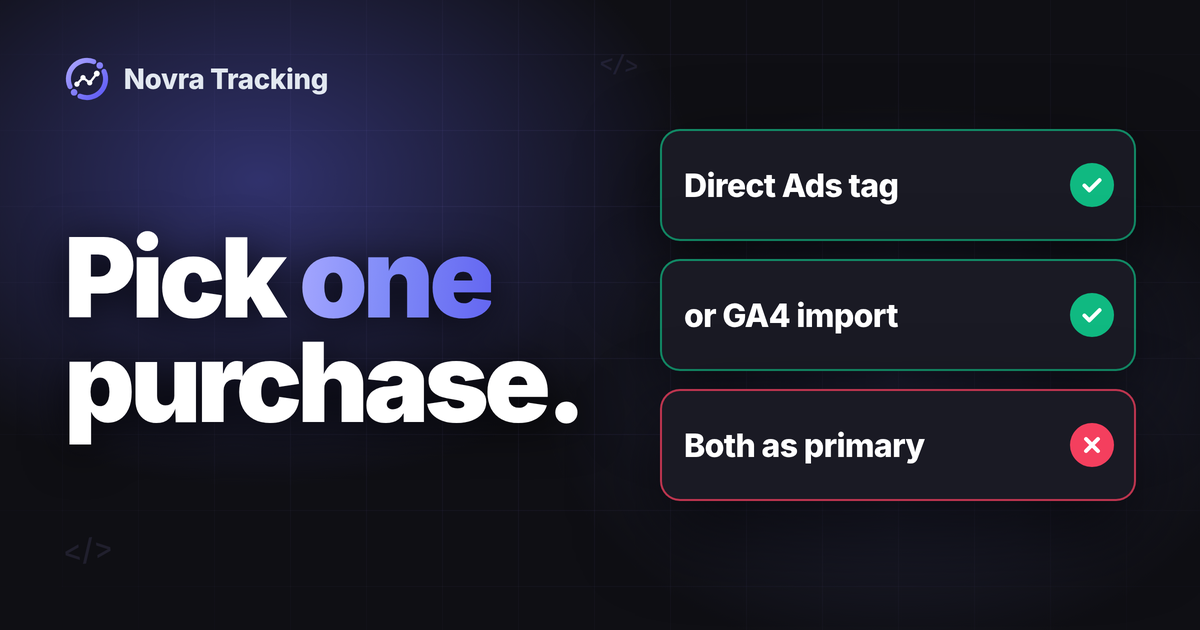
Choose one representation of the purchase for campaign optimization. If you retain direct and GA4-based actions for comparison, review their goal membership with the Ads owner. Do not make both primary merely because both report purchases.
Primary actions appear in the Conversions column and support bidding when their standard goal is used for bidding. Secondary actions normally appear in All conversions for observation. A secondary action inside a custom goal can still be used for bidding. Google’s primary and secondary conversion rules explain that exception.
Prepare the shop and account
- Check compatibility. Novra documents WordPress 6.4+, PHP 8.0+ and WooCommerce 8.0+, including classic and block checkouts. Confirm your gateway and custom checkout separately.
- Confirm ownership. Use your business’s Ads account. Have its owner confirm who can manage the intended conversion action and campaign goals.
- List current senders. Include tracking plugins, theme snippets and Google Tag Manager, a tool for managing tags. Plan any handover without removing unrelated tags.
- Identify the consent owner. Confirm the cookie banner’s marketing choice and who maintains Google’s consent signals.
- Define the purchase. Use the paid order, not a checkout visit. WooCommerce’s order-status guide distinguishes payment from fulfillment.
Novra does not create your advertising accounts or campaigns. Google Tag Manager is not required for this direct Novra connection. A working existing integration does not need replacing just to follow these steps.
Connect a direct Google Ads purchase
Select the right website action
Reuse the correct existing action where possible. For a new setup, follow Google’s website conversion setup instructions with your Ads owner:
- Open Goals → Summary and select Create conversion action.
- For Conversions on a website, edit the data sources, enter your shop domain and run the scan.
- Select the purchase category and the Google tag as the direct website data source.
- Use the manual-code setup path for transaction-specific values and IDs. Novra supplies the integration; do not also paste another purchase snippet into your theme.
- Review the conversion name, value, counting option, attribution window and optimization role. Save the action and open its event-snippet instructions.
For sales, Google describes Every as the suitable counting option when each purchase adds value. That means counting distinct purchases after an ad interaction, not counting repeated reports of one order. Review Google’s conversion counting options before changing an established action.
Copy the conversion ID and purchase label from that action. The ID starts with AW-; the label is the part after the slash in send_to. A GA4 measurement ID starting with G- is not a substitute. Google’s Google tag guide shows how the ID and label identify the destination.
Enter the identifiers in Novra
- In WordPress, open Novra Tracking → Settings → Google Ads. Platform sections sit under the Platforms group.
- Switch on Google Ads. Enter the Conversion ID and Purchase conversion label from the same action. A conversion ID without the purchase label is not a complete purchase setup.
- Review Conversion value, then save. Novra’s options distinguish order total, products after discounts excluding tax and shipping, and profit margin.
- Review Shop & Events under Store and Consent under Privacy. Check the dashboard recommendations before examining incoming conversions.
Profit margin needs cost-of-goods data. Novra’s documented setting falls back to products value when costs are unavailable; that is not a verified profit figure. Record the chosen measure, then compare the purchase’s value and currency against it.
Also check the transaction identifier. Novra’s WooCommerce integration uses the order number for this field. Google requires an order-unique, non-personal identifier. Its transaction-ID guidance deduplicates repeated reports with the same ID for the same conversion action. It does not make two separate conversion actions one purchase.
Keep the account, action name, ID, label, value definition and sender together in your setup record. The Novra Tracking setup documentation covers installation and the surrounding settings. Saved fields and a ready indicator are preparation, not proof of a processed conversion.
Use GA4 imports as an alternative
If GA4 is your chosen source, first verify its purchase event, transaction identifier, currency and value definition. A key event is an Analytics event marked as important. Marking it does not create the missing shop integration.
Google’s Analytics-to-Ads conversion guide requires linked accounts and auto-tagging. For the import workflow inside Google Ads, its website setup guide lists Ads Admin access and Edit access to the linked Analytics property.
- Confirm the correct Analytics property is linked to the intended Ads account.
- Confirm that the verified purchase is marked as a key event and auto-tagging is enabled.
- In the website-conversion workflow, select the Analytics source and the intended purchase event, then review and save the conversion.
- Inspect its source, value and actual primary or secondary role before assigning it to campaign goals.
Newly linked accounts or key events can take 24–48 hours to appear as import options, according to Google. That is an import-availability delay, not a guarantee that a purchase report will appear within that period.
Do not paste a GA4 ID into Novra’s Ads fields or enable a second direct purchase merely to complete this alternative. The direct-tag Enhanced Conversions procedure below does not automatically enhance an imported Analytics conversion. Google’s tag instructions explicitly exclude imported Analytics goals from that procedure.
Set up WooCommerce Enhanced Conversions
Enhanced Conversions for web supplement an existing website conversion with customer information used for matching. Google can compare that information with signed-in accounts involved in ad interactions. Matching is not guaranteed. Enhanced Conversions for leads concern offline outcomes from leads, not this WooCommerce website purchase.
Check the data you can use
Use customer details supplied directly to your business and permitted for this measurement. Google’s Google tag Enhanced Conversions instructions specify these field combinations:
- Email: the preferred matching field.
- Name and address: first name, last name, postal code and country are required for this combination. Street, city and region are additional fields.
- Phone: supplements email or name and address; do not rely on a phone number alone.
Novra prepares available order details for the tag connection. Its implementation normalizes and hashes email, phone and first and last names before they reach the page. Hashing uses SHA-256, a one-way transformation used for matching. Postal address components are not all hashed. Do not treat the data as anonymous or exempt from consent.
Google’s customer data policies require appropriate disclosures and consent where legally required. They also restrict sensitive-category measurement. Confirm these requirements before enabling customer-data transmission; do not add invented details or a second collection script to fill missing fields.
Enable the account and plugin settings
- Verify the direct purchase action first, including its ID, label, value and consent behavior.
- In Google Ads, open Goals → Settings → Customer data use. Review Turn on enhanced conversions and the customer data terms with the account owner, then save the approved choice.
- In Novra’s Google Ads section, switch on Enhanced Conversions and save. Check that the required customer fields are available for the relevant checkout.
- Verify the purchase action’s Enhanced Conversions diagnostics after implementation. The plugin switch alone does not confirm that Google is using the data.
Google’s updated Enhanced Conversions settings combine web and lead settings and remove the choice of a single implementation method. Novra’s browser integration still uses the Google tag. Do not search for an old method dropdown if your account has the unified setting.
Conversion-based customer lists are an additional data-use feature shown in Google’s settings. Enabling them is a separate decision, not a reason to expand this purchase-measurement setup.
Verify consent, not just hashing
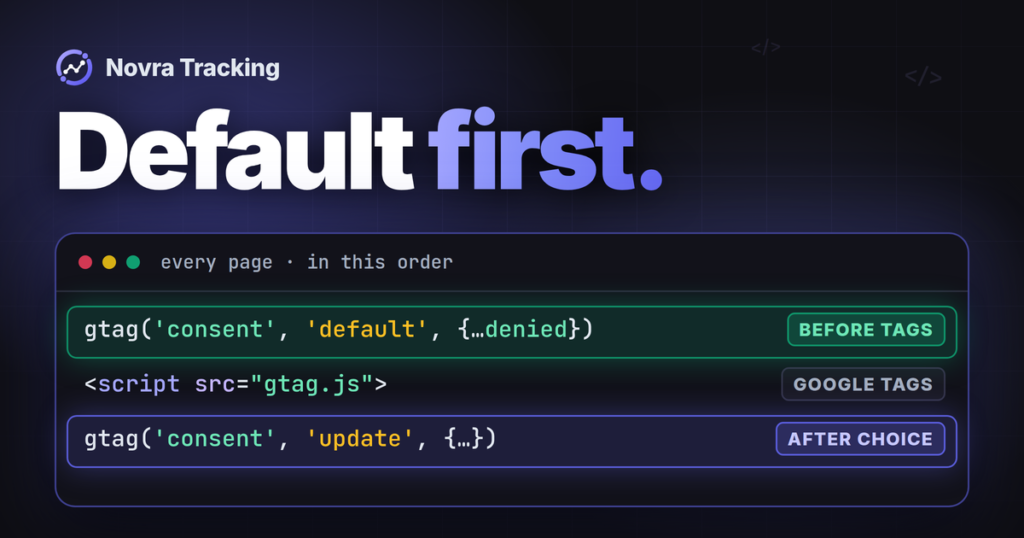
In Novra’s default Basic mode, Google Ads waits for marketing consent. Advanced mode can let Google tags send measurements without cookies while consent is denied. Off disables Novra’s consent handling. Neither Advanced nor Off is a shortcut for forcing customer data through.
Google distinguishes ad_storage for advertising storage, ad_user_data for advertising user data, and ad_personalization for personalized advertising. Its consent-mode reference says denied ad_user_data disables Enhanced Conversions customer-data collection. Check the actual signals with your consent owner; a detected banner is not enough.
Understand recovery and server boundaries
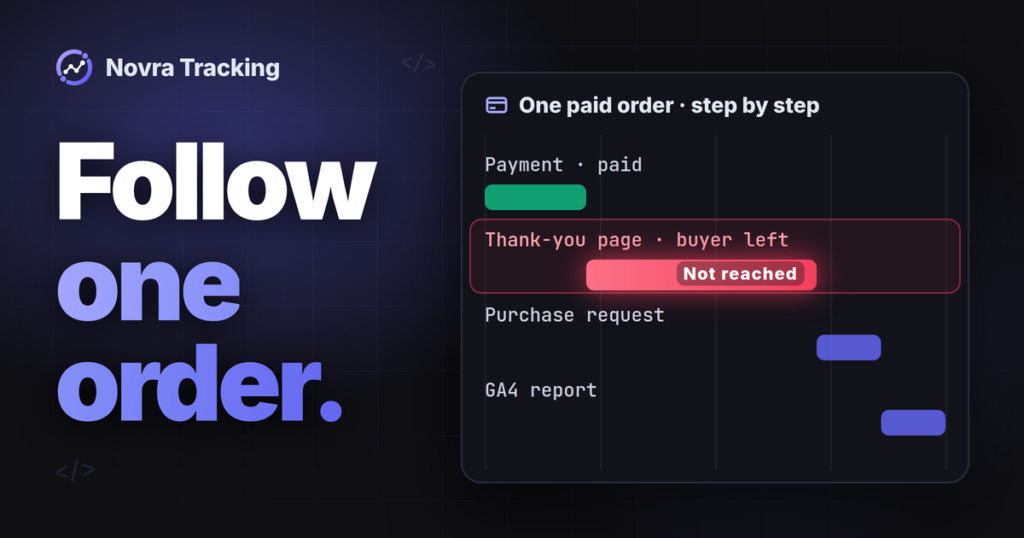
Novra can recover a purchase whose thank-you page never loaded on the visitor’s next page view. This is still browser recovery. If the visitor never returns, that route has no later page view to use.
The current documentation also describes a separate Google Ads server upload through Google’s Data Manager API. It is optional and off by default. The documentation states that it has only been tested against a simulated Google server, not Google Ads itself. This guide does not configure or verify it.
Enhanced Conversions are not that upload. Nor do GA4’s server fallback or Meta’s Conversions API configure an Ads purchase backup. The Google Ads refund-correction feed is another separate process; it does not send the initial purchase. Review the platform-by-platform delivery documentation before relying on a different route.
Verify the purchase before using it for bidding
The following checklist is an implementation plan, not a report of tests we performed. Use an isolated shop and measurement setup kept out of production campaign use. A private window or payment-provider test mode alone does not isolate Ads reporting. If suitable isolation is unavailable, postpone purchase tests.
Use a customer-like session: Novra excludes administrators and shop managers by default. Its synthetic Tools test purchase sends nothing to Google Ads. Neither that tool nor GA4 DebugView verifies this Ads purchase journey.
| Check | Evidence to inspect | What remains separate |
|---|---|---|
| Destination and sender | The intended action, ID and label match the setup record. Only the chosen integration owns this purchase path. | A Google script loading does not prove a purchase was sent. |
| Paid checkout | The transaction ID, value and currency match the order and your selected value definition. | A thank-you page or successful request does not prove Google counted a conversion. |
| Repeat visit | Reopening the same order does not produce another distinct sale in the same action. | Transaction-ID deduplication does not reconcile separate actions. |
| Missed thank-you page | Check recovery on a later page view in the controlled environment. | A normal checkout does not exercise recovery or a server upload. |
| Customer data and consent | Eligible fields and the actual consent signals reach the intended tag; refusal follows the selected consent mode. | A hash or enabled toggle does not establish permitted use or a successful match. |
| Processed reporting | Inspect the action’s diagnostics, counted conversions and values. Record its campaign-goal role separately. | Receipt, counting, ad attribution and bidding are different outcomes. |
In Ads, open Goals → Summary, find the action and inspect its status. For Enhanced Conversions, open the status details and Diagnostics. Google’s tag diagnostics guide distinguishes data coverage from matching. It also notes that very low conversion volume can prevent alerts appearing. No alert is not proof of a complete setup.
Attribution assigns credit to an advertising interaction. A valid shop order may not receive Google Ads credit. Keep tag activity, received data, counted purchases, attribution and campaign optimization as separate checks. Do not add another purchase sender simply because the shop and Ads totals differ.
Novra Tracking is a practical fit when you want supported WooCommerce purchase handling and Ads controls in WordPress without building the tag connection yourself. You still need the correct account action, permitted data use and verification. Compare Novra Tracking plans for your shop; plans use a one-time payment and include a 30-day money-back guarantee.