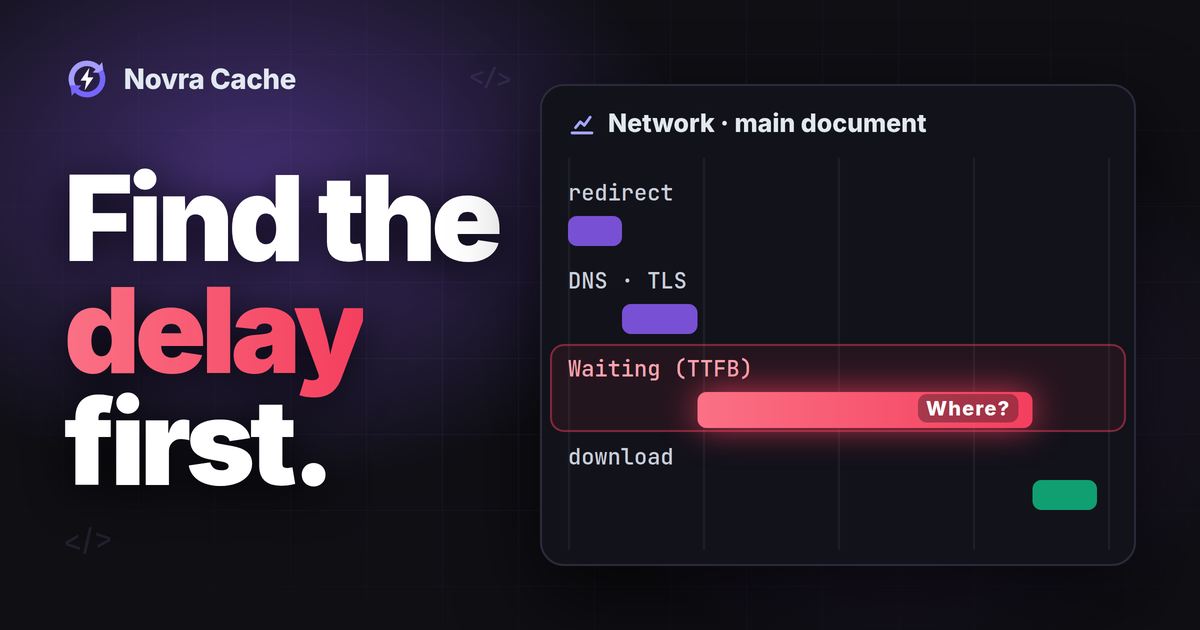
To reduce TTFB in WordPress, locate the delay in the initial page request before changing settings. Use page caching when repeated public page generation is the bottleneck; investigate redirects, network delays and hosting separately. TTFB means time to first byte: how long the browser waits for a response to begin.
For repeated public page generation, Novra Cache page caching keeps ready-made HTML, the markup containing your page’s structure and text. Eligible repeat requests can reuse it before most WordPress code runs. That can reduce server work, but it cannot remove the network journey or fix every slow request.
Know which TTFB you are reading
Google’s TTFB definition measures navigation from its start until the first response byte arrives. It can include redirects, connection setup and the wait for the response. DNS looks up the server’s address; TLS establishes an encrypted connection. A service worker, a browser-side request handler, can also affect the timing.
| Measurement | What it tells you | What it does not prove |
|---|---|---|
| Navigation TTFB | The initial wait across the navigation’s measured stages. | That WordPress spent all that time generating the page. |
| Chrome’s Waiting (TTFB) | The selected request’s wait, including network round-trip latency and server preparation. | The complete navigation delay, or database execution time alone. |
| Server-side timing or monitoring | The backend stages your host or developer has actually instrumented. | Unmeasured stages, or the visitor’s complete network experience. |
Google gives 0.8 seconds or less as a rough TTFB guide, not a universal pass condition. TTFB is not a Core Web Vital. A lower value does not guarantee better interaction, layout stability or search rankings.
First-byte timing also has limits. With 103 Early Hints, an early response can arrive before the final HTML response. Record what your tool measures, especially when comparing different platforms. A quick first byte is not proof that the complete page arrived quickly.
Keep field and lab results separate
Field data describes real visits. A lab test describes one controlled environment. Different locations, connections, redirects and cache states can produce different results.
PageSpeed Insights explains its field data as a trailing 28-day view, with reported values at the 75th percentile. That means 75% of recorded experiences are at or below that value. Check whether the report covers your URL or the whole site origin. Missing field data means insufficient evidence, not a fast page.
Do not expect historical field data to change immediately after one adjustment. Also keep a server-response audit separate from full navigation TTFB: it may exclude earlier connection or redirect stages.
Record a comparable public-page baseline
Start with an ordinary public article or landing page that should show the same content to logged-out visitors. Use the actual entry URL visitors follow, then record its final destination. A test of only the final URL can miss redirect delays.
- Keep the environment comparable. Record the browser, device, location, connection and any network throttling. Use a fresh logged-out session without existing shop or login cookies.
- Open Chrome DevTools and select Network before navigating. Enable Preserve log to retain requests across redirects. Select the main document request, not an image or analytics request.
- Read its Timing and Headers views. Note redirect steps, DNS, connection setup, Waiting (TTFB), content download and the response status. The Chrome Network reference explains these views.
- Record whether the response came from browser memory, disk or a service worker. Note the state of Disable cache. That checkbox disables browser caching; it does not establish that a server or CDN cache was bypassed.
Make a few ordinary observations, not a burst of requests. Keep each result with its conditions instead of keeping only the fastest result. Do not use cart, checkout, account, login/logout or action URLs to populate a public page cache.
Label first, repeat and expired-cache observations
- First observed visit: your browser has not visited in this session. The server or CDN may already have a cached copy.
- Repeat visit: request the same page under the recorded conditions. Browser storage, connection reuse or a different server cache state may explain a faster result.
- After normal expiry: if you observe an expired or missing copy, record the relevant layer’s evidence. Do not assume that every layer expired together.
Do not repeatedly clear production caches to manufacture a cold result. If a controlled uncached comparison is necessary, ask your host or developer for a staging or host-approved method. Random URL parameters can change cache eligibility or content, making the comparison misleading.
Prove which cache layer served the HTML
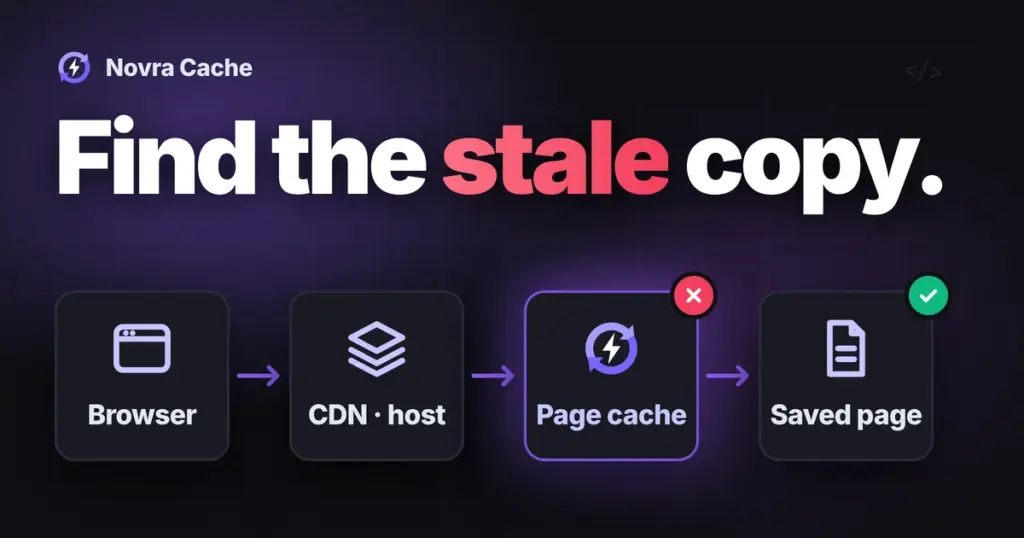
Your origin is the server hosting WordPress. A CDN, or content delivery network, can serve stored responses from an edge server nearer the visitor. Your browser has its own storage too. Evidence from one layer does not describe all three.
Inspect the main HTML response. A cached stylesheet or image does not prove the page itself was cached. Nor does a faster second request identify the cache responsible.
Use the documented response headers, logs or diagnostics for the provider serving that request. Do not assume every plugin exposes the same cache-hit header. A cache policy header describes storage rules; it does not by itself prove that this request reused a saved response.
For Cloudflare, its cache response documentation explains that HIT means the resource was found in Cloudflare’s cache. MISS means an eligible response was fetched from the origin. That origin could still serve its own cached HTML. BYPASS and DYNAMIC can be expected for content that should not be shared.
A HIT can still have slow connection or transport time. It also does not prove that the saved content is current or suitable for that visitor. Compare visible content and visitor separation as well as timing.
Cloudflare does not cache HTML by default. Our guide to WordPress and Cloudflare cache layers explains the separate choices involved. Ask the host to confirm origin behavior when the edge hides it; do not bypass access controls to reach the origin.
Choose the fix that matches the delay
| Observed pattern | Next investigation | Avoid this assumption |
|---|---|---|
| Most waiting occurs in redirects or connection setup. | Check the entry URL, redirect chain, visitor distance and connection path with your maintainer. | A WordPress page-cache switch removes those earlier delays. |
| An eligible public page is slow when generated, with supported evidence of repeated rendering. | Verify the existing HTML cache, then consider Novra Cache if that role is missing. | One fast repeat proves Novra Cache served the response. |
| The HTML is a verified edge HIT but navigation remains slow. | Examine connection timing and the path to the edge. | Adding another origin page-cache plugin fixes that request. |
| Uncached or deliberately dynamic requests spend time waiting for the server. | Ask for request-level backend evidence: resource pressure, application code, database work and external calls. | TTFB alone proves the database needs Redis. |
| The first response is prompt, but meaningful content appears late. | Investigate the later loading and rendering stages. | Another cache layer must be the answer. |
Reuse public pages with Novra Cache
Choose Novra Cache when reusable public WordPress rendering is the identified gap. Its page cache writes eligible pages as static HTML. A first request may build the copy; later eligible requests can reuse it. This is different from caching reusable data inside WordPress.
First identify the current page-cache owner with your host. Keep an effective hosting or edge cache if it already solves the problem. Do not stack competing WordPress page-cache plugins. A hosting cache and a plugin can require coordination, not another switch turned on blindly.
- On staging, preserve a backup and record the existing cache setup. Confirm Novra Cache’s dashboard health checks and resolve any competing page-cache ownership with your maintainer.
- Follow the Novra Cache page-caching setup. Enable Page Caching under Settings → Cache as one controlled change. Leave unrelated CSS, JavaScript, image and font changes out of this comparison.
- Revisit the chosen public page while logged out. Verify eligible HTML reuse with the evidence available for that installation, then compare equivalent request conditions.
- Confirm that content remains correct and current. Check personalized paths separately on staging, without completing real purchases or other irreversible actions.
Novra documents exclusions for logged-in responses, protected contexts and WooCommerce cart/session cookies. Custom account, receipt, membership and session-dependent routes still need appropriate exclusions and verification. Apply the same protection at every active shared-cache layer; origin exclusions do not automatically configure a CDN.
After normal caching works, sitemap-based cache preloading can prepare eligible pages before a visitor requests them. Completion depends on working scheduled jobs and successful site requests. A started queue is not proof that every page is warm. Check host capacity before adding this extra work.
Novra’s Cloudflare and NGINX integrations clear supported existing caches; they do not create a CDN policy or install server caching. They are not evidence of a particular hit rate or response-time improvement.
Investigate dynamic work without caching private pages
Keep carts, checkout, accounts and other personalized responses out of shared full-page caching. A slow admin save or shipping update needs investigation of that particular request, not a cached copy of a public page.
If repeated reusable data reads are a supported bottleneck, Novra Object Cache and its hosting requirements may fit. It uses Redis, a memory-based data store, and needs a suitable Redis service plus PhpRedis, the PHP extension that connects to it. It does not install Redis or provide full-page HTML caching.
The WordPress object-cache reference explains the named entries and cache functions involved. Persistent caching retains eligible entries across requests. It does not automatically cache every database query, write operation or external service call. Another existing object-cache implementation must not be overwritten blindly.
Ask your host to investigate resource limits or request queues when the evidence points there. Ask your developer to separate database time from other PHP work and remote calls. PHP is the server-side language running WordPress. A fast public cache hit can conceal a slow uncached path that still needs repair.
Verify one change and keep a rollback
Compare like with like, then check correctness. Repeat the recorded URL, visitor state and environment after one change. Keep first-observed, repeated and naturally expired-cache cases separate. Compare several observations, including slow ones, rather than reporting a single best result.
Check the visible page on desktop and mobile. On staging, confirm that account and shop states stay separate, and that content changes reach the intended layers. Stop the experiment if private content is shared or important behavior breaks.
Restore the previous setting or configuration through your maintainer’s rollback plan. Verify the restored behavior and have the maintainer handle any affected stale copies. A plugin reset is not a substitute for that plan.
Image compression, font changes, script deferral and link prefetching address other work or later navigation. They are not automatic fixes for the original HTML response. Reassess overall loading afterward: Largest Contentful Paint measures when the largest visible content appears, not just when response bytes begin.
Send useful evidence to your host or developer
If the cause is still unclear, send a compact record instead of asking for a generic speed upgrade:
- Entry URL, final URL, observation time and time zone.
- Browser, device, location, connection and whether the visit was logged out or deliberately dynamic.
- Redirect chain and the selected document’s timing breakdown, with the tool and metric definition.
- Browser-cache or service-worker observations, plus documented HTML cache evidence for each visible layer.
- Which results were first observed, repeated or expired, and any content or personalization problem.
- The one change tested, its comparable results and the rollback outcome.
Remove cookies, authorization values, tokens and private customer details before sharing exports. Ask for backend monitoring of the same request where needed. Google’s TTFB optimization guide describes server timing and application monitoring for separating backend work.
If public page generation is the confirmed gap, review Novra Cache for reusable public pages and start with its page-cache controls. Novra offers a 30-day money-back guarantee; check the policy linked from the product page. Keep the change only when comparable evidence and correct page behavior support it.