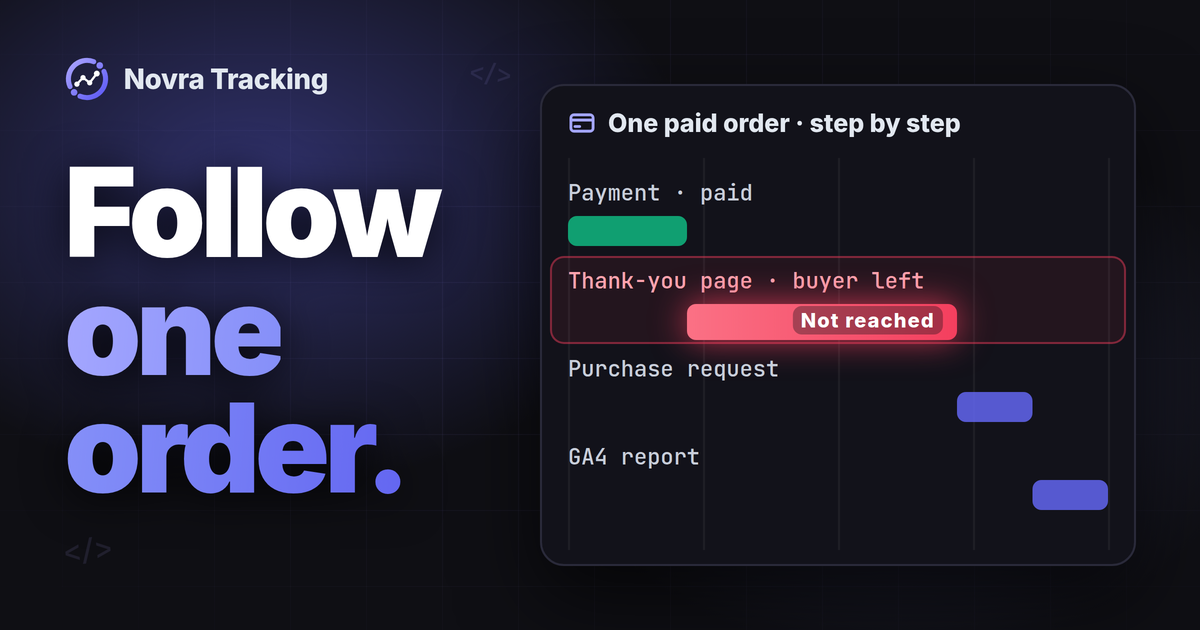
WooCommerce GA4 missing transactions usually trace back to one broken step between payment and report. When the WooCommerce GA4 purchase event is not firing, check five things in order. Look at the payment status, the return to the thank-you page, the purchase request, what GA4 received and the report you read. Duplicate purchases come from the same chain, often from a second sender or a transaction ID that changes. Test one step at a time and change only the step that failed.
This guide gives you a diagnosis path for missing and duplicate purchases, including external payment methods and redirects. We also show where Novra Tracking, our WooCommerce tracking plugin, closes gaps and where it cannot.
Start with one paid order, not a total
Totals hide the cause. A gap of ten orders can mix unpaid orders, consent refusals and a report that is still processing. Pick one specific order that you expected to see in GA4.
Write down five facts from the WooCommerce order screen:
- Order number. Many setups send it as the transaction ID, the unique label GA4 uses for one purchase.
- Date and time the order was placed and paid.
- Payment method, for example card, PayPal or bank transfer.
- Status and order notes, which show what the payment provider reported.
- Total and currency.
Then look for that transaction ID in GA4 instead of a matching total. A report or exploration that lists transaction IDs is enough for this check.
Separate four things that happen after checkout
A finished checkout creates several signals. They happen in different places and prove different things. If you mix them up, you fix the wrong step.
| Signal | Where you see it | What it shows | What it does not show |
|---|---|---|---|
| Order status | The order screen in WooCommerce | Where the order stands. Processing means payment was received. On hold means the payment still needs confirmation. | That any tracking request was sent. |
| Payment confirmation | Order notes from your payment gateway | The gateway told your shop that the payment went through. | That the buyer saw your thank-you page. |
| Thank-you page view | The order received page in the buyer’s browser | The buyer came back to your shop. A browser tag can only report the purchase from here. | That consent allowed the tag or that GA4 accepted the event. |
| Server notification | A callback from the payment provider to your shop, often called IPN or webhook | The provider updated the order without the buyer’s browser. | That anything was sent to GA4. |
The status meanings come from the WooCommerce order status documentation. Treat each row as its own piece of evidence.
Missing purchase: follow the order step by step
Work through the rows from top to bottom. Each row names the evidence to check next and what that evidence cannot tell you yet.
| Symptom | Check next | Possible cause | Next step | What this does not prove |
|---|---|---|---|---|
| Order is Pending payment, On hold or Failed | Status and order notes | Payment not confirmed yet, or rejected | Wait for the gateway or confirm the offline payment. Decide whether unpaid orders should count as purchases. | A paid status alone does not prove that tracking ran. |
| Order is paid, but the buyer may not have returned | Gateway return settings and order notes | Redirect payment without return, or a closed tab | Check the return address in the gateway settings. Consider a server route for paid orders. | A missing page view in GA4 does not prove the buyer stayed away. Consent or blockers can hide the visit. |
| Buyer reached the thank-you page, no purchase in DebugView | A test order in a private window, as a normal visitor | Consent refused, ad blocker, delayed scripts, a cached thank-you page or an excluded admin role | Test with consent given. Keep tracking scripts out of script delay and the thank-you page out of the page cache. | A test without consent shows no purchase by design. That is not a fault. |
| A request leaves the shop, GA4 shows nothing | Measurement ID, property and data stream | Data goes to another property or a test stream | Compare the measurement ID in your plugin with the property you are reading. | A successful HTTP response only means Google received the request. |
| DebugView shows the purchase, the report does not | Date range, time zone and processing time | Report not processed yet, or the order falls on another day | Check again after processing and compare dates in the property time zone. | DebugView shows debug devices only. It is not the processed report. |
Consent and your own test visits
Some tracking plugins skip logged-in administrators, and Novra Tracking does so by default. Test as a normal visitor. Consent also matters here. Google notes that DebugView shows no events when consent mode is active and the visitor has not allowed analytics cookies. A refusal is the visitor’s choice, so do not try to work around it. Our Consent Mode v2 guide for WooCommerce shows how to test each consent state.
Time zone and processing time
GA4 assigns each visit to a day in the property’s reporting time zone, as Google explains in its property setup guide. Example: a late-evening order in your shop’s time zone can land on the next day. That happens when the property uses another zone.
Processing takes time too. According to Google’s data freshness overview, Realtime typically lags a few minutes, while full processing can take 24 to 48 hours. Report numbers can change during that time.
What a successful request does and does not mean
A server can send purchases through the Measurement Protocol, Google’s way for a server to send events to GA4. Its reference says it returns a 2xx status when the request is received. It returns no error when the data is malformed or not processed.
Google’s validation server checks the event structure, but it does not check your API secret. Events sent there do not appear in reports. A clean validation result therefore shows a correct format, not a counted purchase.
WooCommerce payment gateway conversion tracking: redirects and delays
WooCommerce payment gateway conversion tracking depends on how the gateway confirms a payment. The WooCommerce Payment Gateway API describes four types:
- Form based: the buyer pays on the provider’s own site and should then return to your shop. PayPal Standard is the example WooCommerce names.
- iFrame based: the provider’s payment form loads inside your checkout.
- Direct: the payment fields sit on your checkout page.
- Offline: bank transfer or cheque, with no online payment at checkout.
With a form-based gateway, the thank-you page depends on the buyer coming back. If they close the tab after paying, a browser-only purchase tag has no page to run on. The order can still become paid, because the provider can update it through a server callback.
Delayed methods behave differently. WooCommerce may keep a SEPA Direct Debit order On hold until the payment clears, then change the status automatically. If the payment is rejected, the order can move to Failed. Decide which status counts as a purchase, and use the same rule in your shop and in GA4.
Group your missing orders by payment method. If one method misses far more purchases than the others, check its return and callback settings first, not GA4.
WooCommerce duplicate purchase events: find the second sender
Duplicates need a different branch of the diagnosis. Here the purchase did fire, but more than once or under two different IDs.
How GA4 treats the same transaction ID
Google states that GA4 deduplicates purchase events with the same transaction ID. This applies to web streams, not app streams. Two rules from the same page often explain odd numbers:
- Empty IDs collapse. GA4 deduplicates all purchases sent with an empty transaction ID, so those orders look missing.
- Reused IDs undercount. If a tag sends the same ID for different orders, GA4 can significantly undercount purchases.
If one order appears twice, compare the transaction IDs of both rows first. Two different values for one order are a likely reason. For example, one copy carries the plain order number and the other a prefixed version.
| Symptom | Check next | Possible cause | Next step | What this does not prove |
|---|---|---|---|---|
| One order, two purchases with different IDs | The event parameters of both copies | Two senders, such as a plugin and a Tag Manager container, each with its own ID format | Pick one sender for GA4 purchases and align the ID with the order number. | Two active plugins do not prove that both send purchases. |
| Purchases doubled on the same pages | Google tags on the thank-you page, for example with Tag Assistant | A second Google tag from a theme, a plugin or a container | Remove the extra tag or switch off its purchase event. | A second tag on the home page does not prove it fires on the thank-you page. |
| Extra purchases with odd IDs or tiny values | The transaction IDs and the order list | Test orders sent to the live property | Use a separate test property and remove test settings when you are done. | A test ID in GA4 does not mean a real order was counted twice. |
| A subscription payment counted as a new sale | Whether the second order is a renewal | The sender reports renewals as new purchases | Check how your plugin maps renewals before you change anything. | A renewal is a real payment, so it is not a duplicate in your shop. |
Give each destination one owner
Do not switch off all your plugins at once to find the duplicate. Write down which tool sends the GA4 purchase and keep the other tools for their own jobs. Leave consent and security plugins in place. Then remove only the second purchase sender.
Know what each check proves
Each check covers one link in a chain. A pass at one step does not prove the next one:
- Paid order in WooCommerce: the shop has a sale.
- Request sent from the browser or the server: the shop tried to report it.
- HTTP response: Google received the request, nothing more.
- Validation result: the format is correct. The API secret is not checked, and nothing is recorded.
- DebugView or Realtime: GA4 saw the event from a test device or recent visit.
- Processed report: the purchase counts in GA4, after processing.
- Ad attribution: a separate question that each ad platform answers with its own rules.
How Novra Tracking narrows the gap
Two steps in this diagnosis depend on the buyer’s browser: the return to the thank-you page and the browser tag. Novra Tracking adds a server route and a shared ID for exactly these steps, and it shows you where orders still go missing.
The paid order is the server’s source
The server route starts from the paid WooCommerce order, not from a page view. If the browser did not confirm its own GA4 purchase, Novra Tracking sends it from your server, 30 minutes after payment. A closed tab or a redirect without return then still leaves a way to report the sale. For this route you add an API secret from your GA4 data stream.
One ID per order
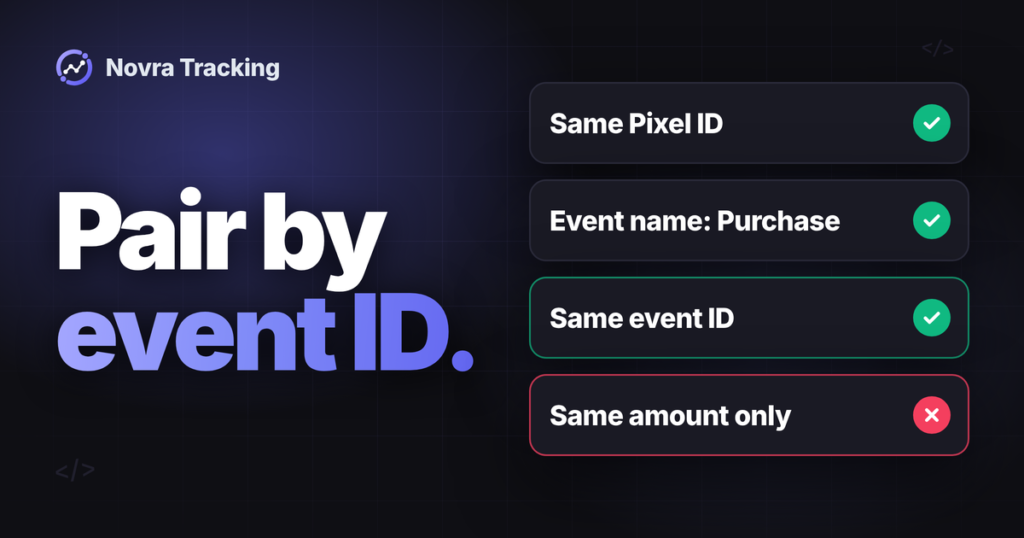
The purchase is marked on the order when the thank-you page reports it, and the browser remembers the order. Reloading the page, going back or opening it on another device does not report it again. When the browser and the server both report a purchase, they share one ID, so the platform keeps one.
Retries and time limits
If a platform is briefly unreachable, the order waits in a queue and is sent again automatically. For Google Ads, a purchase whose thank-you page did not load is reported on the visitor’s next page view. Server copies for Meta, TikTok and several other ad platforms go out only for orders paid within 47 hours. A bank transfer that arrives later may be counted by the browser tag only, if at all.
Diagnosis in the dashboard
- Accuracy by payment method: shows the paid orders of the last 30 days. You see which reached the thank-you page, were sent from the server, were recovered later or were not sent. Methods below 90 % are flagged, and redirect methods get a hint.
- GA4 Data API, optional: a read-only connection that shows which orders really arrived in GA4.
- Conflict check: finds Google tags on your home page that Novra Tracking did not add, such as a Tag Manager container. It checks the home page only.
- Server log and browser console: failed server hits are listed, and adding
?nvtr_debug=1to a page address logs browser events in that tab.
Where Novra Tracking stops
- Server copies follow the consent recorded at checkout. Without consent, nothing is sent.
- It does not recover all missing purchases. Consent, time windows and platform rules decide what arrives.
- Its test purchase sends server-side Google hits to Google’s validation server, which records nothing. Use it to check the connection, not to prove a counted sale.
- It supports WooCommerce, FluentCart and SureCart. Other shop plugins are not supported.
- It feeds GA4, but you still read your results in GA4’s own reports.
For the setup itself, follow our WooCommerce GA4 setup guide with Novra Tracking. If you are still deciding on an architecture, compare the server-side tracking routes for WooCommerce first.
If your gaps cluster around redirects or closed tabs, see how Novra Tracking reports paid WooCommerce orders. It is a one-time payment with a 30-day money-back guarantee, so you can judge it against your own orders.
Fix the cause, then measure forward
Do not resend old orders in bulk to fill the gap. The Measurement Protocol accepts backdated events only up to 72 hours in the past. Resent purchases can also create new duplicates when their IDs differ from the originals.
Instead, note the affected dates and the cause in your records. Fix the failing step, then check the next few paid orders with the same five facts from the start of this guide.
FAQ
Why does GA4 show fewer purchases than WooCommerce even when tracking works?
Some gap is normal. Visitors can refuse consent or block tags, unpaid orders may not count, and reports need time to process. Compare single orders by transaction ID before you assume a technical fault.
Do refunds change the purchase count in GA4?
A refund is reported as its own refund event, separate from the purchase. Novra Tracking sends full and partial refunds to GA4 this way. If refunded orders still look wrong, see our guide to WooCommerce GA4 refund tracking.
Should I install a second GA4 plugin as a backup?
No. Two purchase senders for the same property can create duplicates. Keep one sender per destination and add a server route inside that tool if you need one.