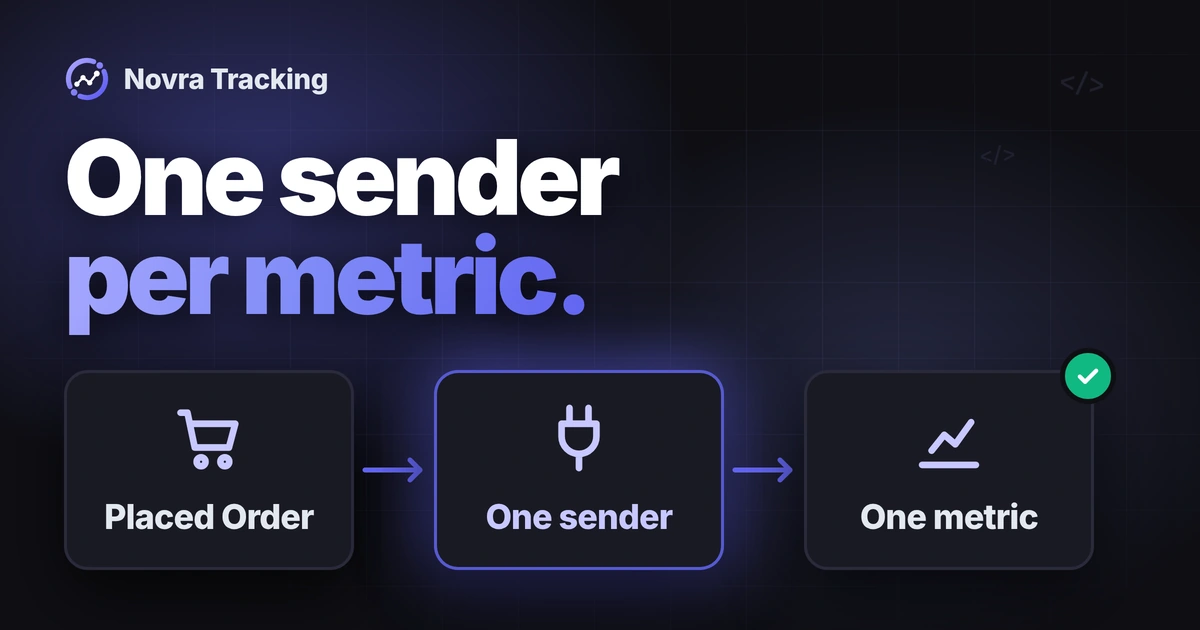
WooCommerce Klaviyo tracking needs four core events for most flows and segments: Viewed Product, Added to Cart, Started Checkout and Placed Order. The safest setup gives each event exactly one sender. Use either Klaviyo’s own WooCommerce integration or Novra Tracking as the owner of each event, then confirm in Klaviyo that every action arrives once.
This guide explains which events matter, how the two tools divide the work, and how identity and consent affect what Klaviyo records. It ends with a check routine that does not send emails to real customers.
Which WooCommerce events Klaviyo needs
Klaviyo calls each type of activity a metric. One event is a single instance of it, for example one product view by one person. Flows start from metrics, and segments filter people by them.
| Metric | What it records | Typical use |
|---|---|---|
| Viewed Product | A known visitor opens a product page. | Browse abandonment flow, interest segments |
| Added to Cart | A known visitor adds an item to the cart. | Abandoned cart flow, product segments |
| Started Checkout | A known visitor reaches checkout with items in the cart. | Abandoned checkout flow |
| Placed Order | An order for the whole cart. | Post-purchase flows, stopping cart reminders, revenue |
| Ordered Product | One event per item in an order. | Segments by purchased product or category |
| Refunded Order, Cancelled Order | Orders that were reversed. | Correcting revenue, excluding people from flows |
These names come from Klaviyo’s WooCommerce data reference. Klaviyo’s own integration also records Active on Site and Fulfilled Order, which fires when an order moves to Complete.
Browsing events only reach a profile when Klaviyo knows the visitor. Klaviyo describes this as a browser it has “cookied”, for example after a Klaviyo email click or a signup form. We cover anonymous visitors further below.
Klaviyo’s integration and Novra Tracking: who does what
Both tools can feed Klaviyo, but they work differently. Klaviyo’s integration connects your store to your Klaviyo account and syncs store data. Novra Tracking sends shop events from the browser and paid orders from your server.
| Task | Klaviyo’s WooCommerce integration | Novra Tracking |
|---|---|---|
| Store sync | Real-time sync, a historical data sync and a profile for each WooCommerce customer. | No historical import and no customer or catalog sync. It sends events as they happen. |
| Browsing and checkout | Viewed Product, Added to Cart, Started Checkout, Active on Site. | Product views, carts, checkout steps and searches through klaviyo.js, after marketing consent. |
| Orders | Placed Order when an order syncs as Processing, Fulfilled Order on Complete, Ordered Product. | Paid orders from your server to the Klaviyo Events API, with a private key. |
| Refunds and cancellations | Refunded Order and Cancelled Order. | Full refunds and cancellations follow the server order. Partial refunds are not sent. |
| Email and SMS signups | Optional consent checkboxes at checkout that add subscribers to a list you choose. | None. Novra Tracking never adds anyone to a list or subscribes them. |
The Novra column summarizes Novra’s browser and server tracking documentation. Klaviyo support in Novra Tracking covers WooCommerce and FluentCart, not SureCart.
When one integration is enough
- Keep Klaviyo’s integration alone if you need historical orders, customer sync, Fulfilled Order or the checkout signup boxes, and its browser tracking is acceptable for your consent setup.
- Use Novra Tracking alone if you want Klaviyo’s browser tracking to wait for marketing consent and paid orders to come from your server, and you do not need the integration’s sync features.
- Run both only with clear ownership. The integration owns orders; Novra adds or replaces browser events. The next section explains why.
Some details in this guide come from the Klaviyo settings screens of Novra Tracking. Check them against the version installed on your site.
How to avoid duplicate events
A duplicate usually means two tools report the same action. Klaviyo does not merge them just because the names match. Klaviyo groups events by sending mechanism: according to its Metrics API overview, Placed Order events from one integration or from the API share one metric. A second sender can therefore create a second Placed Order metric with its own counts.
Within one metric, Klaviyo removes repeats by profile, metric and unique ID together, as the Events API overview explains. That protects against retries from the same sender. It does not join events from two different senders.
- List every sender. Check the Klaviyo plugin, Novra Tracking, tag-manager tags, theme snippets and other marketing plugins.
- Give orders one owner. Either the Klaviyo integration or Novra’s server route sends Placed Order, never both.
- Give each browser event one owner. Viewed Product, Added to Cart and Started Checkout should come from one script.
- Check the result in Klaviyo, as described in the last section, before you build flows on it.
When Klaviyo’s own plugin is active, Novra’s Klaviyo settings offer a mode for running next to it. Novra then sends no orders, because the plugin keeps syncing them. It can either take over the plugin’s browser tracking with its consent-aware version, or add only the events the plugin lacks. The settings name the plugin versions the takeover was tested with. On other versions, check in Klaviyo that every event arrives exactly once.
Metric spelling is a quick clue. Klaviyo’s integration documents Cancelled Order, while Novra’s server route uses Canceled Order according to its settings. Two similar metrics in your list usually mean two senders.
Identity and anonymous visitors
Klaviyo attaches events to profiles. A profile needs an identifier, usually an email address. Without one, browsing events from a first visit do not land on a named profile right away.
How visitors become known
Klaviyo’s script, klaviyo.js, recognizes a browser after a Klaviyo email click, a form submission or an identify call. Klaviyo’s anonymous visitor activity backfill can store earlier activity in the browser for up to 14 days. It sends that activity once the visitor is identified, for example by entering an email at a WooCommerce checkout.
That backfill only runs when the visitor has consented to analytics and marketing cookies. It is an account setting in Klaviyo and runs inside klaviyo.js. Novra Tracking cannot switch it off, according to its settings, so mention it in your privacy policy when it is on.
Novra’s Klaviyo settings include an optional Identify customers switch, off by default. After marketing consent, it tells klaviyo.js who the visitor is. It covers logged-in customers, buyers on the confirmation page and the email typed at checkout. The settings also point out that abandoned-cart emails to people without email opt-in can count as advertising in some countries. Check your legal basis before you turn it on.
Identity for server orders
A server order has no browser of its own. Novra’s server route needs a valid billing email or the Klaviyo identifier from the checkout browser. Without either, it skips the order. A phone number is sent when valid, but does not count as an identifier on its own here.
Profiles created this way are not subscribers. Klaviyo’s consent guide calls a buyer who gave an email at checkout without opting in never subscribed.
What applies to consent
Three questions are separate. May this browser activity be tracked? May this order go to Klaviyo? May this person receive marketing emails or texts?
- Browser tracking: Novra Tracking loads klaviyo.js only after marketing consent from your cookie banner. A withdrawn consent stops further events and removes Klaviyo’s cookie where the site can.
- Server orders: Novra’s Klaviyo settings have a separate consent check for orders sent from the server. With it on, a paid order goes to Klaviyo only with the marketing consent recorded at checkout. With it off, orders go without that check. Review this setting with your legal advisor before you switch on server orders.
- Marketing permission: cookie consent is not email or SMS opt-in. Collect that with Klaviyo’s signup forms or its checkout consent boxes.
If you keep Klaviyo’s plugin in charge of browser tracking, check how your cookie banner controls its klaviyo.js. For the cookie banner side of a shop, see our guide to WooCommerce cookie consent tracking.
Server-side sending does not make tracking consent-free. It also does not settle whether your setup meets privacy law. That question belongs with your legal advisor.
Set up Novra Tracking for Klaviyo
If you choose Novra as the event owner, the setup takes a few minutes. Novra Tracking needs WordPress 6.4+, PHP 8.0+ and WooCommerce 8.0+.
- Decide ownership first. Keep or remove Klaviyo’s plugin based on the choice above.
- Open Novra Tracking → Settings → Klaviyo and switch it on.
- Paste the public API key. Klaviyo calls it the six-character site ID. It identifies your account and is safe in page code.
- For server orders, add a private API key and switch on sending orders from the server. Novra’s settings ask for a custom key with full access to Events and read access to Accounts.
- Choose whether to identify customers, as described above.
- Check which order value Novra sends. The default is the order total; the alternative is products after discounts, without tax and shipping.
Keep the private key out of page code, screenshots and support messages. Klaviyo’s authentication guide says private keys must never appear in client-side code. Novra stores tokens encrypted and leaves them out of the system report.
If Novra is your only order sender, open Analytics → Metrics → Edit mapped metrics in Klaviyo. Check that revenue points to the Placed Order metric you actually use.
Hypothetical example: products cost $100, a $10 discount applies, shipping is $5 and tax is $9. Novra’s default sends $104. Klaviyo’s integration documents revenue as subtotal plus shipping minus discounts, which gives $95. A different value is not a missing order.
Want Klaviyo’s browser tracking to wait for consent and orders to come from your server? See how Novra Tracking sends WooCommerce events to Klaviyo. It is a one-time payment with a 30-day money-back guarantee.
How to check that the data arrives in Klaviyo
Test events can start live flows. A test order can trigger post-purchase emails, and a test checkout can trigger cart reminders. Use a test store and a separate Klaviyo test account if you can. Otherwise pause or filter the affected flows first.
- Test as a visitor. Novra excludes administrators and shop managers by default. Use a private window and an email inbox you control.
- Watch the browser side. Add
?nvtr_debug=1to a shop URL to see Novra’s events in the browser console. This shows what was sent, not what Klaviyo stored. - Open the profile. Search your test email in Klaviyo and check its activity timeline for Viewed Product, Added to Cart, Started Checkout and Placed Order.
- Open Analytics → Metrics. Klaviyo marks metrics from its WooCommerce integration with a WooCommerce icon. Look for the same metric name appearing twice with different sources.
- Compare one order. Count Placed Order and Ordered Product events for that one order. Then check the value against the definition you chose.
Do not use addresses at example.com or test.com. Klaviyo accepts the request but silently drops events for these addresses, so the test looks broken.
Limits of these checks
- Klaviyo processes API events with a delay. An accepted request, HTTP 202, does not mean the event is visible or unique.
- Browsing events only appear for known visitors. An empty timeline after an anonymous visit can be correct.
- A visitor who declined marketing consent should produce no browser events. Test with consent granted, then with consent declined.
- Novra’s Klaviyo settings note that the server route has so far been tested against a simulated service. Confirm real orders in your account before you depend on them.
- Novra’s settings describe orders older than 48 hours as backfill, which Klaviyo records without starting flows.
- Do not replay real orders or change timestamps to fill gaps. That can trigger messages to real customers.
Refunds deserve their own test. For the same check in Google Analytics, see our guide to tracking WooCommerce refunds in GA4.
FAQ
Does Novra Tracking replace Klaviyo’s WooCommerce integration?
Not fully. It sends browsing events and paid orders, but it does not import historical orders, sync customers or add signup boxes to checkout. Keep the integration if you need those features.
Will Novra Tracking subscribe my customers to email marketing?
No. Novra Tracking never adds anyone to a Klaviyo list or subscribes them. Klaviyo may still create profiles from events, and those profiles stay never subscribed until people opt in.
Are subscription renewals sent as new orders?
No. Novra reports WooCommerce Subscriptions renewals as renewals, never as new purchases. An optional switch in Novra’s Klaviyo settings sends Renewed Subscription and Cancelled Subscription to Klaviyo. For the GA4 side, see our guide to WooCommerce subscription tracking in GA4.
Ready to give each Klaviyo event one clear sender? Check whether Novra Tracking fits your Klaviyo setup, then test it in a safe store before you change production.